
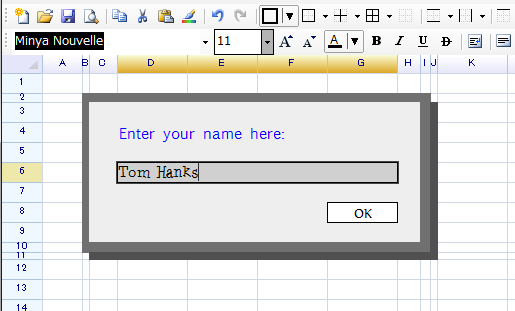
Cells enter edit mode when the user double-clicks or presses F2. ReoGrid overlays a text box on top of the cell to capture input.
Namespace
using unvell.ReoGrid;Start Editing
Use StartEdit on a worksheet to begin editing a cell. If another cell is already in edit mode, ReoGrid ends that session first.
// Edit the currently selected cell
sheet.StartEdit();

// Edit the selected cell with initial text
sheet.StartEdit("initial text");

// Edit by position
sheet.StartEdit(new CellPosition("A1"));
sheet.StartEdit(new CellPosition("A1"), "initial text");

// Edit by row and column index
sheet.StartEdit(2, 3);
sheet.StartEdit(2, 3, "initial text");
StartEdit Overloads
| Signature | Description |
|---|---|
StartEdit() | Edit the currently selected cell |
StartEdit(string newText) | Edit the selected cell with initial text displayed in the edit field |
StartEdit(CellPosition pos) | Edit cell at the specified position |
StartEdit(CellPosition pos, string newText) | Edit cell at the specified position with initial text |
StartEdit(int row, int col) | Edit cell at the specified row and column index |
StartEdit(int row, int col, string newText) | Edit cell at the specified row and column with initial text |
All overloads return bool — true if edit mode started successfully, false otherwise (e.g., cell is read-only or BeforeCellEdit was cancelled).
Start Edit from Cell Instance
var cell = sheet.Cells["A1"];
cell.StartEdit();
End Editing
Use EndEdit to finish an edit. The EndEditReason controls whether changes are committed or discarded.
// End editing normally (commit changes)
sheet.EndEdit();
sheet.EndEdit(EndEditReason.NormalFinish);

// Cancel editing (discard changes)
sheet.EndEdit(EndEditReason.Cancel);

// End editing with custom data (overrides user input)
sheet.EndEdit("Override Value");
sheet.EndEdit("Override Value", EndEditReason.NormalFinish);
EndEdit Overloads
| Signature | Description |
|---|---|
EndEdit(EndEditReason reason = EndEditReason.NormalFinish) | End editing with the specified reason |
EndEdit(object data) | End editing with custom data instead of user-entered text |
EndEdit(object data, EndEditReason reason) | End editing with custom data and specified reason |
All overloads return bool — true if the worksheet was in edit mode and the operation completed successfully.
End Edit from Cell Instance
var cell = sheet.Cells["A1"];
cell.EndEdit("new data");
EndEditReason Enum
| Value | Description |
|---|---|
NormalFinish | User completed editing normally (Enter, Tab, click elsewhere). Changes are committed. |
Cancel | User cancelled the edit (Escape). Changes are discarded. |
Edit State Properties
// Check if any cell is currently being edited
bool isEditing = sheet.IsEditing;

// Get the cell currently being edited (null if not editing)
Cell editingCell = sheet.EditingCell;

// Get or set the current text in the edit text box
string editText = sheet.CellEditText;
sheet.CellEditText = "modified text";| Property | Type | Description |
|---|---|---|
IsEditing | bool | Whether any cell is currently in edit mode (read-only) |
EditingCell | Cell | The cell currently being edited, or null (read-only) |
CellEditText | string | The current text in the edit text box (read/write) |
Read-Only Cells
Prevent editing on individual cells:
var cell = sheet.Cells["A1"];
cell.IsReadOnly = true;
Make the entire worksheet read-only:
sheet.SetSettings(WorksheetSettings.Edit_Readonly, true);See Protection & Locking for comprehensive protection options.
Input Behavior Settings
// Disable automatic data formatting after input
sheet.SetSettings(WorksheetSettings.Edit_AutoFormatCell, false);

// Disable the friendly percent helper (appends % during editing)
sheet.SetSettings(WorksheetSettings.Edit_FriendlyPercentInput, false);

// Disable auto-adjust row height when font size increases
sheet.SetSettings(WorksheetSettings.Edit_AutoAdjustRowHeight, false);
See Settings for all worksheet settings.
Events
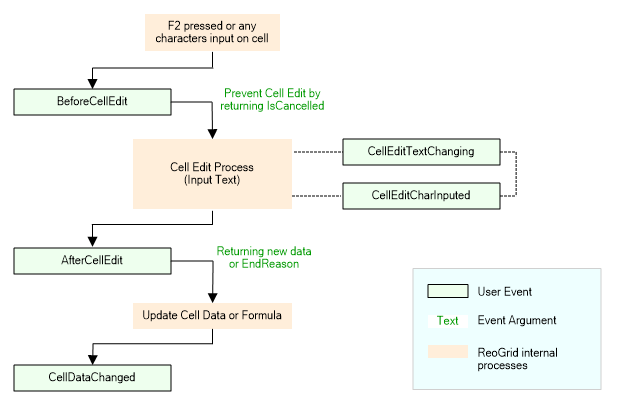
ReoGrid raises events before, during, and after edit mode. You can cancel an edit, validate text, or transform user input.
BeforeCellEdit
Fires right before the edit box appears. Set IsCancelled = true to block editing.
sheet.BeforeCellEdit += (s, e) =>
{
    // Block editing for specific cells
    if (e.Cell.Column == 0)
        e.IsCancelled = true;

    // Change the initial text shown in the edit box
    e.EditText = "default value";
};
CellBeforeEditEventArgs Properties:
| Property | Type | Description |
|---|---|---|
Cell | Cell | The cell about to be edited |
IsCancelled | bool | Set to true to prevent editing |
EditText | string | Text to display in the edit field (modifiable) |
CellEditTextChanging
Fires when the edit text changes (typing, paste, or IME input). Use this to replace or validate text during editing.
sheet.CellEditTextChanging += (s, e) =>
{
    // Replace specific input with predefined data
    if (e.Text.Equals("specific input"))
    {
        e.Text = "predefined data";
    }
};
CellEditTextChangingEventArgs Properties:
| Property | Type | Description |
|---|---|---|
Cell | Cell | The cell being edited |
Text | string | The current edit text (modifiable — set to replace) |
CellEditCharInputed
Fires per character input. Provides details about the character and cursor position.
sheet.CellEditCharInputed += (s, e) =>
{
    Console.WriteLine($"Char: {(char)e.InputChar}, Position: {e.CaretPositionInLine}");
};
Note: In WPF, character replacement is not supported in this event. Use
CellEditTextChanginginstead. CellEditCharInputEventArgs Properties:
| Property | Type | Description |
|---|---|---|
Cell | Cell | The cell being edited |
InputChar | int | The input character code (modifiable) |
CaretPositionInLine | int | Caret position within the current line (read-only) |
LineIndex | int | Line index in the edit text (read-only) |
InputText | string | The full current edit text (read-only) |
AfterCellEdit
Fires after the user finishes editing. You can modify the resulting data, change the format, or cancel the edit to revert.
sheet.AfterCellEdit += (s, e) =>
{
    // Override the data
    e.NewData = ProcessInput(e.NewData);

    // Change the data format for the new data
    e.DataFormat = CellDataFormatFlag.Number;

    // Or cancel to revert to the original value
    // e.EndReason = EndEditReason.Cancel;
};
CellAfterEditEventArgs Properties:
| Property | Type | Description |
|---|---|---|
Cell | Cell | The cell that was edited |
NewData | object | The new data value (modifiable — set to override user input) |
EndReason | EndEditReason | Reason the edit ended (modifiable — set to Cancel to revert) |
DataFormat | CellDataFormatFlag | Data format to apply to the new data (modifiable) |
CellValidation
Fires after validation is performed on the editing text. Provides validation results and allows overriding the valid/invalid status.
sheet.CellValidation += (s, e) =>
{
    if (!e.IsValid)
    {
        Console.WriteLine($"Validation failed: {e.Failures.Count} failure(s)");
    }

    // Override the validation result
    e.IsValid = true;
};
CellValidationEventArgs Properties:
| Property | Type | Description |
|---|---|---|
Cell | Cell | The cell being validated |
Failures | IList<IValidationFailure> | List of validation failures (null or empty means valid) |
IsValid | bool | Whether the input is valid (modifiable — set to override) |
See Data Validation for setting up validation rules.
CellDataChanged
Fires when cell data actually changes — both from user editing and programmatic updates (e.g., SetCellData, paste). This is the final hook for observing data changes.
sheet.CellDataChanged += (s, e) =>
{
    Console.WriteLine($"Cell {e.Cell.Address} changed to: {e.Cell.Data}");
};
Note:
CellDataChangeddoes not fire when the user presses Escape to cancel editing. It fires for both interactive and programmatic data changes.
Common Patterns
Restrict Editing to a Range
var editableRange = new RangePosition(3, 1, 2, 3);

sheet.SetRangeBorders(editableRange, BorderPositions.Outside, RangeBorderStyle.BlackSolid);
sheet[2, 1] = "Edit only allowed in this range:";

sheet.BeforeCellEdit += (s, e) =>
    e.IsCancelled = !editableRange.Contains(e.Cell.Position);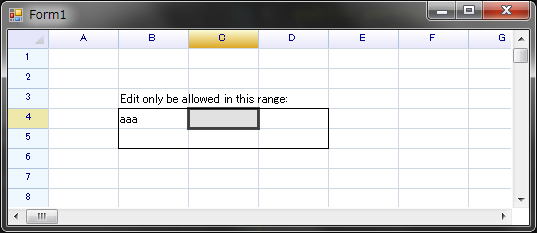
Auto-Uppercase Input
sheet.CellEditTextChanging += (s, e) =>
{
    e.Text = e.Text.ToUpper();
};
Validate and Reject Invalid Input
sheet.AfterCellEdit += (s, e) =>
{
    if (e.Cell.Column == 2 && !int.TryParse(e.NewData?.ToString(), out _))
    {
        e.EndReason = EndEditReason.Cancel;  // Revert to original value
    }
};
Related Topics
- Data Validation — Validation rules and prompts
- Cell — Cell properties and data access
- Events — All worksheet events
- Settings — Editing behavior settings
- Protection & Locking — Cell and worksheet locking