
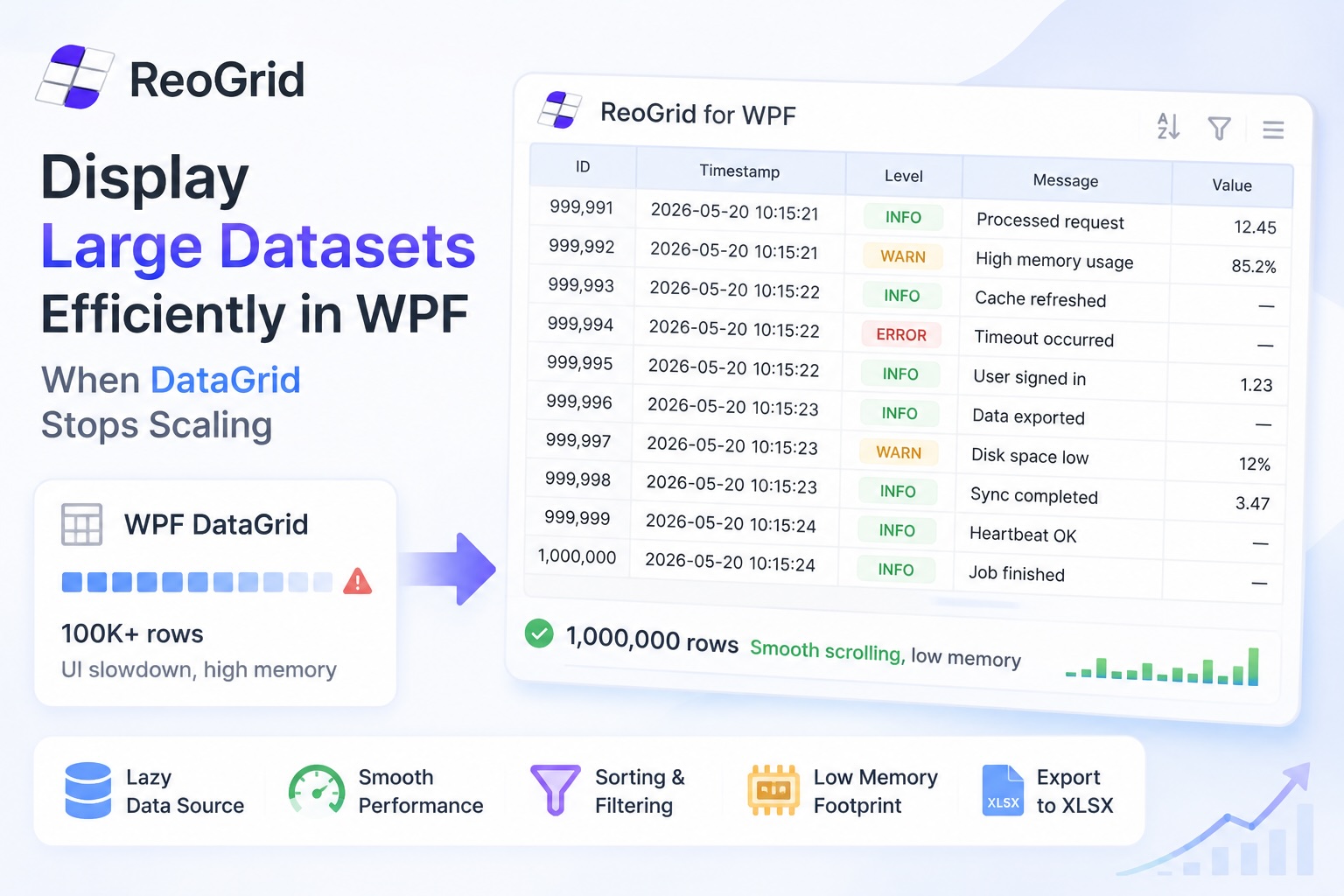
The built-in System.Windows.Controls.DataGrid is virtualized — only the rows currently on screen are realized into visuals. People hear “virtualized” and assume the control will scale to whatever you throw at it. It doesn’t. There’s a row count past which the grid is fine but everything around it — the ItemsSource materialization, sort, filter, style triggers, export — falls over.
This article is about that gap. We’ll walk through where WPF DataGrid actually stops scaling, what you can recover by tuning, and the lazy-data-source pattern that lets you keep a million-row workload usable.
What “large” means for a WPF DataGrid
Up to about 10,000 rows, the stock DataGrid with virtualization on is usually fine. The user scrolls, rows materialize, scrolling is smooth. You will not feel a problem.
Between 10,000 and 100,000 rows, virtualization still works while scrolling, but the things around scrolling start to hurt: initial bind, sort, filter, AutoGenerateColumns measuring, Style.Triggers on every cell.
Past 100,000 rows the model itself is the problem. Even if every visible row is virtualized, you’ve still materialized 100,000 view-models in memory, run them all through the sort comparer, and held them in a CollectionView. Memory and GC start to dominate.
This article assumes you’ve already established you need to display this many rows — telemetry browsers, transaction blotters, log viewers, lab data. If you only need to paginate a long list, that’s a different problem and DataGrid plus paging works fine.
Where DataGrid stalls in practice
| Symptom | What’s actually happening |
|---|---|
| Initial load freezes the UI for several seconds | Every row in ItemsSource is constructed and held in memory before the first paint |
| Scrolling is jerky | ScrollUnit="Item" measures every row, or row containers re-template on each scroll tick |
| Sort takes 5+ seconds on a column click | ICollectionView.SortDescriptions walks every row in the source, not just the visible ones |
| Filter dropdowns lag | Each opening of the dropdown re-enumerates distinct values across all rows |
AutoGenerateColumns="True" is slow on first paint | The control measures column widths against a sample of rows that grows with row count |
| Excel export OOMs | Each row gets a fresh XLCell / ExcelCell instance; 500k cells × object overhead is a lot |
The fixes for the symptoms in the top half of that table are tuning. The fixes for the bottom half — especially export and any “show this big dataset with formulas / merges / multiple sheets” requirement — are architectural, and we’ll get to them.
Option 1: tune the WPF DataGrid
Before adding new dependencies, try the levers the control already gives you. The good news is most defaults are already correct in modern .NET; the failures tend to come from XAML that disabled a default by accident.
Confirm virtualization is on. The defaults are EnableRowVirtualization="True" and EnableColumnVirtualization="True". If you’ve set ScrollViewer.CanContentScroll="False" anywhere up the visual tree — or wrapped the grid in another ScrollViewer — virtualization silently turns off. Check the inspector.
Use item-level scrolling, not pixel-level, for heavy templates.
<DataGrid VirtualizingPanel.ScrollUnit="Item"
          VirtualizingPanel.VirtualizationMode="Recycling"
          EnableRowVirtualization="True"
          EnableColumnVirtualization="True" />
Recycling reuses container instances instead of creating new ones on every scroll — a big win when row templates have triggers, converters, or attached behaviors. Trade-off: smooth pixel-precise scrolling becomes step-by-row. For data grids users skim, this is the right trade.
Don’t auto-size every column. DataGridLength.Auto re-measures across all loaded rows on every change. Pin the widths you know, and use * (star) only on the column the user actually resizes.
Avoid AutoGenerateColumns="True" for production grids. Define columns explicitly. Auto-generation walks the source to infer types and runs reflection per row on first paint.
Load asynchronously. Don’t assign ItemsSource from a synchronous DB call on the UI thread:
// Inside an async event handler:
var rows = await Task.Run(() => _repo.LoadRows());
grid.ItemsSource = rows;          // assignment itself is fast; the cost was the load
For larger sets, switch to incremental loading — push rows in via ObservableCollection<T> in batches, or use a CollectionView that defers refresh:
using (collectionView.DeferRefresh())
{
    foreach (var batch in batches)
        foreach (var row in batch)
            source.Add(row);
}
These are the cheap fixes. They take a 100k-row screen from “freezes for 6 seconds” to “loads instantly and scrolls smoothly.” They do not solve the architectural problems: sort still touches every row, filter still enumerates the whole source, and the moment a user asks for formulas, merged headers, or .xlsx round-tripping, you’re outside what a DataGrid is built for. See Choosing the Right Editable Grid for WinForms and WPF Apps for that decision.
Option 2: a lazy data source
Once you’re past a few hundred thousand rows, the right move is to stop loading everything into the grid’s memory in the first place. The control should ask the source for the rows it needs to draw, and only those.
ReoGrid 4.4 added a built-in LazyLoadDataSource that makes this almost a one-liner. You hand it an object[,] array, attach it in lazy mode, and the worksheet only materializes Cell instances for the rows that are actually rendered or referenced. The array is held by reference — it isn’t copied — so the grid-side memory is roughly “the visible region” rather than “every row times every column.”
using unvell.ReoGrid.Data;

// 1,000,000 rows × 10 columns, already in memory as a plain object[,].
var data = new object[1_000_000, 10];
FillData(data);   // your own population logic

worksheet.SetRows(data.GetLength(0));

// One line. Range is inferred from the source's RecordCount / ColumnCount.
worksheet.AddDataSource(
    new LazyLoadDataSource(data),
    DataSourceLoadMode.LazyLoading);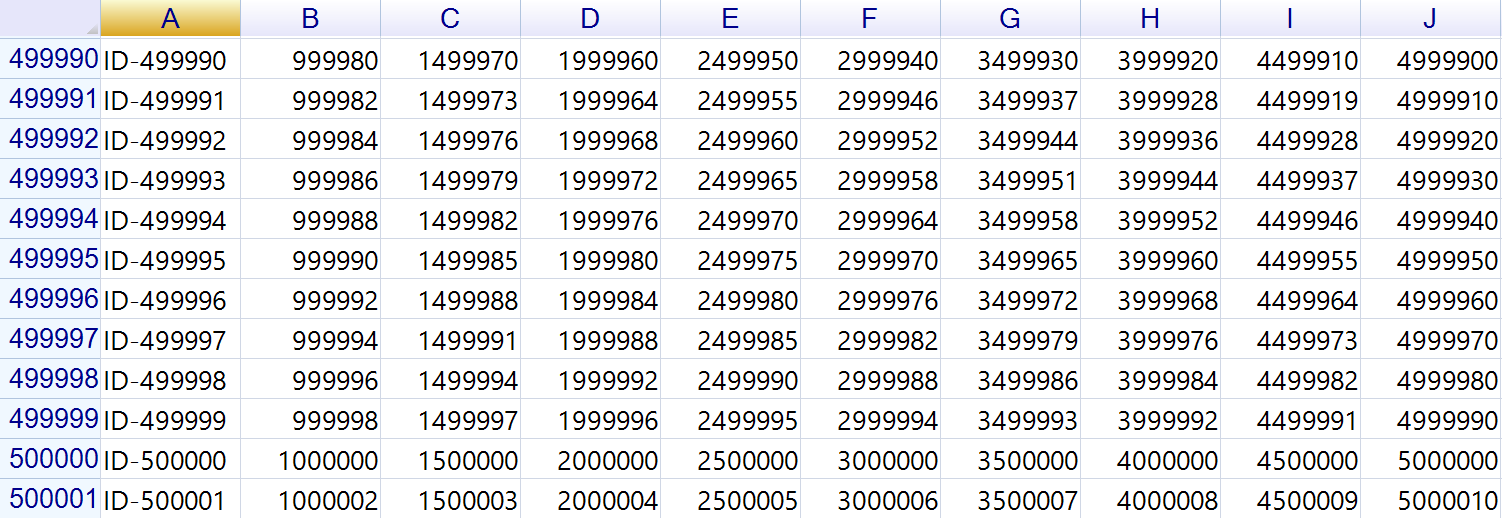
With one million rows attached, only the ~30 rows currently on screen are ever turned into Cell instances. As the user scrolls, more rows are materialized on demand. Formulas that reference a not-yet-visible cell pull it through the same path, so cross-row references still work.
If you want to point the source at a sub-range instead of the whole sheet, the explicit form is still there:
worksheet.AddDataSource(
    new RangePosition(0, 0, rows, cols),
    new LazyLoadDataSource(data),
    DataSourceLoadMode.LazyLoading);
A few practical notes:
- The
object[,]is held by reference. Mutating it after attach will be reflected the next time the affected cells are loaded. Convenient for streaming new values into existing rows; surprising if you weren’t expecting it. - To append rows, swap the source. Grow the
object[,], callRemoveAllDataSources(), thenAddDataSource(new LazyLoadDataSource(newData), …)andSetRows(newRows). The demo in the source tree (DemoJP/Performance/LazyLoadDemo.cs) follows exactly this pattern. - Memory profile. The raw
object[,]is still in memory — what you avoid is the grid-side materialization (per-row records, styles, borders, formula state). If even the raw array is too large, drop down to a customIDataSource<T>whoseGetRecordreads from disk or a database — sameDataSourceLoadMode.LazyLoading, just a different backing store.
Full walkthrough with formatting and borders: Speeding Up Large Data Loading with Lazy Load Mode.
Option 3: bulk write when you already have the data
If the entire dataset is in memory and you just want to put it on the screen as fast as possible, lazy loading isn’t the right tool — bulk writing is. The cost of sheet["A1"] = x 200,000 times is mostly per-cell event/setup overhead, not the value assignment itself.
SetRangeData takes the whole 2D block at once and writes it in one pass:
var data = new object[rows, cols];
for (int r = 0; r < rows; r++)
    for (int c = 0; c < cols; c++)
        data[r, c] = source[r, c];

sheet.SetRangeData("A1", data);
In ReoGrid 4.4 this is roughly 3× faster than per-cell assignment on a 200,000-cell workload, and it composes cleanly with conditional formatting — which 4.4 also made dramatically faster on bulk writes (see the 4.4 release notes).
Rule of thumb:
- Streaming or open-ended source → lazy data source.
- Whole dataset in hand at once →
SetRangeData. - Both true → load with
SetRangeData, leave the grid in normal mode.
What you get for free that DataGrid won’t
Once you’re already in a spreadsheet control because of row count, you incidentally pick up things WPF DataGrid never had:
- Frozen rows/columns that survive horizontal scrolling
- Cell merging in headers and body
- Multiple sheets in the same control instance
- Conditional formatting that doesn’t re-run on every scroll tick (4.4 made bulk-write + conditional formatting ~11,700× faster)
- Native
.xlsxexport of the visible data, formulas and formats intact - Formulas between cells, so users can add a
=SUM(...)row without you writing code
You don’t have to use these. They’re there if the requirement shows up next quarter.
Exporting the dataset to .xlsx
The “show 500k rows” requirement is almost always followed by “and let me download it as an Excel file.” This is where DataGrid-based stacks fall hardest — the export path usually re-enumerates Items and constructs a fresh cell object per value, which is what eats the memory.
If the data is already in a Worksheet, the export is a single call:
worksheet.Workbook.Save("export.xlsx");No second pass. No copy into a different library’s object model. The same in-memory representation that’s drawing the grid is what gets written.
For DataTable-shaped sources where the grid is incidental, the comparison of the standalone libraries is in Export a DataTable to Excel (.xlsx) in C# Without Office Interop.
A short decision tree
- Fewer than 10k rows, list-shaped, no formulas? → stock WPF
DataGrid, defaults are fine. - 10k–100k rows, still list-shaped? → WPF
DataGridwith the tuning above (recycling, explicit columns, async load). - 100k+ rows, or data arrives incrementally? → lazy data source (
IDataSource+DataSourceLoadMode.LazyLoading). - Whole dataset in memory, want it on screen instantly? →
SetRangeDatabulk write. - Any of: formulas, merged headers, multiple sheets,
.xlsxround-trip? → you’ve outgrownDataGrid. See Choosing the Right Editable Grid.
The expensive mistake here is the same one as for editable grids in general: keeping the built-in control past the point where it makes sense, and patching the symptoms one at a time. The first three tuning fixes are worth doing. If you’re still hitting walls after them, the problem is the model, not the knobs.
Further reading
- Choosing the Right Editable Grid for WinForms and WPF Apps — when to switch off
DataGridentirely - Announcing ReoGrid 4.4 — bulk-load and conditional-formatting performance numbers
- Export a DataTable to Excel (.xlsx) in C# Without Office Interop — exporting large tabular data from .NET
- Speeding Up Large Data Loading with Lazy Load Mode — the full
IDataSourcewalkthrough - Performance — what makes the rendering pipeline fast