
Every few months someone asks the same question on Stack Overflow: “How do I display an Excel file in my WinForms app?” The answers fall into three buckets — automate Office (don’t), point a WebBrowser at the file (don’t), or use a spreadsheet component (this article).
If you need users to actually see an .xlsx file inside your desktop app — and ideally edit it and save it back — this post is the minimum path from zero to a working viewer in WinForms and WPF.
What “display” actually means
Before picking an approach it’s worth being precise about what users are asking for. There are four levels:
- Read-only preview — show the values of a known sheet. No formatting, no formulas.
- Faithful viewer — show the workbook the way Excel would: fonts, fills, borders, merged cells, multiple sheets, frozen panes.
- Live editor — let the user click a cell, type, watch formulas recalculate, save back to
.xlsx. - Spreadsheet host — your app is the spreadsheet, with your own commands and side data.
Levels 1–2 are wrong-tool problems for DataGridView. Levels 3–4 are wrong-tool problems for any data grid. You want a spreadsheet component — a control that renders cells the way Excel does and knows the .xlsx format natively.
What not to do
Three approaches you’ll find on the web that are best avoided:
Microsoft.Office.Interop.Excel— automates a real Excel process via COM. Requires Excel installed on every user’s machine, unsupported in services, and you don’t actually get to embed the UI in your form.- WebBrowser pointed at the file — opens Excel out of process, or shows the OneDrive web viewer if you’re online. Looks like it works for ten minutes, then breaks on the first machine without Office.
- DataGridView with column headers — works for a flat list of records. Falls over the moment the file has formulas, merged cells, or more than one sheet. See this post on when DataGridView stops being enough.
The actual approach is a control that draws the workbook itself. We’ll use ReoGrid below — the same shape of code works with any spreadsheet component, but ReoGrid happens to be ours and has the most permissive free tier.
WinForms: load, display, save
The whole thing is about 15 lines.
1. Install the NuGet package:
PM> Install-Package unvell.ReoGrid.dll2. Drop a ReoGridControl on your form (either from the Visual Studio toolbox or in code).
3. Load and save:
using unvell.ReoGrid;

public partial class MainForm : Form
{
    public MainForm()
    {
        InitializeComponent();
    }

    private void openButton_Click(object sender, EventArgs e)
    {
        using var dlg = new OpenFileDialog { Filter = "Excel Workbook|*.xlsx" };
        if (dlg.ShowDialog() != DialogResult.OK) return;

        reoGridControl1.Load(dlg.FileName);   // .xlsx in, fully rendered.
    }

    private void saveButton_Click(object sender, EventArgs e)
    {
        using var dlg = new SaveFileDialog { Filter = "Excel Workbook|*.xlsx" };
        if (dlg.ShowDialog() != DialogResult.OK) return;

        reoGridControl1.Save(dlg.FileName);   // user's edits round-trip.
    }
}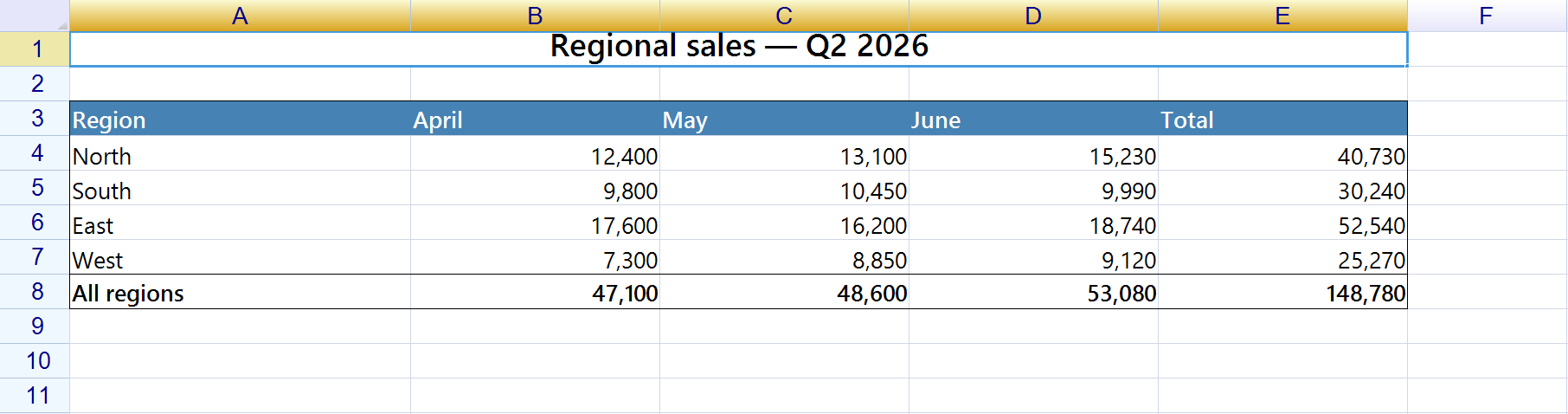
That’s it. The user opens the file, sees the workbook with fonts/fills/borders intact, can click any cell, type, watch dependent formulas recalculate, switch sheets via the tabs at the bottom, and save. No external process, no Office installation, no WebBrowser hack.
WPF: same idea, different package
1. Install the WPF package:
PM> Install-Package unvell.ReoGridWPF.dll2. Reference the namespace in XAML and drop the control in:
<Window x:Class="ExcelViewerWpf.MainWindow"
        xmlns="http://schemas.microsoft.com/winfx/2006/xaml/presentation"
        xmlns:x="http://schemas.microsoft.com/winfx/2006/xaml"
        xmlns:rg="clr-namespace:unvell.ReoGrid;assembly=unvell.ReoGrid"
        Title="Excel Viewer" Height="600" Width="900">

    <DockPanel>
        <ToolBar DockPanel.Dock="Top">
            <Button Content="Open"  Click="OpenButton_Click"/>
            <Button Content="Save"  Click="SaveButton_Click"/>
        </ToolBar>

        <rg:ReoGridControl x:Name="Grid"/>
    </DockPanel>
</Window>
3. Code-behind:
using Microsoft.Win32;
using unvell.ReoGrid;

public partial class MainWindow : Window
{
    public MainWindow() => InitializeComponent();

    private void OpenButton_Click(object sender, RoutedEventArgs e)
    {
        var dlg = new OpenFileDialog { Filter = "Excel Workbook|*.xlsx" };
        if (dlg.ShowDialog() != true) return;
        Grid.Load(dlg.FileName);
    }

    private void SaveButton_Click(object sender, RoutedEventArgs e)
    {
        var dlg = new SaveFileDialog { Filter = "Excel Workbook|*.xlsx" };
        if (dlg.ShowDialog() != true) return;
        Grid.Save(dlg.FileName);
    }
}
The API is identical between the WinForms and WPF flavors of the control — the only thing that differs is which assembly you reference. That keeps the option of sharing logic open if you ever maintain both UIs.
What “fully rendered” means
Once the file is loaded, the user gets the things they’d lose with a DataGridView:
- Fonts, fills, and borders as Excel would draw them
- Merged cells, including in headers
- Multiple worksheets with the tab bar at the bottom
- Formulas — typing
=SUM(A1:A10)into a cell recalculates immediately via the built-in formula engine - Number, date, currency, and percentage formats preserved from the source
.xlsx - Frozen rows/columns if the file has them
- Conditional formatting (see this article)
You don’t write any code to enable these. They’re what makes a spreadsheet control different from a grid control.
Common follow-up: read-only mode
If you only want to show the file (e.g. an invoice preview screen), lock editing on every sheet:
foreach (var sheet in reoGridControl1.Worksheets)
{
    sheet.SetSettings(WorksheetSettings.Edit_Readonly, true);
}
The control still renders fonts, formulas, and formatting; the user just can’t change any cell. This is the cleanest answer to “I need an Excel viewer, but the user shouldn’t be able to edit it.”
Common follow-up: load from a stream or byte array
In a lot of apps the .xlsx is not on disk — it came from a database BLOB, an HTTP response, or a MemoryStream. The Load method takes a stream:
using var stream = await httpClient.GetStreamAsync(invoiceUrl);
reoGridControl1.Load(stream, FileFormat.Excel2007);
And the inverse:
using var stream = new MemoryStream();
reoGridControl1.Save(stream, FileFormat.Excel2007);
byte[] xlsxBytes = stream.ToArray();    // store, upload, attach to an email, etc.
No temp files, no extra dependencies.
Common follow-up: knowing when the user changed something
Two events cover almost every “did anything change?” workflow:
// Specific cell edited (typed value or pasted)
reoGridControl1.CurrentWorksheet.CellDataChanged += (s, e) =>
{
    Debug.WriteLine($"Cell {e.Cell.Address} now = {e.Cell.Data}");
};

// Broad "workbook is dirty" signal — fires on any structural or value change
reoGridControl1.WorkbookSaved += (s, e) => isDirty = false;
That’s enough to wire up an “Unsaved changes — quit anyway?” dialog without writing a diff against the original file.
What this gets you over Interop
To make the comparison concrete:
| Office Interop | Spreadsheet component | |
|---|---|---|
| Requires Excel installed | Yes | No |
| Works on server / Linux | No | Yes (for headless use) |
| UI embedded in your app | No (separate Excel window) | Yes (control on your form) |
| Survives an Excel update | Sometimes | Yes |
| Licensing | Office license per user | Component license once |
| Speed of cell reads | Slow (COM marshaling) | Fast (in-process) |
For internal tools where “every user has Office” feels like a given, Interop is still tempting. The moment one machine doesn’t, or one customer is on Mac, or you ship a service — it stops working. A spreadsheet control sidesteps the whole problem.
Where to go next
- ReoGrid installation guide — NuGet packages and references
- ReoGrid quick start — opening, editing, and saving a workbook
- Reading and Writing Excel Files in C# Without Office Interop — when you don’t need the UI at all
- Choosing the Right Editable Grid for WinForms and WPF Apps — picking between a data grid and a spreadsheet