
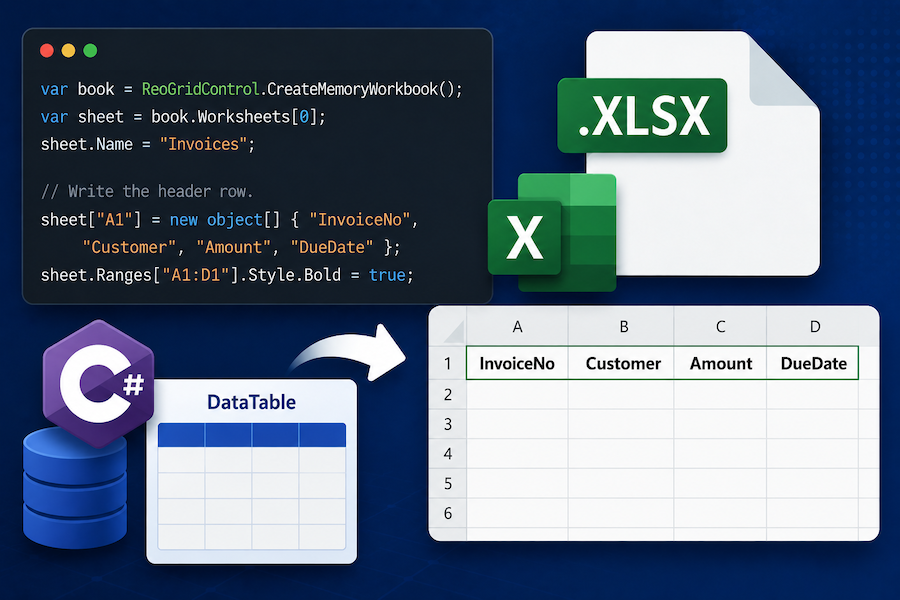
DataTable is still everywhere in .NET: it falls out of SqlCommand, DbDataAdapter, Oracle.ManagedDataAccess, and half the reporting code in any enterprise codebase. The single most common thing teams want to do with one is “give the user this as an Excel file.”
This article walks through how to do that cleanly from C#, without Microsoft.Office.Interop.Excel, in a way that works on a server, in a container, and on Linux.
What we actually want
Given a DataTable like this:
var table = new DataTable("Invoices");
table.Columns.Add("InvoiceNo", typeof(string));
table.Columns.Add("Customer",  typeof(string));
table.Columns.Add("Amount",    typeof(decimal));
table.Columns.Add("DueDate",   typeof(DateTime));

table.Rows.Add("INV-1001", "Acme Co.",   1240.50m, new DateTime(2026, 6, 1));
table.Rows.Add("INV-1002", "Beta LLC",     980.00m, new DateTime(2026, 6, 5));
table.Rows.Add("INV-1003", "Gamma Ltd.", 12450.75m, new DateTime(2026, 6, 15));
…the goal is a real .xlsx file with:
- A bold header row using the column names
- Numbers formatted as currency
- Dates formatted as dates (not “45809”)
- Auto-sized columns
- Something the user can open in Excel without a “this file is corrupted” dialog
That’s the bar. Let’s hit it three ways.
Option 1: ClosedXML (InsertTable)
ClosedXML has a built-in InsertTable(DataTable) that does most of the work in one call.
using ClosedXML.Excel;

using var book = new XLWorkbook();
var sheet = book.Worksheets.Add("Invoices");

// One line writes headers + every row.
var range = sheet.Cell("A1").InsertTable(table, "Invoices", createTable: true);

// Number / date formats by column.
sheet.Column("C").Style.NumberFormat.Format = "$#,##0.00";
sheet.Column("D").Style.NumberFormat.Format = "yyyy-mm-dd";

sheet.Columns().AdjustToContents();

book.SaveAs("invoices.xlsx");
createTable: true writes it as an OpenXML table (the thing Excel renders with banded rows and a filter dropdown). Pass false if you just want plain values. The library reads the DataTable.Columns collection for headers and DataRow.ItemArray for values — DBNull is written as an empty cell.
Trade-off: ClosedXML loads the whole workbook into memory. Fine up to a few hundred thousand cells; gets uncomfortable past that.
Option 2: EPPlus (LoadFromDataTable)
EPPlus has the equivalent helper, with slightly different ergonomics:
using OfficeOpenXml;

// EPPlus 5+ requires you to declare a license context.
ExcelPackage.LicenseContext = LicenseContext.NonCommercial;

using var package = new ExcelPackage();
var sheet = package.Workbook.Worksheets.Add("Invoices");

// Returns the cell range that was written.
var range = sheet.Cells["A1"].LoadFromDataTable(table, PrintHeaders: true);

range.AutoFitColumns();
sheet.Cells[2, 3, sheet.Dimension.End.Row, 3].Style.Numberformat.Format = "$#,##0.00";
sheet.Cells[2, 4, sheet.Dimension.End.Row, 4].Style.Numberformat.Format = "yyyy-mm-dd";

package.SaveAs(new FileInfo("invoices.xlsx"));
Two things to know about EPPlus in 2026:
- Licensing. EPPlus changed to a Polyform Noncommercial license in version 5. For any commercial use you need a paid license. Plenty of teams missed this and ended up out of compliance — worth checking before you ship.
- Streaming write API. For very large tables, use
package.Workbook.Worksheets.Add(name)plusLoadFromDataTableagainst a streamed source. Or skip EPPlus entirely and use the OpenXMLOpenXmlWriterdirectly.
Option 3: ReoGrid (AppendRows + DataSource)
ReoGrid is the option you reach for when the same data also needs to be shown to a user in a WinForms or WPF grid — it’s a real spreadsheet component, not just an I/O library. But it works as a headless .xlsx writer too.
using unvell.ReoGrid;
using unvell.ReoGrid.DataFormat;

var book = ReoGridControl.CreateMemoryWorkbook();
var sheet = book.Worksheets[0];
sheet.Name = "Invoices";

// Write the header row.
sheet["A1"] = new object[] { "InvoiceNo", "Customer", "Amount", "DueDate" };
sheet.Ranges["A1:D1"].Style.Bold = true;

// Append every DataRow as a worksheet row.
foreach (DataRow row in table.Rows)
{
    sheet.AppendRows(1);
    int r = sheet.MaxContentRow;
    for (int c = 0; c < table.Columns.Count; c++)
        sheet[r, c] = row[c];
}

// Column-level formats.
sheet.SetRangeDataFormat("C2:C" + (table.Rows.Count + 1),
    CellDataFormatFlag.Currency,
    new CurrencyDataFormatter.CurrencyFormatArgs { PrefixSymbol = "$", DecimalPlaces = 2 });

sheet.SetRangeDataFormat("D2:D" + (table.Rows.Count + 1),
    CellDataFormatFlag.DateTime,
    new DateTimeDataFormatter.DateTimeFormatArgs { Format = "yyyy-MM-dd" });

book.Save("invoices.xlsx");
If your project already references ReoGrid because you’re rendering a worksheet on screen, you don’t add a second Excel library just to export. The same Worksheet object you bind to the control is the one that writes the .xlsx.
For larger tables, ReoGrid 4.4 added SetRangeData for bulk loading — ~3× faster than per-cell assignment, useful when you’re materializing a 100,000-row DataTable:
var data = new object[table.Rows.Count, table.Columns.Count];
for (int r = 0; r < table.Rows.Count; r++)
    for (int c = 0; c < table.Columns.Count; c++)
        data[r, c] = table.Rows[r][c];

sheet.SetRangeData("A2", data);
Adding a total row
Reports almost always need a footer. The pattern is the same in all three libraries: write a formula in the row below the data, point it at the column range.
// ClosedXML
var lastRow = table.Rows.Count + 1;
sheet.Cell(lastRow + 1, 1).Value = "Total";
sheet.Cell(lastRow + 1, 1).Style.Font.Bold = true;
sheet.Cell(lastRow + 1, 3).FormulaA1 = $"=SUM(C2:C{lastRow})";
sheet.Cell(lastRow + 1, 3).Style.NumberFormat.Format = "$#,##0.00";
// ReoGrid — formula evaluates at save time
int lastRow = table.Rows.Count + 1;
sheet[lastRow, 0] = "Total";
sheet.Ranges[lastRow, 0, 1, 1].Style.Bold = true;
sheet[lastRow, 2] = $"=SUM(C2:C{lastRow})";ReoGrid evaluates the formula via its built-in formula engine at save time, so the cached value is already on disk when the file lands. ClosedXML stores the formula and lets Excel compute the value on open — call book.RecalculateAllFormulas() first if you need the cached value baked in.
Multiple sheets from a DataSet
If you have a DataSet, you usually want one sheet per DataTable:
// ClosedXML
using var book = new XLWorkbook();
foreach (DataTable t in dataSet.Tables)
{
    var s = book.Worksheets.Add(SanitizeSheetName(t.TableName));
    s.Cell("A1").InsertTable(t);
    s.Columns().AdjustToContents();
}
book.SaveAs("report.xlsx");

static string SanitizeSheetName(string name)
{
    // Excel rules: max 31 chars, no : \ / ? * [ ]
    var safe = new string(name.Select(c => "\\/:?*[]".Contains(c) ? '_' : c).ToArray());
    return safe.Length > 31 ? safe[..31] : safe;
}
The sheet-name sanitization step is the one most code skips and then crashes on the first table name containing a slash. Excel’s rules are strict — 31 chars max, no : \ / ? * [ ], and no duplicates within a workbook.
Streaming the file from ASP.NET Core
The other half of “export to Excel” is usually a controller action that streams the file back to the browser. The pattern that works for all three libraries:
[HttpGet("export/invoices")]
public IActionResult Export()
{
    var table = _repo.GetInvoices();      // your DataTable

    using var stream = new MemoryStream();
    using (var book = new XLWorkbook())
    {
        var sheet = book.Worksheets.Add("Invoices");
        sheet.Cell("A1").InsertTable(table);
        sheet.Columns().AdjustToContents();
        book.SaveAs(stream);
    }

    return File(
        stream.ToArray(),
        "application/vnd.openxmlformats-officedocument.spreadsheetml.sheet",
        $"invoices-{DateTime.UtcNow:yyyyMMdd}.xlsx");
}
Three things worth noting:
- The MIME type is
application/vnd.openxmlformats-officedocument.spreadsheetml.sheet. Sendingapplication/octet-streamworks but Excel may not auto-associate it. usingthe workbook beforeToArray()matters —SaveAs(stream)doesn’t flush until disposal.- For files over a few MB, return a
FileStreamResultfrom a file-backed stream instead of buffering withToArray(). The default ASP.NET Core response buffer will happily hold a 200 MB array in memory otherwise.
Which one to pick
A short decision tree for this specific task (DataTable → .xlsx):
- Headless reporting service, no UI? → ClosedXML. Free, MIT,
InsertTableis one line. - Already paying for EPPlus, or need its chart/pivot features? → EPPlus. Just be honest about the license.
- The same app also shows the spreadsheet to the user (WinForms/WPF), or needs formulas evaluated at write time? → ReoGrid. One library for I/O and UI.
- Files larger than ~500k cells? → Stream with
OpenXmlWriteror use ReoGrid’sSetRangeData. Don’t try to keep half a million cells inXLCellobjects.
For the “weekly report endpoint that emits a .xlsx” use case, ClosedXML is the boring correct answer. The moment your endpoint grows into “and also let users view/edit it in our app,” reconsider — gluing two libraries together is more code than picking one that does both.
Further reading
- Reading and Writing Excel Files in C# Without Office Interop — the broader I/O library comparison this post drills into
- ReoGrid 4.4 release notes —
SetRangeDataperformance numbers - ReoGrid documentation — File I/O
- ClosedXML on GitHub