

VB.NET has never gone away. A large slice of enterprise desktop software — line-of-business tools, internal dashboards, data-entry forms — is still written in it, and a large slice of that software needs to exchange data with Excel. This post collects the practical approaches in one place: reading a workbook, generating one from code, and embedding a live viewer directly in a WinForms or WPF form.
None of these approaches require Excel to be installed. All work on any .NET-capable machine.
Quick summary: which library for which job?
| Need | Recommended library |
|---|---|
Read cell values from an .xlsx | ClosedXML or ReoGrid |
Generate an .xlsx report (no UI) | ClosedXML |
Display an .xlsx in a WinForms form | ReoGrid (WinForms package) |
Display an .xlsx in a WPF window | ReoGrid (WPF package) |
| Let users edit and save back | ReoGrid |
Legacy .xls (Excel 97–2003) | NPOI |
ClosedXML is the go-to for server-side or headless work. ReoGrid is the go-to when you need the spreadsheet to appear inside your application’s UI. The two are not mutually exclusive — you can read data with ClosedXML and display it with ReoGrid, but in most cases picking one covers both.
Reading Excel data in VB.NET
With ClosedXML
Install via NuGet:
PM> Install-Package ClosedXMLRead every row from the first worksheet:
Imports ClosedXML.Excel

Sub ReadWorkbook(filePath As String)
    Using workbook As New XLWorkbook(filePath)
        Dim ws = workbook.Worksheet(1)

        For Each row In ws.RowsUsed()
            For Each cell In row.CellsUsed()
                Console.Write(cell.Value.ToString() & vbTab)
            Next
            Console.WriteLine()
        Next
    End Using
End Sub
RowsUsed() skips blank rows. CellsUsed() skips blank cells within each row — both save you from walking empty ranges.
Read a named range
If the workbook uses a named range (e.g. SalesData), you can target it directly rather than hardcoding row and column numbers:
Imports ClosedXML.Excel

Sub ReadNamedRange(filePath As String, rangeName As String)
    Using workbook As New XLWorkbook(filePath)
        Dim namedRange = workbook.NamedRange(rangeName)
        Dim cells = namedRange.Ranges.CellsUsed()

        For Each cell In cells
            Console.WriteLine($"{cell.Address}: {cell.Value}")
        Next
    End Using
End Sub
With ReoGrid (non-UI path)
ReoGrid can open and read a workbook without showing any UI — useful for import pipelines:
Imports unvell.ReoGrid
Imports unvell.ReoGrid.IO

Sub ReadWithReoGrid(filePath As String)
    Dim workbook As New ReoGridControl()
    workbook.Load(filePath)

    Dim ws = workbook.CurrentWorksheet

    For r As Integer = 0 To ws.MaxContentRow
        For c As Integer = 0 To ws.MaxContentCol
            Dim cellData = ws.GetCellData(r, c)
            Console.Write(If(cellData IsNot Nothing, cellData.ToString(), "") & vbTab)
        Next
        Console.WriteLine()
    Next
End Sub
If you are also going to display the data, this approach lets you skip ClosedXML entirely — one library handles both the IO and the UI.
Writing Excel files in VB.NET
Generate a workbook from scratch
Imports ClosedXML.Excel

Sub GenerateReport(outputPath As String, data As DataTable)
    Using workbook As New XLWorkbook()
        Dim ws = workbook.Worksheets.Add("Report")

        ' Header row
        For c As Integer = 0 To data.Columns.Count - 1
            Dim cell = ws.Cell(1, c + 1)
            cell.Value = data.Columns(c).ColumnName
            cell.Style.Font.Bold = True
            cell.Style.Fill.BackgroundColor = XLColor.FromHtml("#4472C4")
            cell.Style.Font.FontColor = XLColor.White
        Next

        ' Data rows
        For r As Integer = 0 To data.Rows.Count - 1
            For c As Integer = 0 To data.Columns.Count - 1
                ws.Cell(r + 2, c + 1).Value = XLCellValue.FromObject(data.Rows(r)(c))
            Next
        Next

        ws.Columns().AdjustToContents()
        workbook.SaveAs(outputPath)
    End Using
End Sub
The call to AdjustToContents() auto-sizes every column — a small touch that prevents the usual complaint that generated Excel files always have columns that are too narrow.
Write to a stream (for downloads or email attachments)
Databases, APIs, and email clients frequently want bytes, not a file path:
Imports ClosedXML.Excel

Function GenerateToStream(data As DataTable) As Byte()
    Using workbook As New XLWorkbook()
        Dim ws = workbook.Worksheets.Add("Data")
        ws.Cell(1, 1).InsertTable(data)

        Using ms As New MemoryStream()
            workbook.SaveAs(ms)
            Return ms.ToArray()
        End Using
    End Using
End Function
InsertTable is a ClosedXML shortcut that writes the DataTable with a proper Excel Table (auto-filter, alternating row shading, banded columns) in one call.
Displaying an Excel file in WinForms (VB.NET)
For displaying and editing an .xlsx inside a WinForms form, the right tool is a spreadsheet control — not a DataGridView. A DataGridView handles flat rows of records; it doesn’t understand merged cells, formula recalculation, multiple sheets, or cell formatting, all of which a real .xlsx file will contain.
1. Install the WinForms package:
PM> Install-Package unvell.ReoGrid.dll2. Add ReoGridControl to your form (from the toolbox, or in code). Then wire up Open and Save:
Imports unvell.ReoGrid

Public Class MainForm

    Private Sub OpenButton_Click(sender As Object, e As EventArgs) Handles OpenButton.Click
        Using dlg As New OpenFileDialog()
            dlg.Filter = "Excel Workbook|*.xlsx"
            If dlg.ShowDialog() <> DialogResult.OK Then Return
            ReoGridControl1.Load(dlg.FileName)
        End Using
    End Sub

    Private Sub SaveButton_Click(sender As Object, e As EventArgs) Handles SaveButton.Click
        Using dlg As New SaveFileDialog()
            dlg.Filter = "Excel Workbook|*.xlsx"
            If dlg.ShowDialog() <> DialogResult.OK Then Return
            ReoGridControl1.Save(dlg.FileName)
        End Using
    End Sub

End Class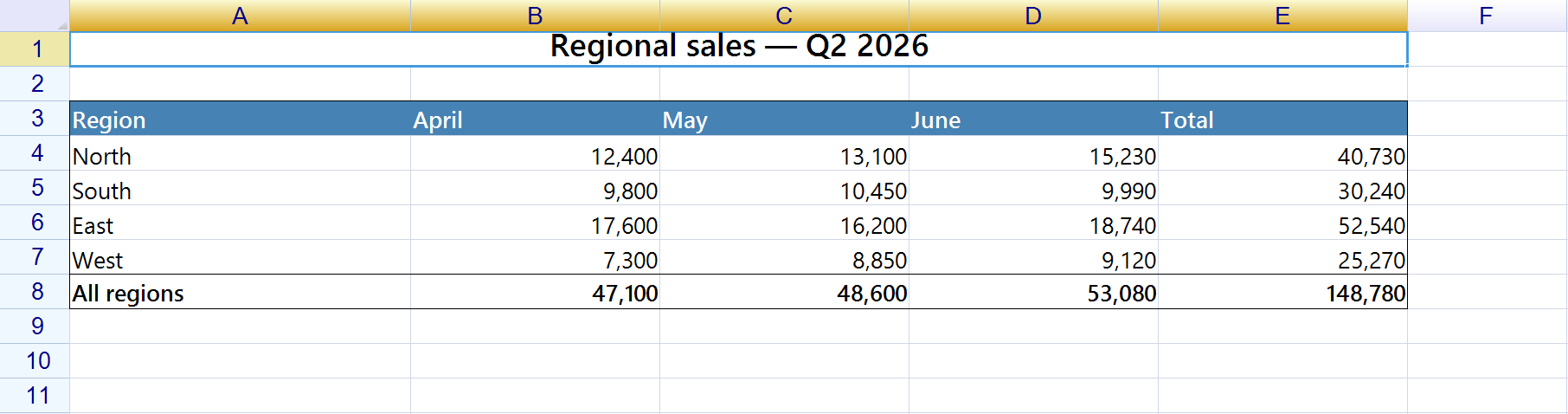
That’s the complete implementation. Once the file is loaded, the user sees the full workbook: fonts, fills, borders, merged cells, frozen panes, multiple sheet tabs at the bottom, and live formula recalculation when they edit a cell.
Read-only mode
If you only want to preview the file and prevent edits:
For Each ws In ReoGridControl1.Worksheets
    ws.SetSettings(WorksheetSettings.Edit_Readonly, True)
Next
The file still renders faithfully; the user just can’t type into cells.
Load from a stream
When the file comes from a database BLOB or an HTTP response rather than disk:
Imports unvell.ReoGrid
Imports unvell.ReoGrid.IO

' From a byte array (e.g. a DB column)
Dim xlsxBytes As Byte() = GetBytesFromDatabase()
Using ms As New MemoryStream(xlsxBytes)
    ReoGridControl1.Load(ms, FileFormat.Excel2007)
End Using

' From an HTTP response
Dim stream As Stream = Await httpClient.GetStreamAsync(reportUrl)
ReoGridControl1.Load(stream, FileFormat.Excel2007)
Displaying an Excel file in WPF (VB.NET)
The WPF and WinForms packages share the same API. The only thing that changes is which NuGet package you install and how you declare the control.
1. Install the WPF package:
PM> Install-Package unvell.ReoGridWPF.dll2. Declare the control in XAML:
<Window x:Class="ExcelViewerWpf.MainWindow"
        xmlns="http://schemas.microsoft.com/winfx/2006/xaml/presentation"
        xmlns:x="http://schemas.microsoft.com/winfx/2006/xaml"
        xmlns:rg="clr-namespace:unvell.ReoGrid;assembly=unvell.ReoGrid"
        Title="Excel Viewer" Height="600" Width="900">

    <DockPanel>
        <ToolBar DockPanel.Dock="Top">
            <Button Content="Open" Click="OpenButton_Click"/>
            <Button Content="Save" Click="SaveButton_Click"/>
        </ToolBar>
        <rg:ReoGridControl x:Name="Grid"/>
    </DockPanel>
</Window>
3. Code-behind in VB.NET:
Imports Microsoft.Win32
Imports unvell.ReoGrid

Class MainWindow

    Private Sub OpenButton_Click(sender As Object, e As RoutedEventArgs)
        Dim dlg As New OpenFileDialog With {.Filter = "Excel Workbook|*.xlsx"}
        If dlg.ShowDialog() <> True Then Return
        Grid.Load(dlg.FileName)
    End Sub

    Private Sub SaveButton_Click(sender As Object, e As RoutedEventArgs)
        Dim dlg As New SaveFileDialog With {.Filter = "Excel Workbook|*.xlsx"}
        If dlg.ShowDialog() <> True Then Return
        Grid.Save(dlg.FileName)
    End Sub

End Class
The WPF control supports the same rendering features as the WinForms one: multiple worksheets, formulas, formatting, frozen panes, conditional formatting.
Detecting changes
For “Unsaved changes — quit anyway?” dialogs, two events cover most cases:
' Fires when any cell value is edited
AddHandler ReoGridControl1.CurrentWorksheet.CellDataChanged,
    Sub(s, args)
        isDirty = True
        Text = "My App *"   ' asterisk in title bar = common convention
    End Sub

' Reset the dirty flag after a successful save
AddHandler ReoGridControl1.WorkbookSaved,
    Sub(s, args)
        isDirty = False
        Text = "My App"
    End Sub
Why not Office Interop?
The short version: Microsoft.Office.Interop.Excel automates a real Excel process via COM. It requires Office installed on every user’s machine, is explicitly unsupported in services by Microsoft, gives you a separate Excel window rather than a control embedded in your form, and tends to leak processes when errors occur. For a self-contained VB.NET desktop app you want an in-process library that reads and writes the file format directly.
| Office Interop | In-process library | |
|---|---|---|
| Requires Excel installed | Yes | No |
| UI embedded in your form | No (separate Excel window) | Yes |
| Works on machines without Office | No | Yes |
| Speed | Slow (COM marshaling) | Fast |
| Error handling | COM exceptions | Standard .NET exceptions |
Putting it together: a simple import form
A common VB.NET scenario: a form where the user picks an .xlsx, reviews it in-grid, then clicks Import to push the data into a database.
Imports unvell.ReoGrid

Public Class ImportForm

    Private Sub BrowseButton_Click(sender As Object, e As EventArgs) Handles BrowseButton.Click
        Using dlg As New OpenFileDialog()
            dlg.Filter = "Excel Workbook|*.xlsx"
            If dlg.ShowDialog() <> DialogResult.OK Then Return

            ReoGridControl1.Load(dlg.FileName)

            ' Lock editing — this is a preview, not an editor
            For Each ws In ReoGridControl1.Worksheets
                ws.SetSettings(WorksheetSettings.Edit_Readonly, True)
            Next

            ImportButton.Enabled = True
        End Using
    End Sub

    Private Sub ImportButton_Click(sender As Object, e As EventArgs) Handles ImportButton.Click
        Dim ws = ReoGridControl1.CurrentWorksheet

        For r As Integer = 0 To ws.MaxContentRow
            Dim id    = ws.GetCellData(r, 0)?.ToString()
            Dim name  = ws.GetCellData(r, 1)?.ToString()
            Dim amount = ws.GetCellData(r, 2)

            If String.IsNullOrWhiteSpace(id) Then Continue For
            InsertRow(id, name, amount)
        Next

        MessageBox.Show("Import complete.")
    End Sub

    Private Sub InsertRow(id As String, name As String, amount As Object)
        ' ... your DB insert logic here
    End Sub

End Class
The form shows users exactly what will be imported before they commit it — no surprises about which sheet got read or which rows were skipped.
Where to go next
- ReoGrid installation guide — NuGet packages and assembly references
- ReoGrid quick start — opening, editing, and saving a workbook
- Display and Edit an Excel File in WinForms or WPF (C#) — the same guide in C# if you work across both languages
- Export a DataTable to Excel in C# — generating
.xlsxreports from ADO.NET data