
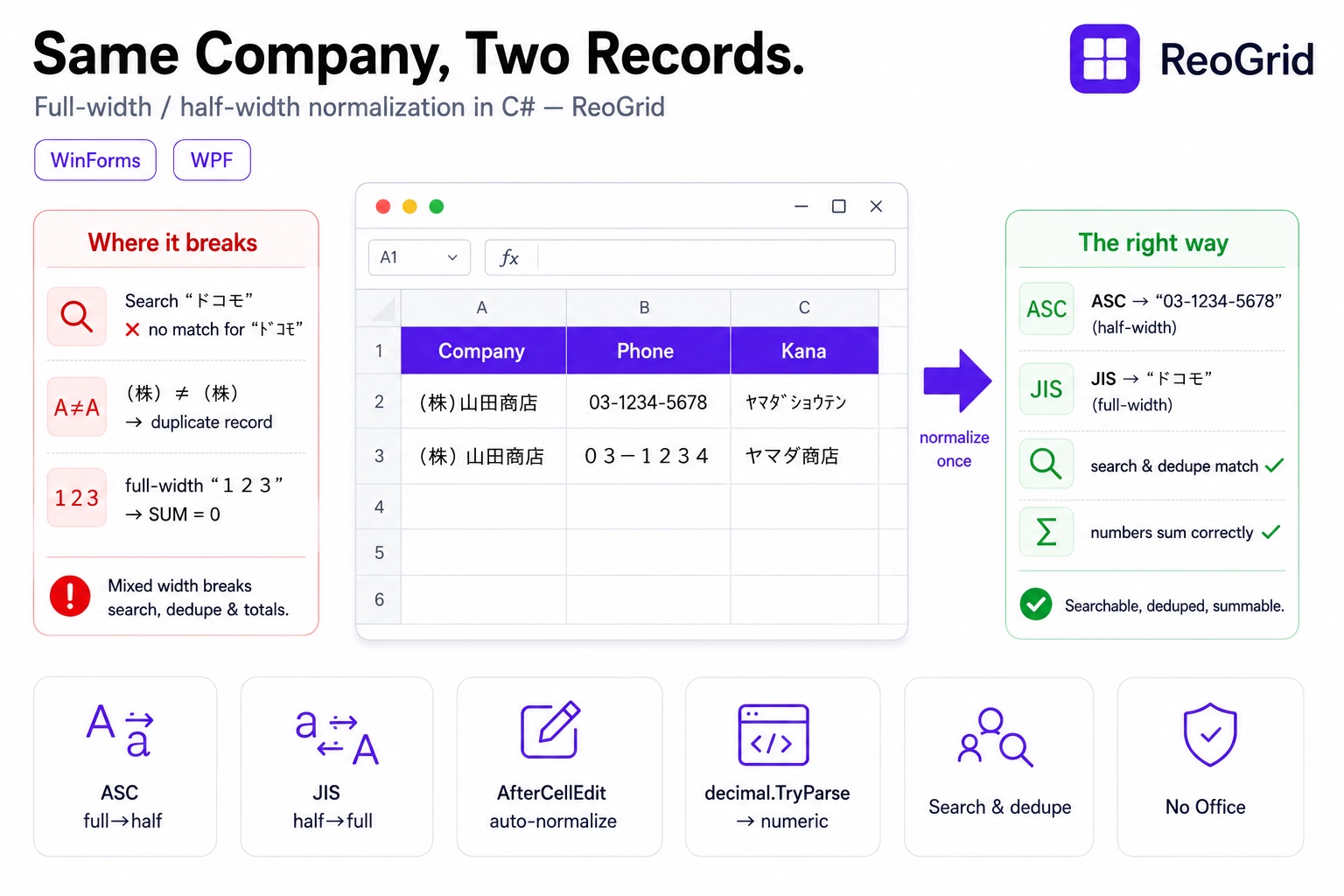
If you build .NET apps that handle Japanese data — a CRM, an order system, a customer master for the Japanese market — you’ll eventually hit this: “the same company won’t show up in search,” “there are two records for one company in the vendor master,” “I tried to match on phone number and got zero hits.” The cause is almost always full-width / half-width inconsistency.
Quick primer if this is new to you: Japanese text can be written in two widths. Full-width (zenkaku) characters occupy a full em —
ABC,123,(株),ドコモ. Half-width (hankaku) characters are narrower —ABC,123,(株), and even half-width katakana likeドコモ. To a human they look like the same content. To a computer they are completely different characters.
ドコモ(half-width kana) andドコモ(full-width kana) are different strings03-1234(full-width digits) and03-1234(half-width digits) are different strings(株)(half-width parens) and(株)(full-width parens) are different too- And
123(full-width digits) can’t be summed as a number as-is
Which width you get depends on the person typing, their IME settings, and whether they pasted from an Excel sheet or a CSV. Try to solve it with “please be careful when you type” and you will fail, every time. The thing to fix is not the person entering data — it’s the app receiving it.
This article uses ReoGrid to build, in C#, bulk conversion with the Excel-compatible JIS / ASC functions plus auto-normalization on entry via the AfterCellEdit event. It works in both WinForms and WPF, with no Excel installed.
Why width inconsistency breaks business data
Mixed width isn’t a cosmetic issue. As data, it silently breaks the following:
- Search misses — searching
ドコモwon’t hit a record stored asドコモ - Deduplication / record-matching fails —
(株)山田商店and(株)山田商店are treated as different records, so the same vendor gets registered twice - Can’t total —
123(full-width) is a string, not a number, soSUMignores it - Sorting is counterintuitive — full-width and half-width code points are far apart, so a mixed column doesn’t sort the way you’d expect
In other words, “width inconsistency” disables the basic functions of business data — search, aggregation, record-matching — one after another. There’s one fix: before you compare or aggregate, normalize everything to one width.
Bulk conversion — the same JIS / ASC functions as Excel
ReoGrid includes full-width / half-width conversion functions with the same names and meanings as Excel’s (added in v4.5). Write them in a formula and convert an entire column in one shot.
| Function | Conversion | Example |
|---|---|---|
ASC(text) | Full-width → half-width | ABC123 → ABC123 |
JIS(text) | Half-width → full-width | ABC123 → ABC123 |
DBCS(text) | Half-width → full-width (alias of JIS) | same as above |
using unvell.ReoGrid;

var sheet = grid.CurrentWorksheet;

// Normalize the mixed input in column A to half-width in column B
sheet["A2"] = "03-1234-5678";   // full-width phone number
sheet["B2"] = "=ASC(A2)";                  // → 03-1234-5678 (half-width)

sheet["A3"] = "ドコモ ショップ";              // half-width kana
sheet["B3"] = "=JIS(A3)";                  // → ドコモ ショップ (full-width)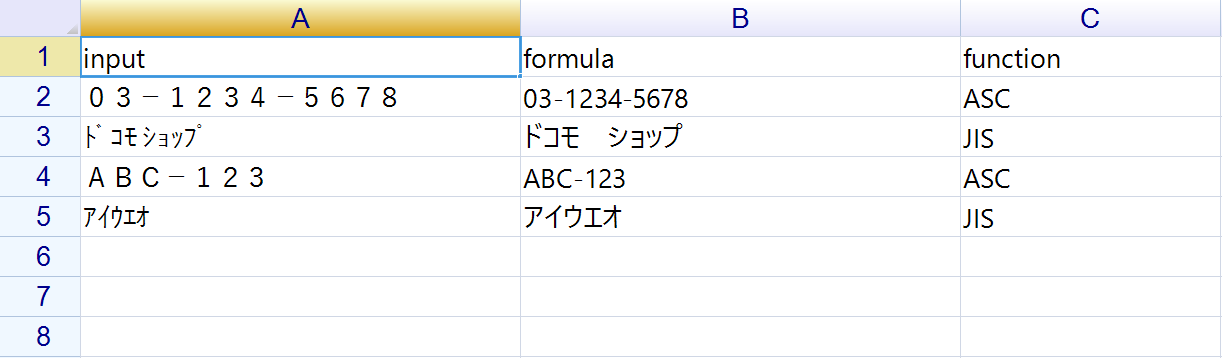
Because it’s a formula, column B follows automatically when column A changes. The benefit is keeping the raw input intact while holding the normalized value in a separate column.
Hand-rolled conversion breaks on half-width kana dakuten
This is where homegrown conversion code usually trips. The half-width ド is actually two characters — ト and ゙ (the voiced mark / dakuten). Converting to full-width has to combine them into the single character ド.
A naive conversion that just adds a constant to the code point (an implementation like char + 0xFEE0) can’t handle this combining of voiced and semi-voiced marks, and produces broken strings like ト゛. JIS / ASC correctly combine and split these marks based on the JIS X 0208 mapping table, so you don’t need to implement it yourself.
Which direction to normalize — decide a policy
Whether “normalize to full-width” or “normalize to half-width” is correct depends on the kind of data. The standard convention in Japanese business systems:
- Normalize alphanumerics and symbols to half-width (
ASC) — phone numbers, postal codes, amounts, product codes, email addresses. Anything that’s a target of search or numeric computation goes to half-width - Normalize katakana to full-width (
JIS) — half-width kana (ハンカク) tends to cause garbling and column-misalignment in printing, reports, and integration with other systems, so full-width is the safe default
Decide “alphanumerics/symbols half-width, kana full-width” as one policy and apply it consistently across the whole app. If you decide per column which way to normalize, search, aggregation, and record-matching downstream all line up.
Auto-normalize on entry — AfterCellEdit
Bulk conversion fixes “data that already exists.” But what really helps is normalizing the instant something is entered, so width inconsistency never accumulates in the first place.
In ReoGrid, the AfterCellEdit event lets you rewrite the value the user just finished editing, before it’s committed. Just put the normalized value into e.NewData.
using unvell.ReoGrid;
using unvell.ReoGrid.Events;
using Microsoft.VisualBasic;   // StrConv (no extra reference needed for WinForms / WPF)

var sheet = grid.CurrentWorksheet;

sheet.AfterCellEdit += (s, e) =>
{
    if (e.NewData is string text && !string.IsNullOrEmpty(text))
    {
        // Normalize alphanumerics/symbols in the input to half-width before committing
        e.NewData = Strings.StrConv(text, VbStrConv.Narrow, 0x411);  // full-width → half-width
    }
};
Strings.StrConv is the standard API for doing the same conversion as ReoGrid’s ASC / JIS on the C# side (VbStrConv.Narrow ≈ ASC, VbStrConv.Wide ≈ JIS, and 0x411 is the Japanese locale). WinForms / WPF assume Windows, so it works as-is with no extra package.
Now even if the user types 03-1234 in full-width, it becomes 03-1234 the moment they leave the cell. Rather than forcing input rules on the user, the receiving side quietly tidies up — the least stressful approach.
Vary the direction per column
In a real table you’ll want to normalize differently by column. Branch on the position of e.Cell.
sheet.AfterCellEdit += (s, e) =>
{
    if (e.NewData is not string text || string.IsNullOrEmpty(text)) return;

    switch (e.Cell.Column)
    {
        case 1:   // Col B = phonetic reading → normalize to full-width kana
            e.NewData = Strings.StrConv(text, VbStrConv.Wide, 0x411);
            break;

        case 2:   // Col C = phone number → normalize to half-width
            e.NewData = Strings.StrConv(text, VbStrConv.Narrow, 0x411);
            break;
    }
};
Turn full-width digits back into numbers so totals work
Full-width digits have a trap beyond width inconsistency: 123 is not recognized as a number, so it doesn’t enter a total. A =SUM(...) silently returning 0 or a misaligned figure is usually this.
Half-width-ize on entry, and for anything convertible to a number, store the number itself — then totals and sorting come alive.
sheet.AfterCellEdit += (s, e) =>
{
    if (e.NewData is not string text || string.IsNullOrEmpty(text)) return;

    // Normalize to half-width first
    string half = Strings.StrConv(text, VbStrConv.Narrow, 0x411);

    // If it reads as a number, put the number itself into the cell (don't leave it a string)
    if (decimal.TryParse(half, out var number))
    {
        e.NewData = number;   // → SUM and sorting both work
    }
    else
    {
        e.NewData = half;     // not a number → commit as the half-width string
    }
};
The point is to not be satisfied with making full-width digits a half-width string. "123" still can’t be summed. Only once you convert it to a number with decimal.TryParse and put that into the cell do SUM, SUMIF, and sorting line up (why amounts should be decimal rather than double is covered in the currency, tax, and rounding article).
Bulk-cleaning existing data
Sometimes you need to normalize already-imported CSV / Excel, or a master that accumulated over the years. To rewrite cell values directly, without going through a formula, scan the range and apply StrConv.
using Microsoft.VisualBasic;

var sheet = grid.CurrentWorksheet;

// Normalize rows 2–1000 of column C (phone number) to half-width
for (int row = 1; row < 1000; row++)
{
    if (sheet.GetCell(row, 2)?.Data is string text && !string.IsNullOrEmpty(text))
    {
        sheet.SetCellData(row, 2, Strings.StrConv(text, VbStrConv.Narrow, 0x411));
    }
}
You could also convert via a formula and paste the result back as values (=ASC(A2) → commit the value), but to permanently fix an entire column, rewriting the value directly as above leaves no loose ends.
Before search / matching, level both sides onto the same field
The primary purpose of normalization is search and record-matching. The iron rule: normalize both sides with the same function before comparing.
// Run both the search key and the data through the same normalization before comparing
static string Normalize(string s) =>
    Strings.StrConv(s ?? "", VbStrConv.Narrow, 0x411).Trim();

bool isMatch = Normalize(cellValue) == Normalize(searchKeyword);
Normalizing only the data, or only the search key, is pointless. Only when both sides are on the same field does typing ドコモ find the ドコモ record.
A note on phonetic readings (PHONETIC)
ReoGrid has a PHONETIC function, but it behaves differently from Excel’s. Excel’s PHONETIC preserves and returns the reading entered at input time (from the IME conversion history); ReoGrid has no such input-history mechanism, so it works as a simplified version that extracts the kana portion within a cell (converting hiragana to katakana).
It can’t auto-generate an accurate phonetic reading from a kanji name. The realistic approach is to have the user enter and confirm the reading in a separate column, then apply JIS (full-width kana normalization) to that column.
Summary
- Full-width / half-width inconsistency isn’t cosmetic — it breaks search, record-matching, totals, and sorting one after another
- The fix isn’t “make the user careful,” it’s “normalize on the receiving app side”
- Bulk-convert with Excel-compatible formulas —
ASC(full→half) /JIS・DBCS(half→full) - Hand-rolled code-point arithmetic breaks on half-width kana voiced marks (
ド).JIS/ASCcombine and split correctly via the mapping table - The standard policy is “alphanumerics/symbols half-width, kana full-width,” applied consistently
- Auto-normalize on entry by rewriting
e.NewDatainAfterCellEdit; vary direction per column withe.Cell.Column - Full-width digits can’t be totaled just by half-width-izing — convert to a number with
decimal.TryParseand store that - For search / matching, normalize both sides with the same function before comparing
Width inconsistency isn’t something to “clean up later.” Level it the instant it’s entered, and level it before you compare — nail those two spots and search and record-matching line up from the start.
Further reading
- Formulas and Functions — the list of built-in functions including
JIS/ASC/DBCS - Cell Editing — handling
AfterCellEditand other editing events - Announcing ReoGrid 4.5 — added 47 Excel-compatible functions including
JIS/ASC - Stop CSV Data From Being “Fixed” When Opened in Excel — taking control of encoding and column types
- Currency, Consumption Tax, and Rounding in C# — keeping numbers as numbers