
ReoGrid supports Excel-compatible formula calculations with cell references, range references, named ranges, built-in functions, and custom functions.
Namespace
using unvell.ReoGrid;Set Formula
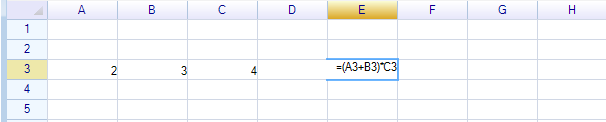
By Editing a Cell
Enter a value with an equal-sign prefix (=) to set a formula:
Programmatically
// Method 1: Set data starting with "="
sheet["E3"] = "=(A3+B3)*C3";

// Method 2: Via cell instance (no "=" prefix needed)
var cell = sheet.Cells["E3"];
cell.Formula = "(A3+B3)*C3";

// Method 3: Via worksheet method
sheet.SetCellFormula("E3", "(A3+B3)*C3");
sheet.SetCellFormula(new CellPosition("E3"), "(A3+B3)*C3");
sheet.SetCellFormula(2, 4, "(A3+B3)*C3");
Get Formula
// Via worksheet method
string formula = sheet.GetCellFormula("C1");
string formula = sheet.GetCellFormula(0, 2);
string formula = sheet.GetCellFormula(new CellPosition("C1"));

// Via cell instance
var cell = sheet.Cells["C1"];
string formula = cell.Formula;
Check Formula State
var cell = sheet.Cells["C1"];

// Check if the cell has a formula
bool hasFormula = cell.HasFormula;

// Check formula calculation status
FormulaStatus status = cell.FormulaStatus;
FormulaStatus Enum
| Value | Description |
|---|---|
Normal | No errors detected |
SyntaxError | Formula has syntax errors and cannot be parsed |
CircularReference | Circular reference detected |
InvalidValue | Invalid value type during calculation (Excel #VALUE!) |
InvalidReference | Cell or range reference is invalid (Excel #REF!) |
InvalidName | Referenced name not found (Excel #NAME!) |
MismatchedParameter | Function called with wrong parameter type or count |
UnspecifiedError | Unspecified error during parsing or calculation |
Get Formula Result
After editing finishes, the formula is parsed and calculated immediately.
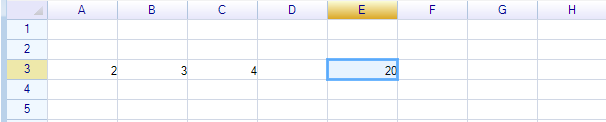
// Method 1: Access cell data directly
object value = sheet["E3"];

// Method 2: Via cell instance
var cell = sheet.Cells["E3"];
object value = cell.Data;
Formula Value Types
ReoGrid uses .NET native types for formula values:
| .NET Type | Usage |
|---|---|
double | All numeric values (int, long, float are converted to double) |
string | Text values |
bool | Boolean values |
DateTime | Date and time values |
sheet["E3"] = "=(A3+B3)*C3";
System.Diagnostics.Debug.Assert(sheet["E3"] is double);  // true
Prevent Text from Being Treated as Formula
Prefix with a single quote (') to prevent formula parsing:
sheet["A1"] = "'=10"; // Cell displays "=10" as textCell Reference
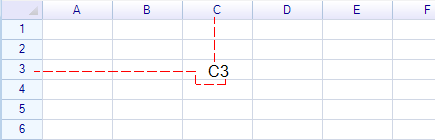
ReoGrid supports two address formats:
| Format | Type | Description |
|---|---|---|
A1 | Relative | Adjusts when formula is copied/moved |
$A$1 | Absolute | Stays fixed when formula is copied/moved |
Range Reference
Use StartCell:EndCell format to reference a range:
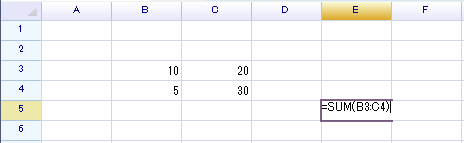
Result: 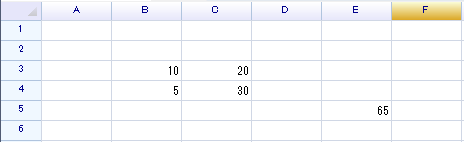
Named Range Reference
Reference a named range by its name directly in formulas:
sheet.DefineNamedRange("myrange", "A1:B5");
sheet.Cells["E10"].Formula = "SUM(myrange)";
See Named Range for defining named ranges.
Delete Formula
// Delete formula from a single cell
sheet.DeleteCellFormula("E3");
sheet.DeleteCellFormula(new CellPosition("E3"));
sheet.DeleteCellFormula(2, 4);

// Clear formulas from a range
sheet.ClearRangeContent("A1:B5", CellElementFlag.Formula);
Get Formula Reference List
Get the list of cells and ranges referenced by a formula:
sheet["H8"] = "=A1+B1-SUM(A1:C3)+AVERAGE(D1:H5)";

var rangeList = sheet.GetCellFormulaReferenceRanges("H8");

// rangeList[0].Range == "A1"
// rangeList[1].Range == "B1"
// rangeList[2].Range == "A1:C3"
// rangeList[3].Range == "D1:H5"
Trace Precedents and Dependents
Visualize formula dependencies with trace arrows.
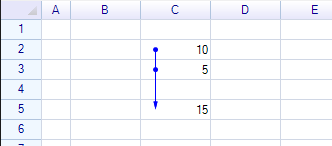
Trace Precedents
// Via cell property
var cell = sheet.Cells["C5"];
cell.Formula = "C2+C3";
cell.TraceFormulaPrecedents = true;

// Via worksheet method
sheet.TraceCellPrecedents("C5");
sheet.TraceCellPrecedents(new CellPosition(4, 2));
Trace Dependents
// Via cell property
cell.TraceFormulaDependents = true;

// Via worksheet method
sheet.TraceCellDependents("C2");
sheet.TraceCellDependents(new CellPosition(1, 2));
Remove Trace Arrows
// Remove specific traces
sheet.RemoveCellTracePrecedents("C5");
sheet.RemoveCellTraceDependents("C2");

// Remove all trace arrows from a cell
sheet.RemoveCellAllTraceArrows("C5");

// Remove all trace arrows from a range
sheet.RemoveRangeAllTraceArrows("A1:H10");
Check Trace Status
bool hasPrecedents = sheet.IsCellInTracePrecedents(new CellPosition("C5"));
bool hasDependents = sheet.IsCellInTraceDependents(new CellPosition("C2"));

// Get all cells with trace dependents
var tracedCells = sheet.GetAllTraceDependentCells();
Always Show Traces
Trace arrows disappear when the formula changes. To always keep them visible:
sheet.CellDataChanged += (s, e) => e.Cell.TraceFormulaPrecedents = true;Cell Formula Properties
| Property | Type | Description |
|---|---|---|
Formula | string | Get or set the formula expression |
HasFormula | bool | Whether the cell has a formula (read-only) |
FormulaStatus | FormulaStatus | Status of formula calculation (read-only) |
TraceFormulaPrecedents | bool | Show/hide trace arrows for precedents |
TraceFormulaDependents | bool | Show/hide trace arrows for dependents |
Automatic Reference Updating
When a cell’s value changes, all cells that reference it are automatically recalculated.
Suspend and Resume
For bulk data operations, suspend automatic updates to improve performance:
// Suspend updates
sheet.SuspendFormulaReferenceUpdates();

// ... bulk data operations ...

// Resume updates
sheet.ResumeFormulaReferenceUpdates();

// Check if suspended
bool isSuspended = sheet.IsSuspendingFormulaReferenceUpdates;
Or via worksheet settings:
sheet.SetSettings(WorksheetSettings.Formula_AutoUpdateReferenceCell, false);
sheet.SetSettings(WorksheetSettings.Formula_AutoUpdateReferenceCell, true);
Force Recalculation
Recalculate all formulas in the worksheet:
// Recalculate entire worksheet
sheet.Recalculate();

// Recalculate a specific range
sheet.Recalculate(new RangePosition("A1:H10"));

// Recalculate a single cell
sheet.RecalcCell("E3");
sheet.RecalcCell(new CellPosition("E3"));
sheet.RecalcCell(2, 4);

// Refresh all formula references
sheet.RefreshFormulaReferences();
Formula Settings
| Setting | Description |
|---|---|
Formula_AutoUpdateReferenceCell | Auto-update formula references when cell values change |
Formula_AutoPickingCellAddress | Allow picking cell addresses during formula editing (reserved) |
Formula_AutoFormat | Auto-correct and format formulas |
sheet.SetSettings(WorksheetSettings.Formula_AutoFormat, true);FormulaExtension
The FormulaExtension class provides static properties for customizing formula behavior:
using unvell.ReoGrid.Formula;| Property | Type | Description |
|---|---|---|
CustomFunctions | Dictionary<string, Func<Cell, object[], object>> | Custom function registry |
NameReferenceProvider | Func<Cell, string, object> | Custom name resolution provider |
EmptyCellReferenceProvider | Func<Worksheet, CellPosition, Cell, object> | Custom empty cell value provider |
ParameterSeparator | string | Formula parameter separator (default: ",") |
NumberDecimalSeparator | string | Decimal separator (default: ".") |
FormulaCalculationEplison | double | Calculation epsilon (default: 0.000001) |
Methods
| Method | Description |
|---|---|
ChangeToStandardFunctionNames() | Use standard English function names |
ChangeToRussianFunctionNames() | Use Russian function names |
Built-in Functions
ReoGrid provides Excel-compatible built-in functions. See Formula Functions for the complete list.
Custom Functions
Add custom functions via FormulaExtension.CustomFunctions. See Custom Function for detailed examples.
Related Topics
- Formula Functions — Complete list of built-in functions
- Custom Function — Creating custom functions
- VLOOKUP — VLOOKUP function tutorial
- Named Range — Defining named ranges
- Settings — Formula-related settings