
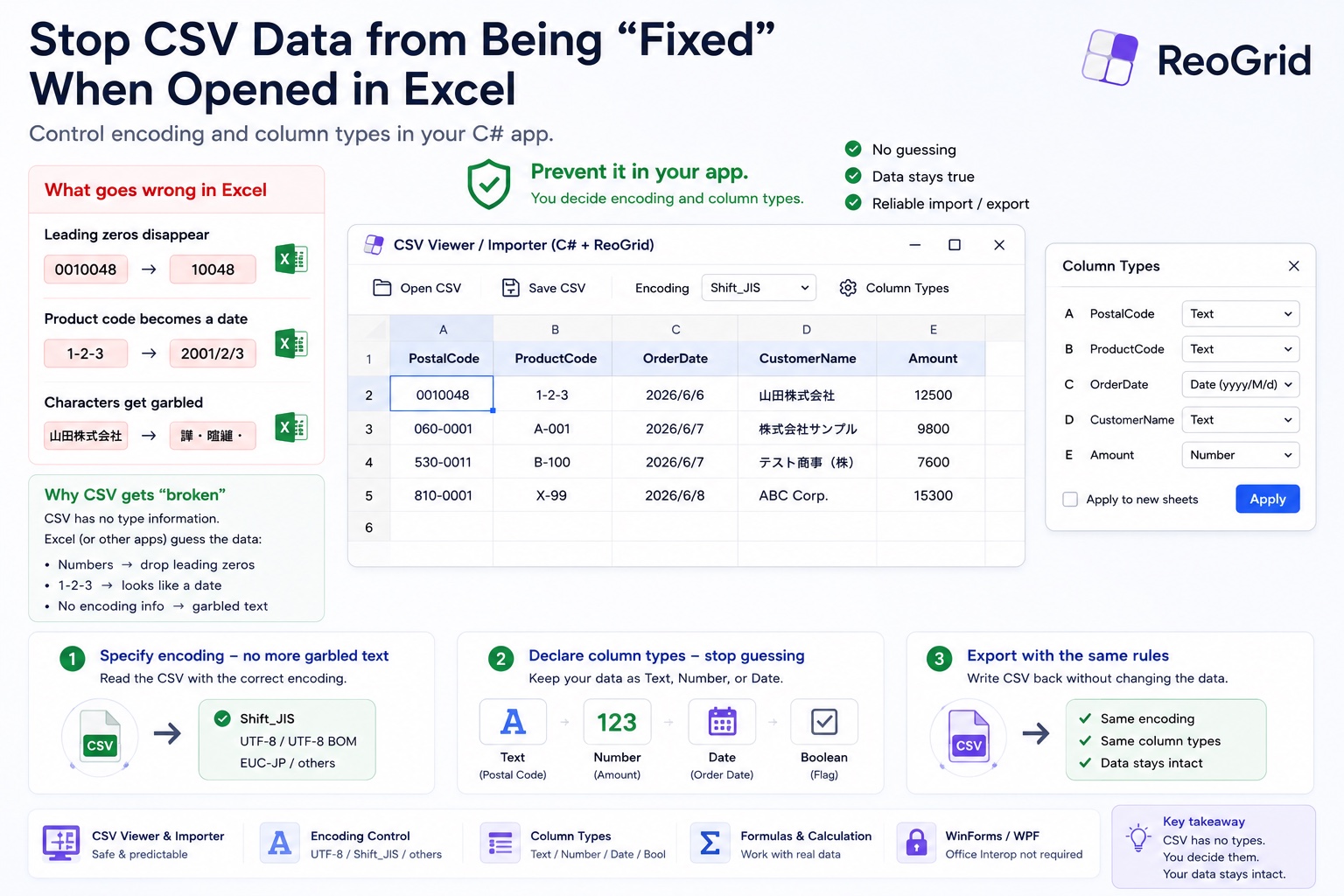
“That CSV you sent us — when we opened it in Excel, all the leading zeros on the ZIP codes were gone.” If you’ve ever fielded that from support, it probably wasn’t a one-time thing.
Pass business data around as CSV and the same accident keeps happening in different shapes:
- ZIP code
01950becomes1950(leading-zero loss) - Product code
1-2-3becomesFeb 3, 2001(silent date conversion) - A customer name comes back as
æ–‡å—化ã‘instead of readable text (garbled encoding)
And the maddening part: in most cases your code did nothing wrong. The CSV was written correctly. The thing breaking it is the application that opened it.
This article is about not letting that “the opener breaks it” problem happen in your own app. Using ReoGrid for the examples, we’ll build a CSV viewer / importer in C# for WinForms / WPF that doesn’t corrupt your data.
Why CSV breaks — there’s no type information
Let’s be precise about the cause. CSV breaking is not an Excel bug. It’s structural to the CSV format itself.
.xlsx stores, alongside each cell, the type information — “this is text,” “this is a date.” CSV is just text. Look at this one line:
01950,1-2-3,2026/6/6Whether 01950 is a ZIP code or a number, whether 1-2-3 is a product code or a date — the file itself says nothing. So whatever opens it has to guess. Excel’s guessing rules go like this:
- Looks like a number → make it a number → the leading
0is “meaningless,” so drop it (leading-zero loss) 1-2-3or1/2looks like a date → convert to a date (date conversion)- No encoding declared → read with the environment default → mistake UTF-8 for a legacy code page (or vice versa) and garble the text
Each of these is “helpful” in isolation. The problem is that the user can’t stop the guessing — and as long as the thing guessing is Excel, neither can you.
That’s also the opening: the thing guessing is the application that opens the file. Write the opener yourself, and every one of those guessing rules is back in the developer’s hands.
Don’t let encoding be guessed — declare it
Garbled text is an accident of “mistaking one character encoding for another.” Which means: if there’s nothing to mistake, it can’t happen. ReoGrid’s LoadCSV takes the read encoding as an argument.
using System.Text;
using unvell.ReoGrid;

var sheet = grid.CurrentWorksheet;

// Read a UTF-8 CSV, knowing it's UTF-8
sheet.LoadCSV("orders.csv", Encoding.UTF8);

// A legacy system hands you Shift_JIS / Windows-1252? Say so explicitly.
sheet.LoadCSV("legacy.csv", Encoding.GetEncoding("shift_jis"));
No room to guess. If the file is UTF-8, write Encoding.UTF8; if it’s a legacy code page, name it. The “I read it with the environment default and it garbled” accident is designed out.
Note for .NET 5 / .NET Core:
Encoding.GetEncoding("shift_jis")(and other legacy code pages likewindows-1252) throwsNotSupportedExceptionby default. Reference theSystem.Text.Encoding.CodePagespackage and register the provider once at startup.Encoding.RegisterProvider(CodePagesEncodingProvider.Instance);Not needed on .NET Framework.
Don’t let types be guessed — read everything as plain text first
After encoding comes leading-zero loss and date conversion. The culprit is automatic type detection — “make things that look like numbers numbers, things that look like dates dates.” ReoGrid does this detection by default too (which is exactly why typing 1500 or a formula by hand is correctly treated as a number or expression).
To read a CSV without breaking it, switch that auto-detection off for the duration of the load.
var sheet = grid.CurrentWorksheet;

// Don't auto-detect cell value types (= don't silently convert)
sheet.SuspendCellAutoDataFormat = true;

sheet.LoadCSV("orders.csv", Encoding.UTF8);
Now each cell holds exactly the string that was in the file. 01950 stays 01950, 1-2-3 stays 1-2-3. Read everything as plain text first, then you declare the types.
💡
LoadCSVresets the sheet before reading. So column formats you set before loading are wiped. The correct order is: turn off auto-detection → load → declare column types.
Declare types — “this column is text,” “this column is a date”
Here’s the part Excel can’t do. You know which column is what type. Put that knowledge into code.
After the load finishes, turn auto-detection back on and declare formats per column.
using unvell.ReoGrid.DataFormat;

// 1) Don't convert during load
sheet.SuspendCellAutoDataFormat = true;
sheet.LoadCSV("orders.csv", Encoding.UTF8);

// 2) Re-enable detection, then declare column types
sheet.SuspendCellAutoDataFormat = false;

// Col A = ZIP code, Col B = product code → lock as text (kills leading-zero loss & date conversion)
sheet.SetRangeDataFormat("A:A", CellDataFormatFlag.Text);
sheet.SetRangeDataFormat("B:B", CellDataFormatFlag.Text);

// Col E = order date → lock as a date. You decide the display format too.
sheet.SetRangeDataFormat("E:E", CellDataFormatFlag.DateTime,
    new DateTimeDataFormatter.DateTimeFormatArgs { Format = "yyyy/MM/dd" });
A column declared CellDataFormatFlag.Text is treated as text no matter what its contents look like. The leading zero in 01950, the hyphens in 1-2-3 — nobody touches them. You can use a whole-column address like "A:A", so you declare per column without caring about row count.
The date column, conversely, can be shown in exactly the format you intend, precisely because you know it’s a date. Excel reading 1-2-3 as “2001/2/3” was a guess; here, you know E:E is the order-date column, so you can render it as yyyy/MM/dd, or any format you like (displaying dates in a Japanese era is covered here if you build for that market).
Quantity and amount columns can either be declared Number with SetRangeDataFormat, or just left alone to be treated as numbers. The point is: protect only the columns you don’t want touched with Text. Being able to name the columns you want to protect is the decisive difference from guess-driven Excel.
When writing out, you decide the encoding too
Receiving isn’t the only side — the same logic applies when you write. ExportAsCSV lets you specify the encoding.
// A legacy back-office system only accepts Shift_JIS → write Shift_JIS
sheet.ExportAsCSV("export_sjis.csv", encoding: Encoding.GetEncoding("shift_jis"));

// UTF-8 for an Excel user → write it with a BOM
sheet.ExportAsCSV("export_utf8.csv", encoding: new UTF8Encoding(true));
The second one — new UTF8Encoding(true) — is the catch. Open a UTF-8 CSV in Excel and, without a BOM, Excel assumes a legacy code page and garbles it. new UTF8Encoding(true) prepends a BOM so Excel recognizes the file as UTF-8. “I exported UTF-8 but only Excel garbles it” is almost always this.
Writing in the encoding the other system requires — that decision, too, is held by the code doing the writing.
The option of not handing over CSV at all
One step back, to close. Everything above works when your app reads or writes. But if the CSV you produce is then opened by someone else in Excel, their Excel starts guessing all over again. No matter how carefully you write it, as long as it’s CSV, the type information isn’t in the file.
If the recipient is an Excel user and you must reliably prevent leading-zero loss and date conversion, the answer is simple — hand over .xlsx, not CSV. .xlsx can carry “this is text” formatting inside the file per cell, so when the recipient opens it, Excel doesn’t guess — it follows that format. ReoGrid can save .xlsx with exactly the formats you declared (see Display and Edit an Excel File).
CSV is light and broadly compatible, but it’s a format that can’t carry types. Use a fixed-encoding CSV for system-to-system integration, and .xlsx when a human opens it in Excel — splitting by use case is what ultimately breaks the least.
Summary
- CSV breaks not because of an Excel bug but because a file with no type information is opened by something that guesses at its contents
- The thing guessing is “the app that opens it.” So write the opener yourself and the rules are back in your hands
- Declare the encoding —
LoadCSV(path, Encoding.UTF8)(or a named legacy code page). On .NET Core, don’t forget to registerCodePagesEncodingProvider - Turn off auto type-detection before reading —
SuspendCellAutoDataFormat = truereads everything as plain text - Declare types per column —
CellDataFormatFlag.Textfor columns to protect,DateTimewith a format for date columns - Writing also takes an encoding. UTF-8 for Excel must be BOM-prefixed (
new UTF8Encoding(true)) or it garbles - If the recipient opens it in Excel, just hand over
.xlsx, which can carry types
CSV accidents don’t shrink by “being careful.” Take control of the guessing in the code that opens the file. That’s the only reliable fix.
Further reading
- Cell Data Format — the full picture of the Text / Number / DateTime / Currency formatting API
- Japanese Era (Wareki) Date Cells in C# — displaying a loaded date column in a Japanese era
- Display and Edit an Excel File in a WinForms or WPF App with C# — reading/writing
.xlsx, which can carry types - Reading and Writing Excel Files in C# Without Office Interop — a comparison for choosing a library