
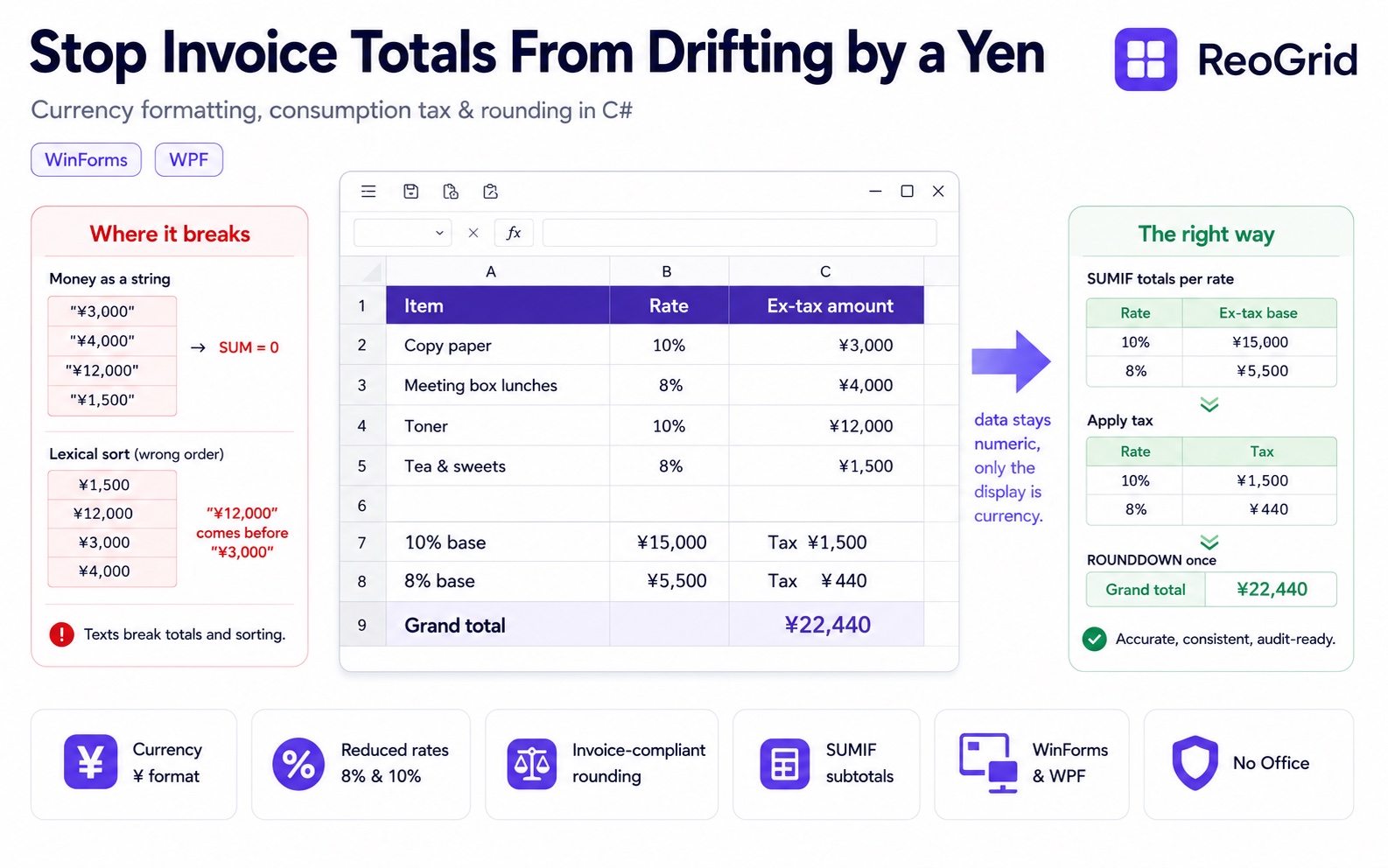
“Your invoice total is off by one yen from ours.” If you build software for Japanese businesses — or maintain a product that just landed its first Japanese customer — you have probably fielded this from an accountant or a client at least once.
Money is the data that must not drift in a business app, and yet it’s among the easiest to break. The same accidents recur in different shapes:
- Compute unit price × quantity in a
doubleand the total comes out as9999.9999996(floating-point error) - Put
"¥1,234"as a string into a cell and now the column can’t be summed or sorted (stringification) - Round consumption tax differently than the other party and the grand total is off by a yen (rounding mismatch)
- A single invoice mixes the reduced 8% rate and the standard 10% rate, and it’s unclear where to total the tax (reduced tax rates)
None of these shrink by “being careful.” The causes are structural, and so are the fixes. This article uses ReoGrid and one principle — keep cell data numeric, apply the yen sign and separators as a display format — to build currency display, consumption tax, rounding, and per-rate subtotals in C#. It works in WinForms and WPF, with no Excel installed.
Quick context if Japanese tax is new to you: Japan’s consumption tax has a standard rate of 10% and a reduced 8% rate for items like food and drink. Since the 2023 qualified invoice (インボイス, “invoice system”) reform, tax must be totaled per rate, and the per-rate tax amount is rounded once per invoice — not row by row.
Where it goes wrong — turning money into a string
The most common mistake is to make the value itself a string in the rush to format it.
// A common implementation — and it breaks
sheet["E5"] = $"¥{amount:N0}";   // stores the STRING "¥1,234,567"
It looks perfect: the cell shows ¥1,234,567. But what’s in the cell is a string, not a number, and the moment that happens everything below breaks:
=SUM(E5:E9)returns 0 (strings aren’t summed)- Sorting the money column puts
¥1,000,000before¥999(lexical order) - A formula elsewhere that references this cell yields
#VALUE!
Holding money in a double steps on a different mine. In a world where 0.1 + 0.2 != 0.3, multiplying by a tax rate and accumulating leaves tiny residue, and wherever you forgot a ROUND, you’re off by a yen.
There’s one correct principle: put a raw number in the cell, and lay the ”¥” and thousands separators on top as a format. Separate data from appearance and summing, sorting, and formulas all keep working.
Currency format — data stays numeric, display reads ¥1,234,567
In ReoGrid you put a number in the cell, then hand a currency format to SetRangeDataFormat.
using unvell.ReoGrid;
using unvell.ReoGrid.DataFormat;

var sheet = grid.CurrentWorksheet;

// the data is just a number
sheet["E5"] = 1234567;

// only the display becomes currency
sheet.SetRangeDataFormat("E5:E20", CellDataFormatFlag.Currency,
    new CurrencyDataFormatter.CurrencyFormatArgs
    {
        CultureEnglishName = "ja-JP",
        PrefixSymbol = "¥",
        DecimalPlaces = 0,      // yen has no decimals
        UseSeparator = true,    // thousands separators
    });
Now E5 shows ¥1,234,567, but the cell still holds the number 1234567. =SUM(E5:E20) and sorting work without a hitch.
Yen normally has no fractional part, so we pass DecimalPlaces = 0. If one column carries sub-yen unit prices (say a fuel price of 156.7 円/L), set DecimalPlaces = 1 on just that column — formatting is per range, so mixing is fine.
Show negatives in red or with a triangle (▲)
Accounting documents conventionally mark negative amounts in red or with a triangle (▲). Use NegativeStyle.
sheet.SetRangeDataFormat("E5:E20", CellDataFormatFlag.Currency,
    new CurrencyDataFormatter.CurrencyFormatArgs
    {
        CultureEnglishName = "ja-JP",
        PrefixSymbol = "¥",
        DecimalPlaces = 0,
        UseSeparator = true,
        // red + parentheses:  ¥(1,234)
        NegativeStyle = NumberDataFormatter.NumberNegativeStyle.RedBrackets,
    });
For the Japanese triangle notation, use Prefix_Sankaku.
// ▲ 1,234  — the Japanese-style negative prefix
NegativeStyle = NumberDataFormatter.NumberNegativeStyle.Prefix_Sankaku,
NumberNegativeStyle is a flag enum, so you can combine like Red | Brackets. In every case the cell data stays a negative number — only its appearance changes.
Consumption tax and rounding — where you round decides the yen
The biggest source of drift is rounding consumption tax. Given 1234 × 0.1 = 123.4, what happens to the 0.4? Two decisions are involved:
- The rounding mode — floor / round-half / ceiling. This is not fixed by law; a business chooses one and applies it consistently (many B2C floor it; B2B depends on agreement with the counterpart).
- The unit you round at — per line, or once per per-rate subtotal.
The second matters most. Under the qualified-invoice system, the tax amount is rounded “once per invoice, per tax rate.” The old habit of rounding each line and summing is no longer acceptable. So the correct order is: first total the tax-exclusive amount per rate, then round once.
ReoGrid ships ROUND / ROUNDDOWN / ROUNDUP, so that rounding is just a formula.
// compute tax once against the tax-exclusive subtotal, flooring the fraction
sheet["E20"] = "=ROUNDDOWN(E19*0.1, 0)";   // 2nd arg 0 → drop the sub-yen part
If you’d rather compute in C# and write only the result, use decimal, never double.
// always do money math in decimal (double drifts)
decimal subtotal = 12_345m;
decimal tax = Math.Floor(subtotal * 0.10m);   // floor → 1234
sheet["E20"] = tax;                            // into the cell as a number
Math.Floor is floor (the ROUNDDOWN equivalent); Math.Round(x, MidpointRounding.AwayFromZero) is round-half-up (the ROUND equivalent). Concentrate the rounding in one place per invoice. Round it in scattered spots and the total stops matching its breakdown.
Reduced tax rates — total per rate with SUMIF
A single invoice mixing the reduced 8% rate (food and drink) with the standard 10% rate is now routine. The qualified invoice must separate and total by rate.
Lay out the line items like this — C holds the rate (10 or 8), D the tax-exclusive amount:
| B (item) | C (rate %) | D (ex-tax amount) | |
|---|---|---|---|
| 5 | Copy paper | 10 | 3,000 |
| 6 | Meeting box lunches | 8 | 4,000 |
| 7 | Toner | 10 | 12,000 |
| 8 | Tea & sweets for guests | 8 | 1,500 |
Per-rate subtotals and tax come out as SUMIF combined with ROUNDDOWN:
var sheet = grid.CurrentWorksheet;

// --- ex-tax subtotal per rate ---
sheet["D11"] = "=SUMIF(C5:C8, 10, D5:D8)";   // 10% base → 15,000
sheet["D12"] = "=SUMIF(C5:C8, 8,  D5:D8)";   //  8% base →  5,500

// --- round once per rate (invoice-compliant) ---
sheet["D13"] = "=ROUNDDOWN(D11*0.1,  0)";    // 10% tax → 1,500
sheet["D14"] = "=ROUNDDOWN(D12*0.08, 0)";    //  8% tax →   440

// --- grand total incl. tax ---
sheet["D15"] = "=D11+D12+D13+D14";           // 22,440

// apply currency format to the money column in one call
sheet.SetRangeDataFormat("D5:D15", CellDataFormatFlag.Currency,
    new CurrencyDataFormatter.CurrencyFormatArgs
    {
        CultureEnglishName = "ja-JP",
        PrefixSymbol = "¥",
        DecimalPlaces = 0,
        UseSeparator = true,
    });
The key is that tax is computed against the per-rate subtotals (D11 / D12), not by rounding each line and summing: SUMIF accumulates per rate, then a single ROUNDDOWN. That’s the order the qualified-invoice system requires, and it’s the calculation that never drifts from your counterpart by a yen.
Drop the formulas in and ReoGrid’s built-in engine recalculates. Change D5 and D11–D15 follow automatically, so even when a user edits an amount on screen the totals stay correct.
Template × formulas = an invoice that can’t break
Put it together and the appearance lives in an Excel template while the code only pours in numbers and formulas. Borders, logo, and labels — the fixed layout — belong to the .xlsx template; the code fills just the variable amounts.
grid.Load("invoice-template.xlsx");          // layout designed in Excel
var sheet = grid.CurrentWorksheet;

// line items (rate and ex-tax amount go in as numbers)
var items = new[]
{
    ("Copy paper",              10, 3000m),
    ("Meeting box lunches",      8, 4000m),
    ("Toner",                   10, 12000m),
    ("Tea & sweets for guests",  8, 1500m),
};

int r = 5;
foreach (var (name, rate, price) in items)
{
    sheet[$"B{r}"] = name;
    sheet[$"C{r}"] = rate;
    sheet[$"D{r}"] = price;   // a decimal straight into a numeric cell
    r++;
}

// totals as formulas (you can pre-bake these into the template instead)
sheet["D11"] = "=SUMIF(C5:C8, 10, D5:D8)";
sheet["D12"] = "=SUMIF(C5:C8, 8,  D5:D8)";
sheet["D13"] = "=ROUNDDOWN(D11*0.1,  0)";
sheet["D14"] = "=ROUNDDOWN(D12*0.08, 0)";
sheet["D15"] = "=D11+D12+D13+D14";

grid.Save($"invoice-{DateTime.Now:yyyyMMdd}.xlsx");   // keep a copy as .xlsx
Bake the currency format and totaling formulas into the template and the code gets even thinner. Save the copy as .xlsx and the file carries both the format and the numbers, so the amounts hold even when the recipient opens it in Excel. (The template-fill approach is covered in detail in Build a Receipt Generator in About 30 Lines of C#.)
Wrapping up
- Money breaks for structural reasons — stringification (kills summing and sorting) and
doubleerror - Put a raw number in the cell; lay the ”¥” and separators on as a currency format. Separate data from display and formulas and sorting keep working
- The format is
SetRangeDataFormat(..., CellDataFormatFlag.Currency, new CurrencyFormatArgs { PrefixSymbol = "¥", DecimalPlaces = 0, UseSeparator = true }) - Negatives via
NegativeStyle— red, parentheses, or the JapanesePrefix_Sankaku(▲) - Do money math in
decimal; round withMath.Floor(floor) /Math.Round(round-half). Concentrate rounding in one place per invoice - Round consumption tax “once per rate,” per the qualified-invoice rules —
SUMIFto subtotal per rate, then a singleROUNDDOWN - Handle mixed reduced rates with
SUMIF(range, rate, amount_range) - Let the
.xlsxtemplate own the layout; the code pours in only numbers and formulas
Drift isn’t something you fix by double-checking the arithmetic. Keep the data numeric, and decide on one place to round — get those two right and the total adds up from the start.
Read next
- Data Format — the full formatting API: Number / Currency / DateTime, including the Japanese ▲ negative prefix
- Formula and Calculation Engine —
ROUND/ROUNDDOWN/SUMIFand the rest - Build a Receipt Generator in About 30 Lines of C# — pour values into an Excel template
- Japanese Era (Wareki) Date Cells in C# — show invoice and issue dates in the era calendar