
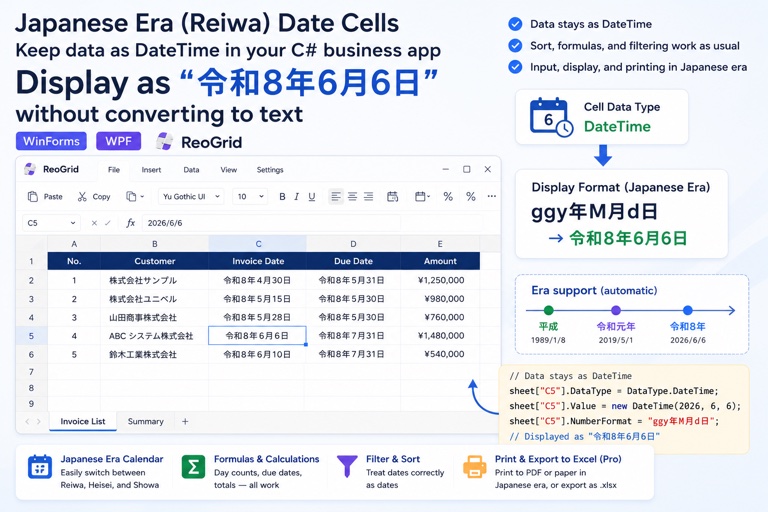
If you build software for Japanese businesses — or maintain a product that just landed its first Japanese customer — sooner or later this requirement arrives: invoice dates, contract dates, birthdates, and anything submitted to a government office must be shown in wareki (和暦), the Japanese era calendar. Not 2026-06-06, but 令和8年6月6日 — “Reiwa year 8, June 6”.
A quick primer if this is new to you: Japan numbers years by imperial era. The current era is Reiwa (令和), which began on May 1, 2019 — so 2026 is Reiwa 8. Before that came Heisei (平成, 1989–2019**)** and Showa (昭和, 1926–1989**)**. The year count resets to 1 at every transition, and official documents still use this calendar every day. “Can’t we just use the Western calendar?” is a negotiation you will usually lose.
And most implementations stumble on the very first step: they turn the date into a string.
This article shows how to keep cell data as a real DateTime and make only the display wareki. The examples use ReoGrid, because switching to the Japanese era calendar is built into its data-format engine.
The usual implementation, and what it costs
The most natural-looking approach is to build a wareki culture and format the date into the cell:
var wareki = new CultureInfo("ja-JP");
wareki.DateTimeFormat.Calendar = new JapaneseCalendar();

sheet["B3"] = date.ToString("ggy年M月d日", wareki);   // ← stored as a string
The display looks right. But the cell no longer contains a date — it contains plain text. The bill arrives later, all at once:
- Sorting breaks. String comparison puts 令和10年 (Reiwa 10) before 令和2年 (Reiwa 2), because it compares character by character. This is the classic wareki-string bug, and it surfaces the moment someone sorts the date column.
- Formulas stop working. Date math like
=DAYS(B3, TODAY())errors out on a text cell. Every “days until the due date” calculation is gone. - Filtering fails. You can’t filter “April 2026 and later” against strings.
- Changing the format means changing the data. When someone asks for Western dates alongside, you get to rebuild every cell.
The root cause is a single mistake: the display concern got baked into the data.
The right way: data stays DateTime, only the display is wareki
In ReoGrid, a cell’s value and its display format are separate. Give a date cell a wareki format and the data remains a DateTime — only what’s painted on screen changes.
using unvell.ReoGrid;
using unvell.ReoGrid.DataFormat;

var sheet = grid.CurrentWorksheet;

// Format column B as wareki dates
sheet.SetRangeDataFormat("B3:B100", CellDataFormatFlag.DateTime,
    new DateTimeDataFormatter.DateTimeFormatArgs
    {
        Format = "ggy年M月d日",   // gg = era name, y = year within the era
        CultureName = "ja-JP",
    });

sheet["B3"] = new DateTime(2026, 6, 6);   // displays: 令和8年6月6日
That’s the whole trick. The key is the gg (era) specifier in the pattern: when the culture is Japanese (ja) and the format contains g, ReoGrid automatically switches the calendar to .NET’s JapaneseCalendar. Era detection and year-within-era arithmetic are handled by the framework — you never hardcode an era transition table.
The pattern is a standard .NET date format pattern. Useful combinations:
| Pattern | Displays as |
|---|---|
ggy年M月d日 | 令和8年6月6日 |
ggy年M月d日(ddd) | 令和8年6月6日(土) — with the weekday |
ggyy/MM/dd | 令和08/06/06 |
yyyy年M月d日 (no g) | 2026年6月6日 — stays Western |
Drop the g and the same cell renders in the Western calendar again. The data was never touched, so toggling between wareki and Western display is a format swap, not a data migration. The “actually, can we show both?” request stops being scary.
Note: these are .NET patterns. Excel’s own format codes for wareki (
ggge"年"m"月"d"日", whereeis the era year) follow a different convention — in .NET, the era year is written withy/yy.
Users can keep typing Western dates
So what happens when a user types 2026/6/6 into a wareki-formatted cell?
When editing ends, ReoGrid parses strings entered into a DateTime-formatted cell with DateTime.TryParse and stores a real DateTime. The display then follows the cell’s format — wareki.
User types:     2026/6/6
Cell data:      DateTime (2026-06-06)
Cell displays:  令和8年6月6日
“Input in Western, display in wareki” — the standard requirement in Japanese business apps — works with zero extra code. Because the data is a DateTime, sorting and formulas are correct from the moment of entry:
sheet["C3"] = "=DAYS(B3, TODAY())"; // days until the contract date — works on wareki-displayed cellsReoGrid’s built-in formula engine ships date functions like DAYS, TODAY, YEAR, and MONTH, and they compute directly against the cell’s DateTime data.
Showa and Heisei come free — use it on birthdate columns
JapaneseCalendar knows every era boundary. A column like customer birthdates, where three or four eras coexist, needs the format set exactly once:
sheet["B4"] = new DateTime(1980, 4, 2);    // 昭和55年4月2日   (Showa 55)
sheet["B5"] = new DateTime(1989, 1, 7);    // 昭和64年1月7日   (the last day of Showa)
sheet["B6"] = new DateTime(1989, 1, 8);    // 平成1年1月8日    (Heisei begins)
sheet["B7"] = new DateTime(2019, 4, 30);   // 平成31年4月30日  (the last day of Heisei)
sheet["B8"] = new DateTime(2019, 5, 1);    // 令和1年5月1日    (Reiwa begins)
One day either side of a transition renders correctly. If you’ve ever written the era-detection if chain by hand, you know what this is worth.
The “gannen” detail — finishing with a custom formatter
There is one thing JapaneseCalendar won’t do for you. As the examples above show, .NET renders the first year of an era as 平成1年 / 令和1年. But formal Japanese documents write the first year as 元年 — gannen, “the origin year” — never “year 1”. (Excel’s ggge format has the same limitation.)
ReoGrid’s custom data formatter closes the gap. Implement IDataFormatter and rewrite just the first year:
using System.Globalization;
using System.Text.RegularExpressions;
using unvell.ReoGrid;
using unvell.ReoGrid.DataFormat;

class WarekiGannenFormatter : IDataFormatter
{
    static readonly CultureInfo wareki = new CultureInfo("ja-JP");

    static WarekiGannenFormatter()
        => wareki.DateTimeFormat.Calendar = new JapaneseCalendar();

    public string FormatCell(Cell cell)
    {
        if (cell.Data is not DateTime d) return null;   // skip non-dates

        var s = d.ToString("ggy年M月d日", wareki);

        // 令和1年 → 令和元年 (also covers Meiji, Taisho, Showa, Heisei)
        return Regex.Replace(s, @"(?<=[治正和成])1年", "元年");
    }

    public bool PerformTestFormat() => true;
}
The lookbehind (?<=[治正和成]) matches “1年” only when it directly follows the last character of an era name (明治, 大正, 昭和/令和, 平成), so 平成11年 or 昭和21年 are never touched.
Apply it to the cells that need the formal notation:
sheet.Cells["B8"].CustomDataFormatter = new WarekiGannenFormatter();
// displays: 令和元年5月1日
Keep the DateTime format from SetRangeDataFormat in place. The custom formatter takes priority for display, but the string-to-DateTime conversion on edit is driven by the cell’s DateTime format — display and input parsing share the work.
What about printing and saving?
Printing uses the same rendering engine as the screen, so the wareki text in the cells goes to paper (or PDF) exactly as displayed. Wareki invoices and contracts print as-is — see Printing Spreadsheets in C# for the options.
Saving to .xlsx stores the cell values as real dates, not strings — the decisive difference from the string approach. Whoever receives the file can sort, filter, and calculate on those dates in Excel. If you also want Excel’s display to be wareki, set the cell format on the Excel side using Excel’s own convention (ggge"年"m"月"d"日") — as noted above, .NET and Excel spell their patterns differently. Since the data is alive as a date, the display format can be changed at any time, by anyone.
Bonus: the April-start fiscal year
Wareki’s constant companion in Japanese business apps is the fiscal year (年度), which runs April 1 to March 31. Use YEAR() naïvely and January–March transactions leak into the wrong year.
ReoGrid’s formula engine has IF / MONTH / YEAR built in, so the fiscal year can live in a cell formula:
// Fiscal year (Western) for the date in B3
sheet["D3"] = "=IF(MONTH(B3)>=4, YEAR(B3), YEAR(B3)-1)";
For a label like 令和8年度 (“fiscal Reiwa 8”), format the fiscal year’s starting date (April 1) in wareki with a one-line helper:
static string FiscalYearLabel(DateTime d)
{
    var start = d.Month >= 4 ? new DateTime(d.Year, 4, 1)
                             : new DateTime(d.Year - 1, 4, 1);
    return start.ToString("ggy", wareki) + "年度";   // e.g. 令和8年度
}
Same principle as everything above: the data stays a DateTime; only the presentation converts — so aggregation and comparison never break.
Wrapping up
Wareki support is less a feature problem than a design problem:
- The moment a date becomes a string, sorting, formulas, filtering, and format changes all break
- In ReoGrid, passing
ggy年M月d日+ja-JPtoSetRangeDataFormatdisplays wareki while the data staysDateTime— the switch toJapaneseCalendaris automatic - Western-calendar input is converted to
DateTimeon edit, so “type Western, see wareki” just works - The formal 元年 (gannen) notation takes one small
IDataFormatter - Printing matches the display;
.xlsxsaving keeps real dates — neither survives the string approach
Read next
- Data Format — the full formatting API, including the Japanese-style ▲ negative-number prefix
- Custom Data Format —
IDataFormatterin detail - Build a Receipt Generator in About 30 Lines of C# — template-driven forms with wareki date fields
- Formula and Calculation Engine — what you can put in
=cells