

Where VLOOKUP and XLOOKUP are functions that “search and return a value,” MATCH and XMATCH are functions that “search and return a position (the Nth item).” Because they tell you “which row it’s in” rather than the value itself, combining them with INDEX lets you assemble lookups any way you like.
These two also look nearly identical, but they differ in their default match mode, reverse search, and wildcard handling. This article sorts out those differences, and shows how ReoGrid (supported in V4.5) runs the same formulas right inside a C# app.
This article is a follow-up to VLOOKUP vs HLOOKUP vs XLOOKUP. Reading the “pull a value” functions first makes it clear why a “return a position” function is needed.
The short version — MATCH vs XMATCH
| MATCH | XMATCH | |
|---|---|---|
| What it returns | The position (1-based) of the matching element | Same (1-based) |
| Default match | Approximate (1 = largest value ≤ lookup) | Exact (0) |
| Match mode | 1 / 0 / -1 | 0 / -1 / 1 / 2 (wildcards) |
| Reverse search | No | Yes (search_mode = -1) |
| Sort requirement | Approximate match requires a sorted range | Exact match needs no sorting |
In one sentence: XMATCH is a superset of MATCH. Its default is exact match, so it’s intuitive, and it can do wildcards and reverse search from the end. It’s exactly the same relationship XLOOKUP has to VLOOKUP.
MATCH — return a value’s “position”
MATCH(lookup_value, lookup_range, [match_type]). It searches a one-dimensional range (a single row or column) for the lookup value and returns how many items from the start it is.
=MATCH("Orange", A2:A100, 0) → 2 (if it's in A3, that's the 2nd item)The key is the 3rd argument (match_type): if you omit it, it defaults to 1 (approximate match). That’s the trap.
| match_type | Meaning | Requirement |
|---|---|---|
1 (default) | Largest value ≤ the lookup | Range sorted ascending |
0 | Exact match | No sorting; any order is fine |
-1 | Smallest value ≥ the lookup | Range sorted descending |
What you use most often in practice is 0, “find an exact match.” Because omitting it gives an approximate match that can return the wrong position, always pass 0 explicitly when you want an exact match.
XMATCH — exact match by default, and it can search in reverse
XMATCH(lookup_value, lookup_range, [match_mode], [search_mode]). It returns the same “position” as MATCH, but its default is exact match, so it’s straightforward.
=XMATCH("Orange", A2:A100)        → returns the position by exact match (default 0)
=XMATCH("A1*", A2:A100, 2)        → wildcard search for items starting with "A1"
=XMATCH("Orange", A2:A100, 0, -1) → search in reverse from the end
The match mode (3rd) and search mode (4th) are used like this:
| Match mode | Meaning |
|---|---|
0 | Exact match (default) |
-1 | If not found, the next smaller value |
1 | If not found, the next larger value |
2 | Wildcards (* and ?) |
| Search mode | Meaning |
|---|---|
1 | From the start (default) |
-1 | From the end (when you want “the last match” among duplicates) |
“There are several of the same value, and I want the position of the last one” — you can’t write that with MATCH, but XMATCH’s search_mode = -1 fits perfectly.
ReoGrid support note: ReoGrid’s XMATCH supports match modes
0 / -1 / 1 / 2and search modes1 / -1(from the start and from the end), so exact match, wildcards, and reverse search all work as-is. Excel’s binary search (search_mode = 2 / -2) is not supported at this time.
Why you need a “position” — combining with INDEX
MATCH / XMATCH come into their own not on their own but when combined with INDEX. INDEX(range, row_number) returns “the Nth item of a range.” “Find the position with MATCH, then grab the value at that position with INDEX” — that’s the classic INDEX + MATCH.
=INDEX(C2:C100, MATCH("A102", A2:A100, 0))MATCH("A102", A2:A100, 0)finds the position within column A (say 2)INDEX(C2:C100, 2)returns the value at the same position in column C
This is the same “pull a unit price from a code” as VLOOKUP, but more flexible than VLOOKUP:
- It can pull to the left: because the search column (A) and the return column (C) are specified independently, the return column can sit to the left of the key
- It’s resilient to inserted columns: you specify ranges, not a column number, so adding a column in the middle doesn’t shift anything
Now that XLOOKUP exists, XLOOKUP alone is often enough — but INDEX + MATCH also runs in older Excel, so it’s still in active use wherever compatibility is required.
Running them inside a C# app — ReoGrid V4.5
These are Excel functions too, but without installing Office, ReoGrid V4.5 can calculate them right inside your app. You just put a formula string into a cell.
using unvell.ReoGrid;

var sheet = grid.CurrentWorksheet;

// A: product code, C: unit price
sheet.SetRangeData("A2:C4", new object[,]
{
    { "A101", "Apple",  120 },
    { "A102", "Orange", 80 },
    { "A103", "Grape",  300 },
});

// XMATCH: return the "position" of a code (exact match by default)
sheet["E2"] = "=XMATCH(\"A102\", A2:A4)";          // → 2

// INDEX + MATCH: find the position, then pull the value (more flexible than VLOOKUP)
sheet["E3"] = "=INDEX(C2:C4, MATCH(\"A102\", A2:A4, 0))";   // → 80

var pos   = sheet.GetCellData<double>("E2");   // 2
var price = sheet.GetCellData<double>("E3");   // 80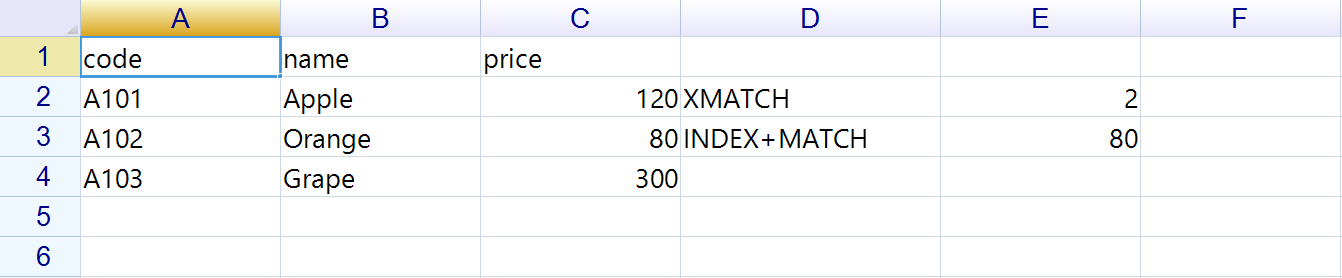
If a user types =INDEX(...) or =XMATCH(...) directly into an on-screen cell, it recalculates the same way. You can drop “a spreadsheet UI where you write the same formulas as Excel” straight into your own .NET app.
Summary
MATCH/XMATCHboth return a position (the Nth item). They don’t return the value itself- MATCH defaults to approximate match (
1). When you want an exact match, always add0as the 3rd argument - XMATCH defaults to exact match and is straightforward. It can do wildcards (
2) and reverse search from the end (search_mode = -1) INDEX + MATCHis more flexible than VLOOKUP (pulls to the left, survives inserted columns) and is still in active use where compatibility is required- ReoGrid V4.5 supports all of these, and calculates the same formulas inside a WinForms / WPF app without Office
Master both the “return a value” functions and the “return a position” functions and you can assemble spreadsheet lookups almost any way you like. Pair this with the value-pulling side, VLOOKUP vs HLOOKUP vs XLOOKUP.
See what’s new in ReoGrid 4.5 / Try the 30-day trial
Further reading
- VLOOKUP vs HLOOKUP vs XLOOKUP — Knowing the Difference and Using Them in a C# Spreadsheet
- Announcing ReoGrid 4.5 — 47 Excel-Compatible Functions and Point-Mode Formula Editing
- Formula and Calculation Engine — the full reference, including INDEX, MATCH, and XMATCH
- Excel-Style Conditional Formatting in a .NET Application
- Reading and Writing Excel Files in C# Without Office Interop