

The go-to function for “pulling a value out of a table” is VLOOKUP. It was the star of Excel for years, but it has weak spots — the column number breaks easily, and it can’t look to the left — so XLOOKUP was introduced to fix them. There’s also a horizontal sibling, HLOOKUP.
These three look like “the same lookup function,” but they differ in which direction they search, how you point at the value to return, and what happens when nothing is found. This article sorts out those differences, and then shows how ReoGrid (which gained support for these functions in V4.5) lets you run the same formulas right inside your own WinForms / WPF app.
Related: the difference between
MATCH/XMATCH, which return only the position (the Nth item), is covered in detail in a separate article — including theINDEX + MATCHcombination.
The short version — three differences
| VLOOKUP | HLOOKUP | XLOOKUP | |
|---|---|---|---|
| Search direction | Vertical (key in a column, searches downward) | Horizontal (key in a row, searches rightward) | Both vertical and horizontal |
| How you specify the return | A column number (1-based) | A row number (1-based) | You pass the return range itself |
| Look left / up | No (key must be the leftmost column) | No (key must be the top row) | Yes |
| Default match | Approximate (needs a 4th argument for exact) | Same | Exact (by default) |
| When not found | #N/A | #N/A | #N/A, or any fallback value you specify |
| Resilience to inserted columns | Weak (the column number shifts) | Weak (the row number shifts) | Strong (specified by range) |
In one sentence: XLOOKUP is a superset that fixes all the awkward parts of VLOOKUP / HLOOKUP at once. For new formulas, XLOOKUP is the default; you keep VLOOKUP / HLOOKUP around for compatibility with existing assets.
VLOOKUP — search down, return by column number
The basic form is VLOOKUP(lookup_value, range, column_number, [match_type]). It uses the leftmost column of the range as the key, searches downward, and returns the value in the “Nth column from the left” of the matching row.
=VLOOKUP("A102", A2:C100, 3, FALSE)- Search column A (the leftmost) of
A2:C100for"A102" - Return the value in the 3rd column (column C) of the matching row
- The 4th argument
FALSEmeans exact match. Omitting it or passingTRUEgives an approximate match (it assumes the range is sorted ascending and grabs “the largest value that is less than or equal”)
VLOOKUP has two weak spots:
- The column number is hardcoded: insert one column into the middle of the table and the
3now points at the wrong column, breaking the result - It can’t look to the left: you can’t return columns to the left of the key (the key must always be the leftmost column of the range)
Pulling a unit price from a price list, pulling a product name from a product code — for a “straightforward table where the key is on the left,” VLOOKUP is plenty.
HLOOKUP — the horizontal version of VLOOKUP
HLOOKUP(lookup_value, range, row_number, [match_type]). The idea is identical to VLOOKUP, just rotated 90 degrees. It uses the top row of the range as the key, searches across, and returns the value in the “Nth row from the top” of the matching column.
=HLOOKUP("2026Q2", A1:F5, 4, FALSE)You use it for a summary table where quarters or fiscal years run horizontally (a cross-tab whose headers go across rows). In practice tables are more often laid out vertically, so HLOOKUP shows up less often — but when you need to “pull from headers laid out across,” HLOOKUP is the natural fit.
XLOOKUP — never mind the direction or the column number
XLOOKUP(lookup_value, lookup_range, return_range, [if_not_found], [match_mode]). The biggest difference from VLOOKUP is that you pass the return range itself, not a “column number.”
=XLOOKUP("A102", A2:A100, C2:C100, "Not found", 0)- Search
A2:A100(the lookup range) for"A102" - Return the value at the same position in
C2:C100(the return range) - If not found, return
"Not found"instead of#N/A - The trailing
0means exact match (XLOOKUP defaults to exact, so it can be omitted)
This erases both of VLOOKUP’s weak spots:
- Inserting a column doesn’t shift anything: you specify a range, not a column number
- It can look to the left: because the lookup range and return range are passed separately, the return range can sit to the left of the key with no problem
The match mode (the last argument) is used like this:
| Match mode | Meaning |
|---|---|
0 | Exact match (default) |
-1 | Exact match, or the next smaller value |
1 | Exact match, or the next larger value |
2 | Wildcards (* and ?) |
ReoGrid support note: ReoGrid’s XLOOKUP supports
lookup_value, lookup_range, return_range, [if_not_found], [match_mode]and searches from the start. The search modes in Excel (reverse search from the end, binary search) are not supported at this time. If you need to find a position from the end, combine it with thesearch_modeof XMATCH.
How to choose
- For new formulas, use XLOOKUP. Resilient to added/removed columns, can look left, and lets you write a fallback for “not found.” It’s the least likely to break.
- VLOOKUP / HLOOKUP are for compatibility with existing assets. You need them when importing existing Excel workbooks or following older templates.
- If you only want “the position (the Nth item),” there’s also
INDEX + MATCH/XMATCH, which separates the search from the retrieval (see the MATCH vs XMATCH article).
Running them inside a C# app — ReoGrid V4.5
Here’s the main point. These are Excel functions, but without installing Office or Excel, ReoGrid V4.5 can calculate the same formulas right inside your app. You just put a formula string into a cell.
using unvell.ReoGrid;

var sheet = grid.CurrentWorksheet;

// The lookup table (A: product code, B: product name, C: unit price), loaded into A2:C4 at once
sheet.SetRangeData("A2:C4", new object[,]
{
    { "A101", "Apple",  120 },
    { "A102", "Orange", 80 },
    { "A103", "Grape",  300 },
});

// XLOOKUP: pull the unit price from a code (fall back to "Not found")
sheet["E2"] = "=XLOOKUP(\"A102\", A2:A4, C2:C4, \"Not found\", 0)";

// VLOOKUP: the same thing by column number (column C = the 3rd column of the range)
sheet["E3"] = "=VLOOKUP(\"A102\", A2:C4, 3, FALSE)";

// Read back the calculated result
var price = sheet.GetCellData<double>("E2");   // 80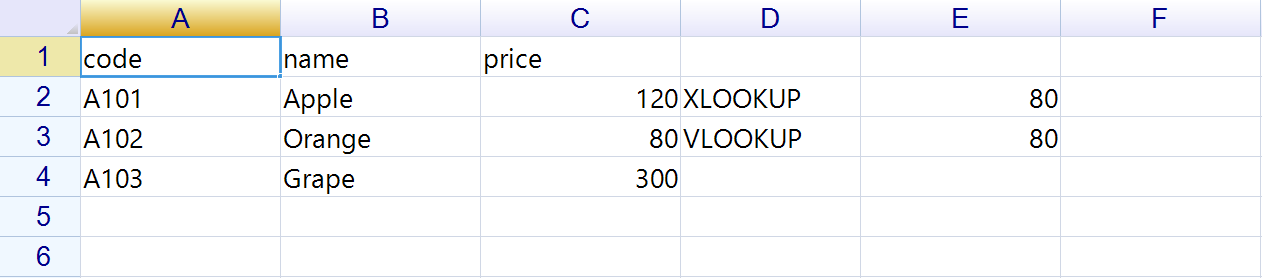
If a user types =XLOOKUP(...) into an on-screen cell, it recalculates the same way. In other words, you can drop “a spreadsheet UI where formulas feel just like Excel” straight into your own .NET desktop app.
Mix dependent cells into the formula (e.g. make the G1 in =XLOOKUP(G1, A2:A100, C2:C100) an input box) and you can build a lookup form that recalculates the moment something is typed — in a handful of lines.
Bonus: MATCH and XMATCH — the “return a position” cousins
The three functions above all “search and return a value.” Often used alongside them are MATCH / XMATCH, which “search and return a position (the Nth item).”
=MATCH("A102", A2:A100, 0)    → 2   (it's the 2nd item in column A)
=XMATCH("A102", A2:A100) → 2 (defaults to exact match, nice and simple)- MATCH is the classic for returning a position. But if you omit the 3rd argument it becomes an approximate match, so pass
0explicitly when you want exact - XMATCH is its superset: defaults to exact match, supports wildcards, and supports reverse search from the end
- Combine these with
INDEX(INDEX + MATCH) and you can pull values more flexibly than VLOOKUP (look left, survive inserted columns)
ReoGrid V4.5 supports MATCH and XMATCH as well. The differences between them, and how to build INDEX + MATCH, are covered in detail in the follow-up article.
👉 Read more: MATCH vs XMATCH — The Lookup Functions That Return a Position
Summary
- VLOOKUP searches down and returns by column number. Straightforward, but fragile when columns are inserted, and it can’t look left
- HLOOKUP is its horizontal version. For pulling from headers laid out across
- XLOOKUP passes the whole return range, so it’s resilient to inserted columns, can look left, and lets you write a fallback for “not found” — the default for anything new
- ReoGrid V4.5 supports all three, and calculates the same formulas right inside a WinForms / WPF app without Office
When formulas “just work by putting a string in a cell,” you can bring a real spreadsheet feel into your app.
See what’s new in ReoGrid 4.5 / Try the 30-day trial
Further reading
- MATCH vs XMATCH — The Lookup Functions That Return a Position
- Announcing ReoGrid 4.5 — 47 Excel-Compatible Functions and Point-Mode Formula Editing
- Formula and Calculation Engine — the full reference, including MATCH / XMATCH and INDEX
- Excel-Style Conditional Formatting in a .NET Application
- Reading and Writing Excel Files in C# Without Office Interop