
![Excel Number Format Codes, Decoded — #,##0, [Red], ;;; and K/M Suffixes in a C# App](/images/articles/excel-number-format-codes.svg)
A cell holds 1234567. A dashboard shows it as 1.2M, a finance report as 1,235 under a header that says (in thousands), an invoice as $1,234,567.00 — and the copy someone is about to print shows nothing at all. It is the same number every time. Only the format code changed.
Format codes are the strings in Excel’s Format Cells → Number → Custom box: #,##0, 0.0%, yyyy-mm-dd, #,##0;[Red]-#,##0. Most people paste one from a search result and move on. They are worth learning to read. There are four sections, a handful of placeholders, colors, conditions and quoted text — and that is most of the language.
ReoGrid V5 formats cells with the same codes as Excel. A code copied out of Excel works unchanged in your C# app, and an XLSX your app saves opens in Excel looking the same. So this article is two guides in one: how to read the codes, and how to use them from code.
Codes worth knowing by heart
| Code | Value | Shows | What it does |
|---|---|---|---|
0 | 1234.567 | 1235 | whole number, rounded |
0.00 | 1234.567 | 1234.57 | two decimals |
#,##0 | 1234567 | 1,234,567 | thousands separator |
#,##0.00 | 1234.5 | 1,234.50 | separator and two decimals |
0% / 0.0% | 0.1234 | 12% / 12.3% | percent (multiplies by 100) |
$#,##0.00 | 1234 | $1,234.00 | currency symbol |
#,##0,"K" | 1234567 | 1,235K | in thousands |
0.0,,"M" | 1234567 | 1.2M | in millions |
#,##0;[Red]-#,##0 | -1234 | -1,234 in red | red negatives |
#,##0;(#,##0) | -1234 | (1,234) | accounting-style negatives |
00000 | 2134 | 02134 | fixed width, leading zeros |
;;; | anything | (nothing) | hide the value |
yyyy-mm-dd | a date | 2026-10-31 | ISO date |
mmm d, yyyy | a date | Oct 31, 2026 | |
[h]:mm | 37.5 hours | 37:30 | durations past 24 hours |
Every row above was run through ReoGrid V5, and every row is also what Excel shows. The rest of the article explains why each one works, so that you can write the ones that are not in the table.
One code, four sections
![The code #,##0;[Red]-#,##0;"-";@ split into its four sections — positive, negative, zero and text — with the value each one formats and what it shows](/images/articles/excel-number-format-codes-anatomy.svg)
A format code is up to four sections separated by semicolons:
positive ; negative ; zero ; textHow many sections you write decides which values each one gets:
| You write | Sections apply to |
|---|---|
1 section — #,##0 | every number |
2 sections — #,##0;(#,##0) | positive and zero ; negative |
3 sections — #,##0;-#,##0;"-" | positive ; negative ; zero |
4 sections — …;…;…;@ | the three above, plus text |
Three rules account for nearly every surprise:
- A negative section brings no minus sign of its own. Once you write a second section, the sign is yours to place: under
0;0,-5shows as5. That is exactly what makes(#,##0)work — the parentheses take the place of the sign. - An empty section shows nothing.
#,##0;-#,##0;(note the trailing semicolon) blanks out zeros and leaves everything else alone.;;;blanks out everything, text included. The value is still in the cell — formulas read it, and it is saved with the file. - Text only ever reaches the fourth section. A text value in a cell formatted
#,##0is shown as it is; the numeric sections never touch it. That includes a number that arrived as text —"1234"from a CSV stays1234, with no comma, until it is stored as a number. (Why CSV columns end up as text, and how to control it)
Digit placeholders: 0, # and ?
| Character | Prints | Example |
|---|---|---|
0 | a digit, always — pads with zeros | 0.00 on 0.5 → 0.50; 00000 on 42 → 00042 |
# | a digit only when it means something | #.## on 0.5 → .5; # on 0 → (blank) |
? | like #, but holds the space so columns line up | # ?/? on 2.5 → 2 1/2 |
. | the decimal point | |
, | thousands separator — or, at the end, divide by 1,000 | #,##0 → 1,234,567; #,##0, → 1,235 |
% | multiply by 100 and add % | 0% on 0.15 → 15% |
That is why the everyday code is #,##0 rather than #,###: the #s let the separator appear without forcing leading zeros, and the single 0 makes zero show as 0 instead of an empty cell.
Leading zeros. 00000 shows the ZIP code 2134 as 02134. That is a display of a number, though. If the column is really an identifier — a ZIP code, an employee number, a part number — store it as text, so the zeros belong to the data and survive copy, export and CSV.
Percent multiplies. 0% turns 0.15 into 15%, and it turns 12 into 1200%. If your data already counts in percent (12 meaning 12%), either store 0.12, or quote the sign so it is plain text: 0"%" shows 12 as 12%.
Thousands, millions — and the trailing comma
A comma between digit placeholders is the thousands separator. A comma at the end of the number part divides by 1,000, and two of them divide by a million. Only the display is scaled.
| Code | 1234567 shows | Typical use |
|---|---|---|
#,##0, | 1,235 | a report headed (in thousands) |
#,##0,"K" | 1,235K | |
0.0,,"M" | 1.2M | dashboards and tiles |
#,##0.0,, | 1.2 | a report headed (in millions) |
To pick K or M by size, put conditions in front of the sections (more on conditions below):
[>=1000000]0.0,,"M";[>=1000]0.0,"K";0

1500     →  1.5K
2500000  →  2.5M
999      →  999
One edge case, and Excel has it too: the condition tests the stored value, and the rounding happens afterwards. 999999 is below a million, so it takes the K section — and 999.999 rounded to one decimal is 1000.0K. If that matters, move the threshold to where the rounding flips: with [>=999950]0.0,,"M";… the same value shows 1.0M.
Colors and conditions
Eight colors can lead a section: [Black], [Blue], [Cyan], [Green], [Magenta], [Red], [White] and [Yellow]. A color applies to its own section only, and it overrides the cell’s text color.
[Blue]+0.0%;[Red]-0.0%;0.0%

 0.034  →  +3.4%   (blue)
-0.012  →  -1.2%   (red)
 0      →  0.0%
The + is plain text here — the code puts it there, and the negative section writes its own -.
A condition in square brackets replaces the positive/negative split with a test of your own. A section without a condition takes whatever is left over:
[Red][<60]0;0               45 → 45 (red),  75 → 75       a pass mark
[=1]"1 item";0" items"      1 → 1 item,     3 → 3 items
[>=60]"pass";"fail"         75 → pass,      40 → fail
The last one prints only words, yet the cell still holds 75. It sorts as a number, sums as a number and filters as a number — the words are only how it looks.
Text, units and the @ sign
Anything in double quotes prints as written: 0" pcs" shows 3 as 3 pcs, and #,##0.00" USD" shows 1234.5 as 1,234.50 USD. A backslash does the same for a single character.
Why put the unit in the format instead of in the cell? Because 3 pcs typed into a cell is text, and SUM skips text. The number 3 under 0" pcs" is still a number that happens to read pcs.
@ stands for the cell’s text, and it lives in the fourth section. The most useful thing to do with it is make stray text stand out in a column of numbers:
#,##0;-#,##0;0;[Red]@

1234   →  1,234
"n/a"  →  n/a   (red)
Every number formats as usual; the one cell somebody typed n/a into shows up in red before it quietly drops out of a total.
Dates and times
A date in a cell is a number: the count of days since 1900, with the time of day as the fraction. The code decides how it reads.
| Code | October 31, 2026, 14:05:09 shows |
|---|---|
yyyy-mm-dd | 2026-10-31 |
m/d/yyyy | 10/31/2026 |
mmm d, yyyy | Oct 31, 2026 |
ddd, mmm d | Sat, Oct 31 |
dddd | Saturday |
mmm-yy | Oct-26 |
h:mm AM/PM | 2:05 PM |
yyyy-mm-dd hh:mm:ss | 2026-10-31 14:05:09 |
m means month — or minute. It is the minute when it comes straight after h / hh or straight before ss, and the month otherwise. So mm:ss is minutes and seconds, and mm on its own is the month.
[h]:mm — the timesheet that loses a day
Five working days of 7 hours 30 minutes each:
A1:A5   7:30 each            (7.5 / 24 of a day, format h:mm)
A6      =SUM(A1:A5)

        h:mm     →  13:30    the clock went past 24 and wrapped
        [h]:mm   →  37:30    elapsed time
h is the hour on a clock face, so 37.5 hours reads as “one day, then 13:30”. Square brackets make the unit count up without wrapping: [h]:mm, [mm]:ss, [ss]. A total of hours worked always wants the brackets.
Japanese era dates
[$-411]ggge"年"m"月"d"日" shows October 31, 2026 as 令和8年10月31日. The era names come from a table built into ReoGrid, so the text is the same on every machine. The Japanese era article covers the use case, and Number Formats the full set of era codes, including the 元年 form.
Give date columns a format
A date cell without a format code falls back to the regional date format of the machine it runs on, so the same file reads one way in New York and another in London. Give date columns an explicit code and they read the same everywhere.
The format never changes the value
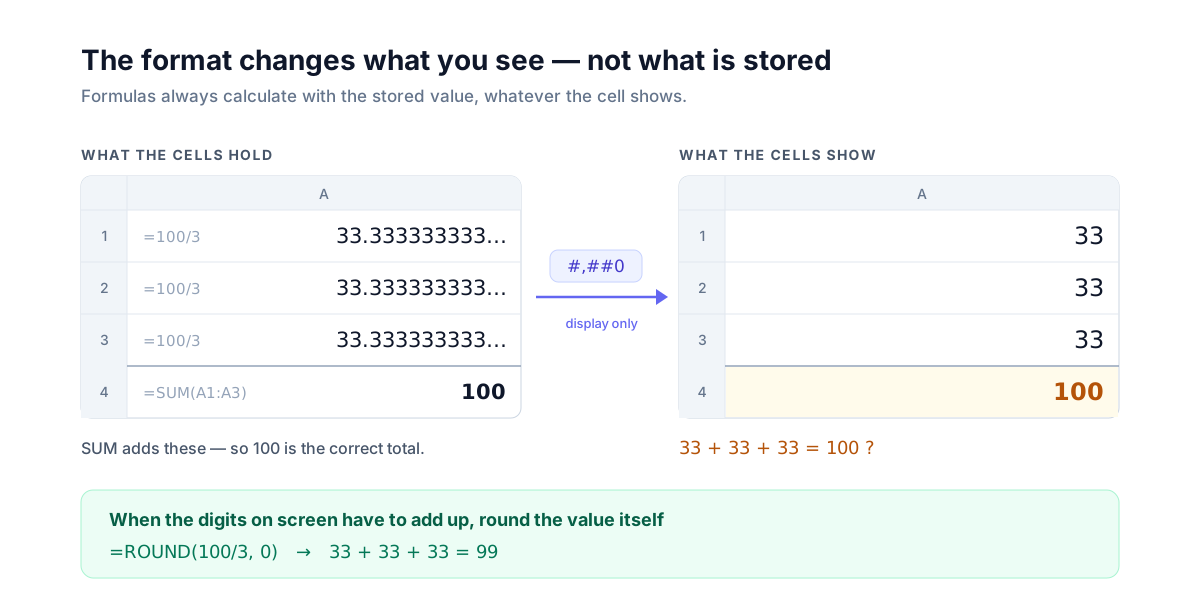
Three cells hold =100/3. Under #,##0 each one shows 33, and their SUM shows 100. Nothing is broken: the sum is computed from the stored values, 33.333… three times, and the format rounds only what is on screen. It rounds the way Excel does — half away from zero — so 2.5 under 0 shows 3, and 0.125 under 0.00 shows 0.13.
The same applies everywhere above. 1,235K is still 1234567 to every formula, and a value hidden by ;;; is still counted.
When the digits on screen must add up — an invoice, a tax line, a table someone will check with a calculator — round the value, not the display: =ROUND(100/3, 0) stores 33, and three of them total 99. Stop Invoice Totals From Drifting walks through ROUND, ROUNDDOWN and ROUNDUP for money.
Using format codes in C# — ReoGrid V5
Everything below is the same on WinForms, WPF and Avalonia, and runs headless with no UI at all.
Apply a format
using unvell.ReoGrid.Core;
using unvell.ReoGrid.Core.Data;

var workbook = new Workbook();
var sheet = workbook.AddWorksheet("Sales");

sheet.SetText(0, 0, "Region");  sheet.SetText(0, 1, "Profit");   sheet.SetText(0, 2, "vs last year");
sheet.SetText(1, 0, "North");   sheet.SetNumber(1, 1, 1234567);  sheet.SetNumber(1, 2, 0.034);
sheet.SetText(2, 0, "South");   sheet.SetNumber(2, 1, -45200);   sheet.SetNumber(2, 2, -0.012);
sheet.SetText(3, 0, "West");    sheet.SetNumber(3, 1, 0);        sheet.SetNumber(3, 2, 0);

sheet.SetNumberFormat(RangePosition.Parse("B2:B4"), "#,##0;[Red]-#,##0;\"-\"");
sheet.SetNumberFormat(RangePosition.Parse("C2:C4"), "[Blue]+0.0%;[Red]-0.0%;0.0%");

sheet.GetDisplayText(1, 1);      // "1,234,567"
sheet.GetDisplayText(2, 1);      // "-45,200"   drawn in red
sheet.GetDisplayText(3, 1);      // "-"
sheet.GetDisplayText(1, 2);      // "+3.4%"     drawn in blue
sheet.GetValue(1, 1).AsNumber;   // 1234567 — the value itself is untouched
The code is a C# string, so its own double quotes are escaped: "-" is written \"-\". The string is otherwise exactly what you would type into Excel.
SetNumberFormat(range, …) writes every cell in the range you name, so pass the data range rather than a whole column. SetNumberFormat(row, col, null) removes a format, and GetNumberFormat(row, col) reads one back.
Dates
A date goes in as a date value, and the format decides how it reads:
sheet.SetValue(1, 3, CellValue.Date(new DateTime(2026, 10, 31).ToOADate()));
sheet.SetNumberFormat(1, 3, "mmm d, yyyy");       // "Oct 31, 2026"
A date format works on a plain number too, exactly as in Excel: the serial 46326 under yyyy-mm-dd shows 2026-10-31.
Read what the cell shows
GetDisplayText returns the text as the grid draws it — handy for exporting, for e-mail bodies, and for unit tests that check what a user will see. When the format carries a color, GetFormattedText returns that as well:
string text = sheet.GetFormattedText(2, 1, out uint? color);
// text  = "-45,200"
// color = 0xFFFF0000 (ARGB) — null when the section names no color
Format a value outside the sheet
For a label, a chart caption or a summary line, NumberFormatter applies a code to a plain double, so the text in your UI matches the cells beside it:
using unvell.ReoGrid.Core.Style;

if (NumberFormatter.TryFormat(1234567, "0.0,,\"M\"", out string label, out _))
    totalLabel.Text = label;    // "1.2M"
It returns false for General and for an empty code, which tells you to fall back to your own formatting.
Inside formulas: TEXT
Joining a number into a string drops the cell’s format, because the formula sees the value, not the display. TEXT applies the same codes inside a formula:
sheet.SetFormula(5, 1, "SUM(B2:B4)");
sheet.SetNumberFormat(5, 1, "#,##0");                        // B6 shows "1,189,367"

sheet.SetFormula(6, 1, "\"Total: \"&B6");                    // "Total: 1189367"
sheet.SetFormula(7, 1, "\"Total: \"&TEXT(B6,\"#,##0\")");    // "Total: 1,189,367"
Let users pick a format
Each control — WinForms, WPF and Avalonia — formats the user’s selection with one call, which is all a Format drop-down on your toolbar needs:
grid.SetSelectionNumberFormat("#,##0.00"); // grid is your ReoGridControlWhen the user has selected whole columns, it formats the cells that hold data.
Save to XLSX — and open in Excel
using unvell.ReoGrid.IO.Excel;

XlsxWriter.Write(workbook, "sales.xlsx");
Codes are saved as Excel’s own number formats, so the file opens in Excel showing the same 1,234,567, the same red, the same - for zero. It works the other way round as well: reading an XLSX keeps every cell’s code, so a template formatted in Excel looks the same in your app. (Filling an Excel Template)
The same text on every machine
ReoGrid V5 renders a code the same way everywhere: , groups thousands and . marks decimals whatever the regional settings, and the era names come from a built-in table. A report produced on a server matches the one on a user’s desktop character for character.
Current limitations
- The Japanese weekday codes
aaa/aaaaprint as written for now. For weekdays,ddd(Sat) anddddd(Saturday) work. _(leave a gap as wide as the next character) and*(repeat a character to fill the cell) are accepted, and the cell shows the number without the gap or the fill.- The 1904 date system is not supported.
Coming from V4
V4 set formats with CellDataFormatFlag and argument objects such as NumberFormatArgs. V5 replaces all of them with format codes:
// V4: worksheet.SetRangeDataFormat(range, CellDataFormatFlag.Number,
// V4:     new NumberDataFormatter.NumberFormatArgs { DecimalPlaces = 2, UseSeparator = true });
ws.SetNumberFormat(range, "#,##0.00");
V4’s red-brackets negative style is #,##0;[Red](#,##0) in V5, and Japanese era dates are format codes too. The migration guide lists the rest.
Summary
- A format code has up to four sections: positive ; negative ; zero ; text. Write a negative section and the sign is yours to place
0always prints a digit,#only when it means something. A comma at the end divides by 1,000 — the basis of every in thousands and K/M display- Colors and conditions go in square brackets, quoted text prints as written, and
;;;hides the value without removing it [h]:mmfor durations;mis the minute only next tohorss- The format changes the display, never the value. When the digits on screen must add up, round the value with
ROUND - ReoGrid V5 uses Excel’s codes as they are —
SetNumberFormat,GetDisplayText,TEXT,NumberFormatter, and a round trip through XLSX
See what’s new in V5 / Start a 30-day trial
Further reading
- Number Formats — every supported code, Japanese eras, scientific notation and fractions
- CellValue — numbers, dates and text as the sheet stores them
- XLSX — reading and writing Excel files
- Stop CSV Data From Being ‘Fixed’ When Opened in Excel
- Stop Invoice Totals From Drifting by a Yen — Currency Formatting, Consumption Tax, and Rounding
- Japanese Era (Wareki) Date Cells in C#
- SUBTOTAL vs AGGREGATE — The Totals That Follow the Filter