

Put a spreadsheet in front of users and the same three things happen every time. Someone deletes the subtotal formula. Someone types “12,000 USD” into the unit price column. Nobody remembers why that column was left blank on last year’s order. The problems you had when you were emailing Excel files simply move into your application.
ReoGrid V5, released on August 19, 2026, brings the three Excel tools that answer them: data validation, cell notes, and sheet protection. Each is useful on its own, but the interesting part is how cleanly the jobs divide. Combined, they are what turns a grid into an input sheet users cannot break.
This article builds a quotation template in C# and uses all three. They work the same way on every platform, so the code is identical on WinForms, WPF and Avalonia — and runs headless too.
The division of labour
| Tool | What it owns | When it acts |
|---|---|---|
| Sheet protection | Which cells people may touch at all | Before an edit starts |
| Data validation | Whether an incoming value is acceptable | The instant a value is committed |
| Cell notes | Explaining why, to a human | Always (hover, or pinned open) |
The order matters too. Protect to narrow the surface → validate to narrow the values → annotate to explain the rules. Build it the other way around and you usually end up with a sheet full of cells that mysteriously refuse to be edited.
1. Sheet protection — deciding what may be touched
Protection has the same two layers as Excel, and this is where most people trip:
Every cell is locked by default, and that lock only bites once the sheet is protected.
So building an input form is not “lock the cells you want to guard”. It is the opposite:
using unvell.ReoGrid.Core;
using unvell.ReoGrid.Core.Protection;

// 1. Unlock the ranges people should fill in (everything else is locked already)
sheet.SetRangeLock(RangePosition.Parse("A2:C100"), LockState.Unlocked);

// 2. Then protect the sheet — only now does the lock bite
sheet.Protect();
Locks are set per range, so opening up a 1,048,576-row column costs the same as opening up one cell, and IsRangeEditable checks a range of any size just as quickly.
Choosing what stays allowed
ws.Protection maps one-to-one onto the checkboxes in Excel’s Protect Sheet dialog.
sheet.Protection.AllowSort = true;          // sorting is fine
sheet.Protection.AllowAutoFilter = true;    // so is using the filter
sheet.Protection.AllowFormatCells = false;  // formatting is not (the default)

sheet.Protect();
One trap here. AllowSelectLockedCells and AllowSelectUnlockedCells are the only two flags that default to true. Every other AllowXxx starts at false.
The reason is how OOXML stores them. Excel keeps these flags as prohibitions (insertRows="1" means “forbid inserting rows”) while V5 keeps them as permissions. The two selection flags start life as “not forbidden”, so inverting them gives true. Get this backwards and you will quietly ship a sheet nobody can click.
Telling the user why
When someone touches a locked cell, EditRefused fires.
sheet.EditRefused += (_, e) =>
{
    // e.Reason is Cells / Axis / Structure
    statusBar.Text = e.Message;   // the wording Excel uses
    e.Handled = true;             // suppress the control's default message box
};
Setting Handled lets you replace the modal with a status bar line or a toast. It changes how the refusal is reported; the outcome stays fixed — the edit is refused either way, by design.
What protection covers
Protection applies to user interaction only. Code that writes through the API — loading a file, or your own host code — keeps working on a protected sheet. That is the same line Excel draws with UserInterfaceOnly, and it is deliberate: the nightly job that writes back aggregated totals writes straight into the protected sheet, without unprotecting it first.
One more honest note. The password in Protect("password") is Excel’s 16-bit verifier. It is not encryption — collisions are trivial to produce, and Excel treats it that way itself. V5 uses it only to guard Unprotect. Never use it to keep data from being seen; anyone who can open the file can read the cells. It exists so that workbooks authored in Excel round-trip exactly as they were made.
2. Data validation — a gate on the values
Once protection has narrowed where people type, validation decides what they may type. A rule is attached to a range and is evaluated only at the moment a value is committed, so a validated sheet scrolls exactly as fast as one without rules.
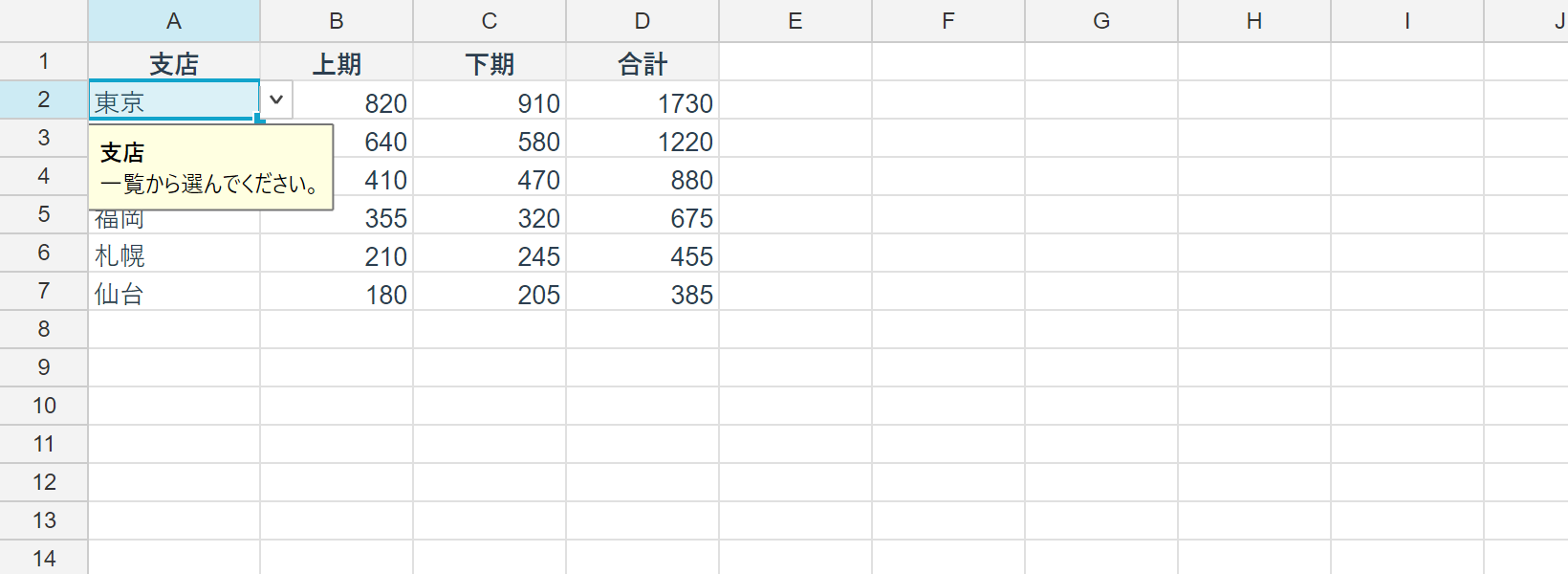
Lists — pick, don’t type
using unvell.ReoGrid.Core.Validation;

// Options given inline
sheet.AddValidation(RangePosition.Parse("C2:C100"), new ListValidationRule
{
    Options = ["Tokyo", "Osaka", "Nagoya"],
});

// Or driven by a master sheet (cross-sheet and named ranges both work)
sheet.AddValidation(RangePosition.Parse("A2:A100"), new ListValidationRule
{
    Source = "=Master!$A$1:$A$200",
});
Source accepts a same-sheet address ($E$1:$E$9), a named range (Colors), a cross-sheet reference, or the literal form Excel saves ("Tokyo,Osaka,Nagoya"). Blank cells in the referenced range drop out of the list, so it is fine to point at a generous range.
Keeping the product list on a master sheet and referencing it means updating the master updates every row’s choices. A string[] hard-coded in C# will eventually disagree with the master data — this one always matches it.
Numbers, dates, times, lengths
// Quantity: whole numbers, 1 to 9999
sheet.AddValidation(RangePosition.Parse("C2:C100"), new ComparisonValidationRule
{
    Kind = ComparisonKind.Whole,
    Operator = ValidationOperator.Between,
    Value1 = ValidationValue.Num(1),
    Value2 = ValidationValue.Num(9999),
});

// Delivery date: today or later — bounds can be formulas
sheet.AddValidation(RangePosition.Parse("E2:E100"), new ComparisonValidationRule
{
    Kind = ComparisonKind.Date,
    Operator = ValidationOperator.GreaterThanOrEqual,
    Value1 = ValidationValue.Str("=TODAY()"),
});
Kind is one of Whole, Decimal, Date, Time and TextLength; Operator is the same set of eight Excel offers. Bounds take numbers, or a formula starting with =. Because formulas can reference cells, you can express rules that depend on the rest of the sheet — “no earlier than the start date in B1”, say.
Custom formulas — blocking duplicates
// The formula is written against the top-left cell; relative refs shift per row/column
sheet.AddValidation(RangePosition.Parse("A2:A100"), new CustomValidationRule
{
    Formula = "=COUNTIF($A$2:$A$100, A2)=1",   // no product entered twice
});
Relative references shift exactly the way they do in a conditional-formatting expression rule, and $ pins them. The formula runs on the sheet’s own engine, so cross-sheet references and named ranges are both available — a check like “not already on the open-orders sheet” is written entirely on the sheet, without any C#.
Prompts and alert levels — tell them before you reject them
Validation is more than a gate. Saying what you want up front usually works better than rejecting afterwards.
sheet.AddValidation(RangePosition.Parse("B2:B100"), new ComparisonValidationRule
{
    Kind = ComparisonKind.Decimal,
    Operator = ValidationOperator.GreaterThanOrEqual,
    Value1 = ValidationValue.Num(0),

    // Shown simply on selecting the cell
    ShowInputMessage = true,
    InputTitle = "Unit price",
    InputMessage = "Enter the pre-tax amount, digits only.",

    // Shown when a value is rejected
    AlertStyle = ValidationAlertStyle.Warning,
    ErrorTitle = "Negative value",
    ErrorMessage = "That is a negative unit price. Enter discounts on the Discount row.",

    IgnoreBlank = true,
});
AlertStyle has three levels:
| Value | Behaviour |
|---|---|
Stop (default) | Rejects the input. The editor stays open so the value can be fixed |
Warning | Asks “enter it anyway?” and honours the answer |
Information | Says something; the value goes in |
In practice, a good split is Warning for policy, Stop for corruption. Make everything a Stop and the first person with a legitimately unusual order goes back to Excel.
AnyValidationRule (accepts anything) combined with ShowInputMessage gives you a third option: a cell that only advises, useful for free-text notes fields.
When it runs — the big one
Validation runs on exactly two events: committing a cell edit and committing from the formula bar. Which means these bypass validation:
- Formula entry (anything starting with
=) — the result isn’t known at commit time. Excel behaves the same way - Paste and auto-fill
SetValue/SetTextfrom your own code
A validation rule is a gate on what a person typed, not a data-integrity guarantee. This is precisely Excel’s bargain. Assume “the rules are in place, so whatever reaches my database is clean” and a single paste will prove otherwise.
When you do need to check a batch — after a paste, or before a CSV import — call the same rules yourself:
// The same check the control runs when an edit is committed
ValidationResult result = sheet.ValidateInput(row, col, input);
if (!result.IsValid && result.Blocks)
{
    log.Warn($"{result.Title}: {result.Message}");
}

// Pull the choices out of a list rule (handy for a custom input UI)
IReadOnlyList<string> options = sheet.GetValidationListOptions(row, col);
Let the sheet’s rules be the single definition and call them from your import paths — that way the validation logic is written once, in the sheet, rather than again in C#.
3. Cell notes — leaving the “why” behind
Protection and validation are rules for machines. The other half of the job — what only a human can be told — belongs to notes.
using unvell.ReoGrid.Core.Comments;

// One note per cell; calling it again replaces the note
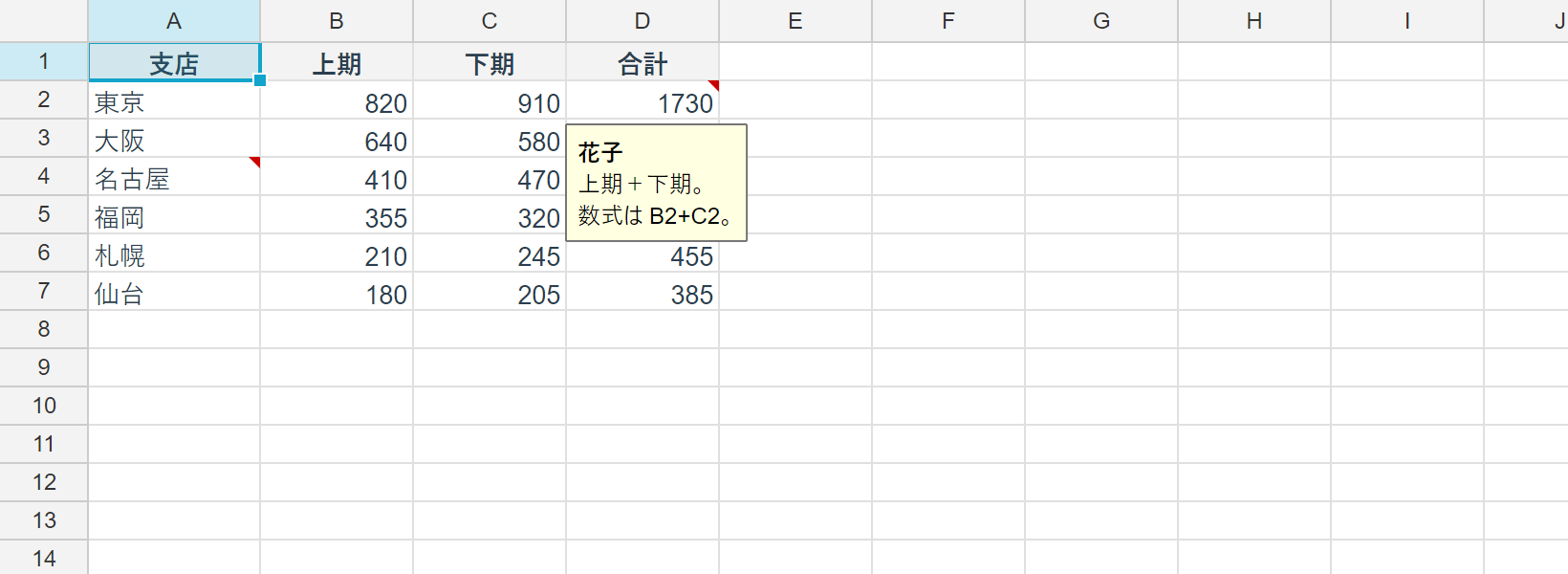
sheet.SetComment(0, 3, "Subtotal is calculated. This column is not editable.", author: "Template");

// Pin it open (the default is hover-only)
sheet.SetComment(0, 4, "Delivery date must be today or later", author: "Template", visible: true);
A cell with a note gets a red triangle in its top-right corner, and the bubble opens while the pointer is anywhere over the cell — same as Excel. visible: true keeps it open permanently.
In the context of this article, notes matter because they let you put the reason next to the rule. A user who clicks a locked cell doesn’t read your dialog; they read the triangle. Whatever the template author was thinking can live inside the template itself.
Reading and removing are all there too:
CellComment? comment = sheet.GetComment(1, 1);

// Enumerate the sheet in row-major order (files are written in the same order,
// so re-saving an unchanged workbook produces no diff)
foreach (var c in sheet.Comments.Items)
    Console.WriteLine($"{c.Cell.ToAddress()}: {c.Text}");

sheet.RemoveComment(1, 1);
int removed = sheet.Comments.RemoveRange(RangePosition.Parse("A1:D100"));
Notes travel with their cell: insert a row and they move; delete the cell and they go with it (undo brings them back).
And one behaviour worth remembering — notes and validation UI are screen-only; print and PDF output leave them out. Same as Excel’s default. They are annotations for the screen, and the document you hand a customer stays clean.
4. Putting all three together — one quotation template
Here is the whole thing as a single method. The sequence is the point: build the content → unlock → validate → annotate → protect, last.
using unvell.ReoGrid.Core;
using unvell.ReoGrid.Core.Comments;
using unvell.ReoGrid.Core.Protection;
using unvell.ReoGrid.Core.Style;
using unvell.ReoGrid.Core.Validation;

static void BuildQuotationTemplate(Worksheet sheet)
{
    // --- 1. The template itself --------------------------------
    sheet.SetText(0, 0, "Product");
    sheet.SetText(0, 1, "Unit price");
    sheet.SetText(0, 2, "Qty");
    sheet.SetText(0, 3, "Subtotal");
    sheet.SetText(0, 4, "Delivery");

    for (int row = 1; row <= 99; row++)
        sheet.SetFormula(row, 3, $"B{row + 1}*C{row + 1}");   // subtotal is a formula

    sheet.SetRowStyle(0, new StyleRecord
    {
        Bold = true,
        BackgroundColor = 0xFFEFEFEF,     // ARGB — V5 colors are uint
        TextAlign = HAlign.Center,
    });
    sheet.SetNumberFormat(RangePosition.Parse("B2:C100"), "#,##0");

    // Empty rows would show 0; a zero section keeps the sheet quiet
    sheet.SetNumberFormat(RangePosition.Parse("D2:D100"), "#,##0;[Red]-#,##0;\"-\"");

    // --- 2. Unlock only the columns people fill in --------------
    //     Column D (subtotal) and row 1 (headers) stay locked
    sheet.SetRangeLock(RangePosition.Parse("A2:C100"), LockState.Unlocked);
    sheet.SetRangeLock(RangePosition.Parse("E2:E100"), LockState.Unlocked);

    // --- 3. Gate the values ------------------------------------
    sheet.AddValidation(RangePosition.Parse("A2:A100"), new ListValidationRule
    {
        Source = "=Master!$A$1:$A$200",
    });
    sheet.AddValidation(RangePosition.Parse("B2:B100"), new ComparisonValidationRule
    {
        Kind = ComparisonKind.Decimal,
        Operator = ValidationOperator.GreaterThanOrEqual,
        Value1 = ValidationValue.Num(0),
        ShowInputMessage = true,
        InputTitle = "Unit price",
        InputMessage = "Enter the pre-tax amount, digits only.",
        AlertStyle = ValidationAlertStyle.Warning,
    });
    sheet.AddValidation(RangePosition.Parse("C2:C100"), new ComparisonValidationRule
    {
        Kind = ComparisonKind.Whole,
        Operator = ValidationOperator.Between,
        Value1 = ValidationValue.Num(1),
        Value2 = ValidationValue.Num(9999),
    });
    sheet.AddValidation(RangePosition.Parse("E2:E100"), new ComparisonValidationRule
    {
        Kind = ComparisonKind.Date,
        Operator = ValidationOperator.GreaterThanOrEqual,
        Value1 = ValidationValue.Str("=TODAY()"),
    });

    // --- 4. Leave the reasons behind ---------------------------
    sheet.SetComment(0, 0, "Pick from the master list. Missing products go through purchasing.", author: "Template");
    sheet.SetComment(0, 3, "Unit price × quantity, calculated. Not editable.", author: "Template");

    // --- 5. Protect, last --------------------------------------
    sheet.Protection.AllowSort = true;
    sheet.Protection.AllowAutoFilter = true;
    sheet.Protect();
}
What a user can now do: pick a product, type a price and a quantity, set a delivery date, sort the rows. The subtotal formulas stay put, quantities take whole numbers only, and the reason column D refuses edits is right there in the corner of the cell.
On WinForms, that’s the whole application:
var grid = new ReoGridControl { Dock = DockStyle.Fill };
BuildQuotationTemplate(grid.ActiveWorksheet);
On WPF and Avalonia, BuildQuotationTemplate stays exactly the same, character for character: all three features work identically on every platform.
5. The Excel round-trip
All three survive a round-trip through XLSX and reogrid-json. You can author templates in Excel and load them, or build them in V5 and hand them to Excel.
using unvell.ReoGrid.IO.Excel;

XlsxWriter.Write(workbook, "quotation-template.xlsx");
Workbook loaded = XlsxReader.Read("quotation-template.xlsx");| Feature | What carries over |
|---|---|
| Validation | The rules, saved as Excel’s own data validation |
| Notes | The note text, plus each note’s box position and visibility |
| Protection | The sheet’s protection settings, plus each cell’s lock state |
Excel opens the saved notes cleanly, as-is. Excel also keeps the author as a bold Author: prefix inside the note text, and V5 converts that prefix in both directions — the Author survives a trip through Excel.
If you would rather click than code, ReoGrid Studio has all three: Data ▸ Data Validation…, Review ▸ Edit Note… (Shift+F2) and Review ▸ Protect Sheet…. Templates built there load straight into your application.
The gotchas, on one page
- Cells are locked by default. The order is “unlock what people fill in →
Protect()” AllowSelectLockedCells/AllowSelectUnlockedCellsare the only two flags defaulting totrue; every otherAllowXxxisfalse. Invert them by accident and nobody can click anything- Protection applies to user interaction only. Your code keeps writing through the API (Excel’s
UserInterfaceOnly) - The password in
Protect(password)is Excel’s 16-bit verifier, not encryption - Validation runs only on a value a person committed. Formulas, paste, auto-fill and
SetValuebypass it — callValidateInputyourself to check them IgnoreBlankdefaults totrue, so blank always passes. Check required fields separately, outside the validation rules- Notes and validation UI are screen-only; print and PDF leave them out
- The code is the same on WinForms, WPF and Avalonia, and runs headless
All three work behind the scenes. But the step from “showing a table” to “letting people type into a table” is exactly where they decide how much of your support inbox is spent on broken spreadsheets. V5 closes that gap.
See what’s new in V5 / Start a 30-day trial
Further reading
- Data Validation — every rule type and message option
- Cell Notes — visibility, enumeration, the Excel round-trip
- Sheet Protection — the full permission set and refusal events
- ReoGrid V5 Is Coming — A Next-Generation Rebuild
- Currency, Tax and Rounding in a C# Invoice Spreadsheet
- Full-width / Half-width Normalization in C#