
A validation rule is attached to a range and is evaluated only at the moment a value is committed to a cell. It never runs during rendering, so a validated sheet scrolls exactly as fast as one without rules.
Lists
using unvell.ReoGrid.Core;
using unvell.ReoGrid.Core.Validation;

// options given inline
ws.AddValidation(RangePosition.Parse("C2:C100"), new ListValidationRule
{
	Options = ["Tokyo", "Osaka", "Nagoya"],
});

// options read from cells (this sheet, another sheet, or a defined name)
ws.AddValidation(RangePosition.Parse("D2:D100"), new ListValidationRule
{
	Source = "=Master!$A$1:$A$20",
});
Source accepts any of these:
| Form | Example |
|---|---|
| An address on this sheet | $E$1:$E$9 / =$E$1:$E$9 |
| A defined name | Colors |
| A cross-sheet reference | =Master!$A$1:$A$20 |
| A literal list (what Excel stores) | "Tokyo,Osaka,Nagoya" |
Options wins when both are given. Blank cells in the source are left out of the list.
ShowDropdown = false hides the arrow but keeps the rule in force — the same as clearing
Excel’s “In-cell dropdown” checkbox.
Numbers, dates, times and lengths
// whole numbers from 1 to 100
ws.AddValidation(RangePosition.Parse("B2:B100"), new ComparisonValidationRule
{
	Kind = ComparisonKind.Whole,
	Operator = ValidationOperator.Between,
	Value1 = ValidationValue.Num(1),
	Value2 = ValidationValue.Num(100),
});

// today or later — a bound may be a formula
ws.AddValidation(RangePosition.Parse("E2:E100"), new ComparisonValidationRule
{
	Kind = ComparisonKind.Date,
	Operator = ValidationOperator.GreaterThanOrEqual,
	Value1 = ValidationValue.Str("=TODAY()"),
});

// at most eight characters
ws.AddValidation(RangePosition.Parse("F2:F100"), new ComparisonValidationRule
{
	Kind = ComparisonKind.TextLength,
	Operator = ValidationOperator.LessThanOrEqual,
	Value1 = ValidationValue.Num(8),
});
There are five ComparisonKinds:
| Kind | What is compared |
|---|---|
Whole | The number; a fractional part fails |
Decimal | The number |
Date | The serial (a string like 2026-04-01 is parsed too) |
Time | A day fraction (13:30 → 0.5625) |
TextLength | How many characters were typed |
ValidationOperator has Excel’s eight members — Between, NotBetween, Equal, NotEqual,
GreaterThan, LessThan, GreaterThanOrEqual, LessThanOrEqual. Value2 matters only for
Between / NotBetween.
A bound may be a number, a formula (a string starting with =), or a literal the kind can read
("2026-04-01", "09:00"). A formula bound may reference cells, so the rule follows them.
Custom formulas
// The formula is written for the range's top-left cell; relative references
// shift by each cell's offset inside the range.
ws.AddValidation(RangePosition.Parse("A2:A100"), new CustomValidationRule
{
	Formula = "=COUNTIF($A$2:$A$100, A2)=1",   // no duplicates
});
A truthy result passes. References shift exactly the way a conditional-format expression rule’s
do, and $-anchored references stay put. The formula runs on the sheet’s own engine, so
cross-sheet references and defined names work.
Messages and alert styles
ws.AddValidation(RangePosition.Parse("B2:B100"), new ComparisonValidationRule
{
	Kind = ComparisonKind.Decimal,
	Operator = ValidationOperator.GreaterThanOrEqual,
	Value1 = ValidationValue.Num(0),

	// shown while the cell is selected
	ShowInputMessage = true,
	InputTitle = "Amount",
	InputMessage = "Enter zero or more.",

	// shown when an entry is rejected; only Stop blocks the write
	AlertStyle = ValidationAlertStyle.Warning,
	ErrorTitle = "Negative amount",
	ErrorMessage = "That amount is negative.",

	IgnoreBlank = true,
});
AlertStyle | Behavior |
|---|---|
Stop (default) | Rejects the entry. The editor stays open so it can be corrected |
Warning | Asks whether to keep the entry, and honors the answer |
Information | Tells the user; the entry is kept |
With IgnoreBlank (default true), empty input always passes. ShowErrorMessage = false
shows no alert and lets the entry in even when it breaks the rule, Stop included — as Excel does
when “Show error alert after invalid data is entered” is unchecked.
When rules run
- On an in-cell commit and on a formula-bar entry — those two only.
- A formula entry (
=…) is not checked. Its result is unknown at entry time; Excel behaves the same way. - Paste, auto-fill and
SetValueare not checked either, again matching Excel. A rule guards what a person types.
Checking it yourself
// the dropdown options (list rules only; empty when the arrow is suppressed)
IReadOnlyList<string> options = ws.GetValidationListOptions(1, 2);

// check an entry yourself — this is what the controls call on commit
ValidationResult result = ws.ValidateInput(1, 1, "-5");
if (!result.IsValid && result.Blocks)
{
	string? title = result.Title;
	string? message = result.Message;
	_ = (title, message);
}

ValidationRule? rule = ws.GetValidation(1, 1);
_ = (options, rule);
Removing rules
string id = ws.AddValidation(RangePosition.Parse("B2:B100"), new AnyValidationRule());

// drop one rule by id
ws.RemoveValidation(id);

// clear a range: a rule reaching outside it is split, so the rest survives
ws.ClearValidations(RangePosition.Parse("B10:B20"));

bool any = ws.HasValidations;
_ = any;
AnyValidationRule accepts anything. Paired with ShowInputMessage it gives you a cell that
only prompts.
What the controls do
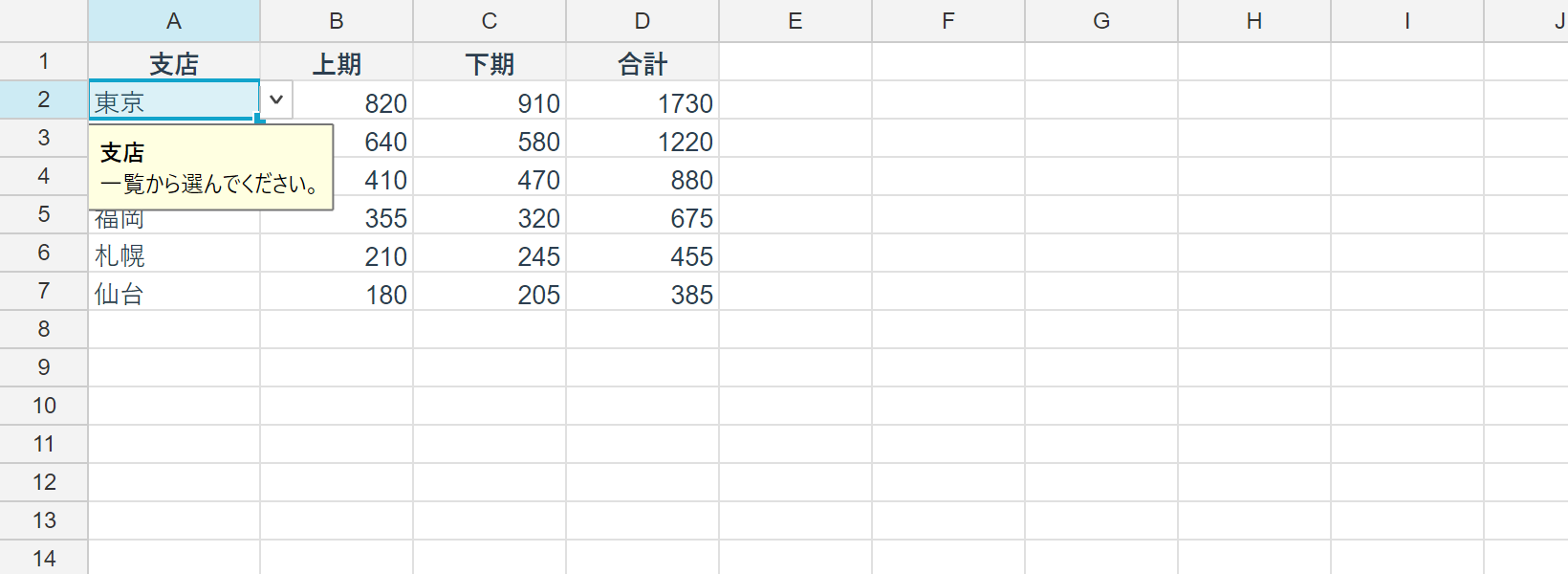
- When the selected cell carries a list rule, the dropdown arrow is drawn just outside the cell’s right edge — Excel’s position, so it never covers the cell’s own text. Click it, or press Alt+Down, to pick.
- An
ShowInputMessageprompt appears in a bubble under the cell. - Neither is printed or exported to PDF (
GridViewport.ShowValidationUIis off there). - A rejected entry raises
CellValidationFailedfirst. SetHandledto substitute your own dialog, andRejectto overrule the decision. Left alone, WinForms and WPF show Excel’s message box; Avalonia has no built-in modal dialog and draws a transient in-grid message instead.
Undo and I/O
- Adding and clearing rules records an undo step through
RangeFacets.Validations, and undoing a row or column change restores each rule’s range. - reogrid-json: stored as the sheet’s
validations, the same shape reogrid-web uses. - XLSX: read and written as
<dataValidations>. Asqrefnaming several ranges expands to one entry per range. Excel’sshowDropDownis an inverted attribute — it hides the arrow — and that difference is absorbed here. - The XLSX extension list: when a list’s source is on another sheet, the classic
<dataValidation>cannot express it, so Excel writes the rule into the sheet’s<extLst>as an x14 extension instead (<x14:formula1><xm:f>list!$B$2:$B$25</xm:f></x14:formula1>plus<xm:sqref>). V5 reads those too, so a form template that keeps its options on a lookup sheet does not lose its rules. Writing still goes through the classic element: that round-trips through V5, but it is not the element Excel uses for the same content — emitting the extension list is not implemented.
Trying it in Studio
Data ▸ Data Validation… opens the dialog and applies to the selection.
Data ▸ Clear Validation clears just the selected cells.