

Sooner or later every VB.NET business app gets the same request: a button that puts what is on the screen into Excel. The usual answer is a loop over Microsoft.Office.Interop.Excel. It works on the developer’s PC, and then it meets a customer PC without Office, an EXCEL.EXE still running after the export, and a ZIP code that has lost its leading zero.
This article builds that button with ReoGrid, which writes the .xlsx file itself, so the export runs on any PC whether or not Office is installed. The code is one module you can paste in, and it handles the details a simple loop misses. Everything below was compiled with Option Strict On, run against a real DataGridView, and checked by opening the result in Excel.
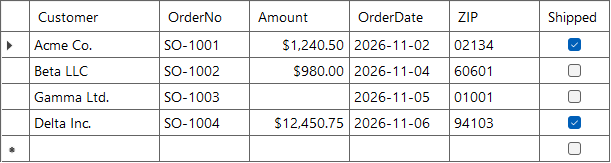
DataGridView bound to a DataTable. An internal ID column is hidden, and the user has dragged Customer to the front.
02134 intact.Which ReoGrid for your project
| Your project | Use | Package |
|---|---|---|
| .NET 10 | ReoGrid V5 | unvell.ReoGrid.One |
| .NET Framework 4.8, or .NET 8 (Windows) | ReoGrid V4 | unvell.ReoGrid4 |
Many VB.NET WinForms apps are still on .NET Framework, and those want V4: skip to the V4 module. Both versions install from UNVELL’s package feed (V5 setup, V4 setup), and a 30-day trial key covers either one.
What a DataGridView export has to get right
A loop over Rows and Columns looks like ten lines of code. These are the reasons it is not:
| Trap | What goes wrong | What the module does |
|---|---|---|
| The “new row” at the bottom | NullReferenceException on the last row, or an empty row in the file | Skips rows where IsNewRow is true |
| A cell still being edited | The last value the user typed is missing, because a toolbar button does not take the focus | Calls grid.EndEdit() first |
| Hidden columns | An internal ID ends up in a file sent to a customer | Keeps only Visible columns |
| Reordered columns | The file’s order differs from the screen | Sorts by DisplayIndex |
Numbers written with .ToString() | Green triangles everywhere, and SUM returns 0 | Passes the cell’s own Value |
| Codes with leading zeros | Assigned through Interop, the text 02134 becomes the number 2134 | Strings stay strings |
DBNull | The text DBNull, or an exception | Writes an empty cell |
| Dates with no format | The cell shows 46335 | Applies a date format from the column’s ValueType |
| .NET format strings | N0 is not an Excel code, and Excel rejects it | Translates to #,##0 |
The export module — ReoGrid V5
Add the package to your .vbproj project:
dotnet add package unvell.ReoGrid.OneApply your license key once at application startup. Without a key, saving raises ReoGridLicenseException.
Imports unvell.ReoGrid.Core.License

ReoGridLicense.SetLicense(myLicenseKey)
Then add this module:
Imports System.Windows.Forms
Imports unvell.ReoGrid.Core
Imports unvell.ReoGrid.Core.Style
Imports unvell.ReoGrid.IO.Excel

Public Module DataGridViewExport

    Public Sub SaveAsXlsx(grid As DataGridView, path As String,
                          Optional selectedOnly As Boolean = False)

        ' Commit the cell the user is still typing in
        grid.EndEdit()

        ' The columns the user can see, in the order the user sees them
        Dim columns = grid.Columns.Cast(Of DataGridViewColumn)().
            Where(Function(col) col.Visible).
            OrderBy(Function(col) col.DisplayIndex).
            ToList()

        ' Rows in screen order, leaving out the empty "new row" at the bottom
        Dim source = If(selectedOnly,
                        grid.SelectedRows.Cast(Of DataGridViewRow)(),
                        grid.Rows.Cast(Of DataGridViewRow)())
        Dim rows = source.
            Where(Function(row) row.Visible AndAlso Not row.IsNewRow).
            OrderBy(Function(row) row.Index).
            ToList()

        Dim book As New Workbook()
        Dim ws = book.AddWorksheet("Sheet1")

        ' Header row, using the column widths from the screen
        For c = 0 To columns.Count - 1
            ws.SetText(0, c, columns(c).HeaderText)
            ws.Columns.SetSize(c, columns(c).Width)
        Next
        ws.SetRowStyle(0, New StyleRecord With {.Bold = True, .BackgroundColor = &HFFDDEBF7UI})

        ' Data: pass the cell's own value, so numbers stay numbers
        For r = 0 To rows.Count - 1
            For c = 0 To columns.Count - 1
                Dim value = rows(r).Cells(columns(c).Index).Value
                ws.SetObjectValue(r + 1, c, If(value Is DBNull.Value, Nothing, value))
            Next
        Next

        ' Number and date formats
        If rows.Count > 0 Then
            For c = 0 To columns.Count - 1
                Dim code = ExcelFormatOf(columns(c))
                If code IsNot Nothing Then
                    ws.SetNumberFormat(New RangePosition(1, c, rows.Count, 1), code)
                End If
            Next
        End If

        XlsxWriter.Write(book, path)
    End Sub

    ' A DataGridView format string is .NET's, so translate it to Excel's
    Private Function ExcelFormatOf(col As DataGridViewColumn) As String
        Select Case col.DefaultCellStyle.Format
            Case "N0" : Return "#,##0"
            Case "N2" : Return "#,##0.00"
            Case "C0" : Return "$#,##0"
            Case "C2" : Return "$#,##0.00"
            Case "P1" : Return "0.0%"
            Case "yyyy-MM-dd HH:mm" : Return "yyyy-mm-dd hh:mm"
        End Select
        If col.ValueType Is GetType(Date) Then Return "yyyy-mm-dd"
        Return Nothing
    End Function

End Module
A sorted or filtered grid exports as it stands. Clicking a column header, or setting RowFilter on the DataView, changes Rows itself, so the file matches what is on the screen. Rows hidden with row.Visible = False are left out as well.
Call it from a button
Imports System.IO

Private Sub ExportButton_Click(sender As Object, e As EventArgs) Handles ExportButton.Click
    Using dlg As New SaveFileDialog With {.Filter = "Excel Workbook|*.xlsx", .FileName = "orders.xlsx"}
        If dlg.ShowDialog(Me) <> DialogResult.OK Then Return
        Try
            SaveAsXlsx(DataGridView1, dlg.FileName)
        Catch ex As IOException
            MessageBox.Show("The file is open in another program. Close it and try again.")
        End Try
    End Using
End Sub
The Catch matters more than it looks. The most common way an export fails is that the user still has last week’s file open in Excel. The save raises IOException, and the existing file stays as it was.
Translating format strings
DefaultCellStyle.Format holds a .NET format string, and Excel has its own language for the same job. The two look alike and mean different things, so the module maps them:
DefaultCellStyle.Format | Excel format code | 1234.5 shows |
|---|---|---|
N0 | #,##0 | 1,235 |
N2 | #,##0.00 | 1,234.50 |
C0 | $#,##0 | $1,235 |
C2 | $#,##0.00 | $1,234.50 |
P1 (on 0.1234) | 0.0% | 12.3% |
yyyy-MM-dd HH:mm (on a date) | yyyy-mm-dd hh:mm | 2026-11-09 14:05 |
Add a line for each format your app uses. Two details are worth knowing:
C0andC2follow the PC’s regional settings on screen, while the Excel code is fixed. The file shows the same symbol on every PC.- A date format needs a known column type. A bound column gets its
ValueTypefrom the data, but in an unbound grid set it yourself withcol.ValueType = GetType(Date), or the cell shows the date’s serial number. The same goes for numbers: an unbound column with noValueTypekeeps what the user typed as text, andcol.ValueType = GetType(Decimal)makes it a number.
For the rest of the codes, see Excel Number Format Codes, Decoded.
Export only the selected rows
SaveAsXlsx(DataGridView1, dlg.FileName, selectedOnly:=True)SelectedRows lists the most recently selected row first: selecting rows 0, 1 and 3 in that order enumerates as 3, 1, 0. The OrderBy(Function(row) row.Index) in the module puts them back in screen order, so the file reads top to bottom. SelectedRows holds only rows selected as a whole, so SelectionMode = FullRowSelect is usually what you want.
Finishing touches
Add these lines just before XlsxWriter.Write for a sheet that is ready to hand over:
' Keep the header visible while scrolling, and add filter buttons
ws.View.FrozenRows = 1
ws.CreateAutoFilter(New RangePosition(0, 0, rows.Count + 1, columns.Count))

' A total under column C, one empty row below the data
Dim total = rows.Count + 2
ws.SetText(total, 0, "Total")
ws.SetFormula(total, 2, $"SUM(C2:C{rows.Count + 1})")
ws.SetNumberFormat(total, 2, "$#,##0.00")
ws.SetRowStyle(total, New StyleRecord With {.Bold = True})
Leave that empty row in place. Excel treats a row directly under a filter range as part of the range, so a total placed there would be filtered and sorted along with the data.
The same workbook can also go straight to PDF, with Imports unvell.ReoGrid.IO.Pdf at the top of the file:
PdfExporter.Export(book, "orders.pdf")The export handles large grids as well. A bound DataGridView of 100,000 rows and 6 columns took 2 to 3 seconds on V5 and 3 to 4 seconds on V4 on a desktop PC, and the file opened in Excel with every row in place.
The same export on V4 (.NET Framework 4.8)
V4 installs as unvell.ReoGrid4 and runs on .NET Framework 4.8 and .NET 8 (Windows). The license call is the same, with Imports unvell.ReoGrid.License. The rows and columns are chosen exactly as before. Only the writing changes:
Imports System.Windows.Forms
Imports unvell.ReoGrid
Imports unvell.ReoGrid.DataFormat
Imports unvell.ReoGrid.Graphics
Imports unvell.ReoGrid.IO

Public Module DataGridViewExport

    Public Sub SaveAsXlsx(grid As DataGridView, path As String,
                          Optional selectedOnly As Boolean = False)

        grid.EndEdit()

        Dim columns = grid.Columns.Cast(Of DataGridViewColumn)().
            Where(Function(col) col.Visible).
            OrderBy(Function(col) col.DisplayIndex).
            ToList()

        Dim source = If(selectedOnly,
                        grid.SelectedRows.Cast(Of DataGridViewRow)(),
                        grid.Rows.Cast(Of DataGridViewRow)())
        Dim rows = source.
            Where(Function(row) row.Visible AndAlso Not row.IsNewRow).
            OrderBy(Function(row) row.Index).
            ToList()

        Dim book = ReoGridControl.CreateMemoryWorkbook()
        Dim ws = book.Worksheets(0)
        ws.Resize(rows.Count + 1, columns.Count)

        For c = 0 To columns.Count - 1
            ws(0, c) = columns(c).HeaderText
            ws.SetColumnsWidth(c, 1, CUShort(columns(c).Width))
        Next
        ws.SetRangeStyles(0, 0, 1, columns.Count, New WorksheetRangeStyle With {
            .Flag = PlainStyleFlag.FontStyleBold Or PlainStyleFlag.BackColor,
            .Bold = True,
            .BackColor = SolidColor.FromArgb(255, 221, 235, 247)
        })

        ' Formats first, so that a text column keeps its leading zeros
        If rows.Count > 0 Then
            For c = 0 To columns.Count - 1
                ApplyFormat(ws, New RangePosition(1, c, rows.Count, 1), columns(c))
            Next
        End If

        For r = 0 To rows.Count - 1
            For c = 0 To columns.Count - 1
                Dim value = rows(r).Cells(columns(c).Index).Value
                ws(r + 1, c) = If(value Is DBNull.Value, Nothing, value)
            Next
        Next

        book.Save(path, FileFormat.Excel2007)
    End Sub

    Private Sub ApplyFormat(ws As Worksheet, range As RangePosition, col As DataGridViewColumn)
        Select Case col.DefaultCellStyle.Format
            Case "N0"
                ws.SetRangeDataFormat(range, CellDataFormatFlag.Number,
                    New NumberDataFormatter.NumberFormatArgs With {.DecimalPlaces = 0, .UseSeparator = True})
                Return
            Case "N2"
                ws.SetRangeDataFormat(range, CellDataFormatFlag.Number,
                    New NumberDataFormatter.NumberFormatArgs With {.DecimalPlaces = 2, .UseSeparator = True})
                Return
            Case "C2"
                ws.SetRangeDataFormat(range, CellDataFormatFlag.Currency,
                    New CurrencyDataFormatter.CurrencyFormatArgs With {.PrefixSymbol = "$", .DecimalPlaces = 2, .UseSeparator = True})
                Return
        End Select

        If col.ValueType Is GetType(Date) Then
            ws.SetRangeDataFormat(range, CellDataFormatFlag.DateTime,
                New DateTimeDataFormatter.DateTimeFormatArgs With {.Format = "yyyy-MM-dd"})
        ElseIf col.ValueType Is GetType(String) Then
            ws.SetRangeDataFormat(range, CellDataFormatFlag.Text)
        End If
    End Sub

End Module
The order of the two loops is deliberate. V4 reads a string that looks like a number as a number, so a text column needs its format in place before the data arrives. That is what keeps 02134 as 02134.
For a frozen header, call ws.FreezeToCell(1, 0). For a total, make the sheet one row larger with ws.Resize(rows.Count + 2, columns.Count) and assign a formula as a string: ws(rows.Count + 1, 2) = "=SUM(C2:C5)".
Current limitations on V4
- A
Booleancolumn is saved as the textTrueorFalse. - In V4.6, a currency column loses its symbol when a number column with the same decimal places sits to its left in the same sheet. Give the two columns different decimal places, or put the currency column first.
- The pattern
yyyy/MM/ddis saved as Excel’s built-in short date, which follows the PC’s regional settings. On a Japanese PC it shows as2026/11/2. Other patterns, such asyyyy-MM-dd, are saved as written.
V5 writes real TRUE / FALSE values and keeps both the currency symbol and the exact date code in all of these cases.
Why move off Interop
Interop automates a real copy of Excel, so it inherits everything that comes with one.
| Office Interop | ReoGrid | |
|---|---|---|
| Office on the user’s PC | Required | Runs without it |
Text like 02134 | Converted to the number 2134 unless the cell is formatted as text first | Stored as written |
| After the export | EXCEL.EXE can stay running if a COM object is not released | Finishes inside your own process |
| Inside a service or scheduled task | Not supported by Microsoft | Runs headless |
If your app’s only Excel feature is this button, the module above replaces the Office dependency. If users also want to work with the sheet before saving it, ReoGridControl can take the place of the DataGridView itself, with formulas, filters and printing built in.
Summary
- Choose the columns with
VisibleandDisplayIndex, and skipIsNewRow. Callgrid.EndEdit()first, or the last edit goes missing - Pass
cell.Valuerather than.ToString(), so numbers and dates arrive as numbers and dates - Translate
N0and friends to Excel format codes, sinceDefaultCellStyle.Formatis a .NET string - Sort
SelectedRowsbyIndexto export a selection in screen order - Catch
IOExceptionfor the file that is still open in Excel - Use V5 on .NET 10 and V4 on .NET Framework 4.8. The module is nearly the same on both
See what’s new in V5 / Start a 30-day trial
Further reading
- Using ReoGrid from VB.NET — project setup and reading C# samples as VB
- Showing a DataTable on a Sheet — when the data does not come from a grid
- XLSX Import and Export — what is saved and read back
- Reading, Writing, and Displaying Excel Files in VB.NET
- Excel Number Format Codes, Decoded
- Stop CSV Data From Being ‘Fixed’ When Opened in Excel
- Spreadsheet to PDF in C#