

Last week we exported a DataGridView to Excel. This article goes the other way: a customer sends an Excel file, and the app has to show it on screen. VB.NET developers usually reach for one of two tools. Microsoft.ACE.OLEDB.12.0 reads a sheet with SQL, and Microsoft.Office.Interop.Excel reads it cell by cell.
Both work on the developer’s PC. On a PC without the Access Database Engine, OLEDB stops with “The 'Microsoft.ACE.OLEDB.12.0' provider is not registered on the local machine.” It also guesses each column’s type from the first eight rows, so in a column that starts with numbers, a later text value such as “TBD” arrives empty. Interop needs Excel installed on every PC that runs the app.
This article reads the .xlsx file with ReoGrid, turns it into a typed DataTable, and shows it in a DataGridView. The code is one module you can paste in, and it copes with what real business workbooks contain: a title row, merged cells, a total row underneath. The V5 code was compiled with Option Strict On and run against .xlsx files laid out the way Excel saves them, and the values and types it returned were checked.
Which ReoGrid for your project
| Your project | Use | Package |
|---|---|---|
| .NET 10 | ReoGrid V5 | unvell.ReoGrid.One |
| .NET Framework 4.8, or .NET 8 (Windows) | ReoGrid V4 | unvell.ReoGrid4 |
Many VB.NET WinForms apps still run on .NET Framework; for those, use V4. Jump to the V4 module. Both install from the UNVELL package feed (V5 instructions, V4 instructions), and a 30-day trial key covers either.
What an Excel import has to handle
Two nested loops over UsedRange look like ten lines of work. Real files need more care:
| Pitfall | What goes wrong | What the module does |
|---|---|---|
| A title row above the header | The title becomes the column name and the real header lands in the data | Takes the header row as headerRow |
| Dates | In xlsx, a date is a number with a date format, so reading the value alone gives 46328 | Turns cells with a date format into Date |
| Type guessing | OLEDB decides a column’s type from eight rows, and values that don’t fit come back empty | Looks at every row before choosing a type |
| Vertically merged cells | Only the first cell holds the value, so the branch is empty from the second row on | Puts the top-left value into every row of the merge |
| Leading zeros from a number format | A ZIP code stored as a number with format 00000 arrives as 2134 | Reads the columns in textColumns as the text Excel displays |
| Total row and notes underneath | The total is imported as data and every sum doubles | Stops at the first blank row |
| Error values | #VALUE! ends up in a numeric column | Turns them into DBNull |
| Blank or duplicate headers | DataTable throws DuplicateNameException | Names them Column3, Notes (2) |
| A file still open in Excel | Reading it throws IOException | Opens it with a share mode that allows other writers |
The import module — ReoGrid V5
Add the package to your .vbproj project:
dotnet add package unvell.ReoGrid.OneApply your license key once at startup. Without a key, reading a file throws ReoGridLicenseException.
Imports unvell.ReoGrid.Core.License

ReoGridLicense.SetLicense(myLicenseKey)
Then add this module:
Imports System.Data
Imports System.IO
Imports unvell.ReoGrid.Core
Imports unvell.ReoGrid.Core.Data
Imports unvell.ReoGrid.Core.Style
Imports unvell.ReoGrid.IO.Excel

Public Module ExcelImport

    ''' <summary>
    ''' Reads a sheet of an xlsx file into a DataTable, using row headerRow (zero-based) as the header.
    ''' Columns named in textColumns are read as the text Excel displays.
    ''' </summary>
    Public Function LoadDataTable(path As String,
                                  Optional sheetName As String = Nothing,
                                  Optional headerRow As Integer = 0,
                                  Optional textColumns As String() = Nothing) As DataTable

        ' Allow other writers, so a file that is still open in Excel can be read
        Dim book As Workbook
        Using stream As New FileStream(path, FileMode.Open, FileAccess.Read, FileShare.ReadWrite)
            book = XlsxReader.Read(stream)
        End Using

        Dim ws = If(sheetName Is Nothing, book(0), book(sheetName))
        If ws Is Nothing Then Throw New ArgumentException($"No sheet named ""{sheetName}"".", NameOf(sheetName))

        Dim table As New DataTable(ws.Name)
        Dim used As RangePosition
        If Not ws.TryGetUsedRange(used) OrElse used.EndRow <= headerRow Then Return table

        ' Columns: up to the last one with a header
        Dim lastCol = used.EndCol
        Do While lastCol >= 0 AndAlso ws.GetValue(headerRow, lastCol).IsEmpty
            lastCol -= 1
        Loop

        ' Rows: from below the header to just before the first blank row,
        ' so a total or a note underneath is left out
        Dim lastRow = headerRow
        Do While lastRow < used.EndRow AndAlso Not IsBlankRow(ws, lastRow + 1, lastCol)
            lastRow += 1
        Loop

        ' A column's type comes from every row, not just the first few
        For c = 0 To lastCol
            Dim name = UniqueName(table, ws.GetDisplayText(headerRow, c).Trim(), c)
            Dim format As String = Nothing
            Dim type = ColumnType(ws, headerRow + 1, lastRow, c, format)
            If textColumns IsNot Nothing AndAlso textColumns.Contains(name) Then type = GetType(String)
            table.Columns.Add(name, type).ExtendedProperties("NumberFormat") = format
        Next

        For r = headerRow + 1 To lastRow
            Dim row = table.NewRow()
            For c = 0 To lastCol
                row(c) = ToValue(ws, r, c, table.Columns(c).DataType)
            Next
            table.Rows.Add(row)
        Next
        Return table
    End Function

    ' The column's type when all of its values agree; String when they are mixed
    Private Function ColumnType(ws As Worksheet, firstRow As Integer, lastRow As Integer,
                                col As Integer, ByRef format As String) As Type
        Dim found As Type = Nothing
        For r = firstRow To lastRow
            Dim cell = Anchor(ws, r, col)
            Dim t = KindOf(ws, cell.Row, cell.Col)
            If t Is Nothing Then Continue For           ' blank cells and errors don't count
            If found Is Nothing Then
                found = t
                format = ws.GetNumberFormat(cell.Row, cell.Col)
            ElseIf t IsNot found Then
                Return GetType(String)
            End If
        Next
        Return If(found, GetType(String))
    End Function

    Private Function KindOf(ws As Worksheet, row As Integer, col As Integer) As Type
        Select Case ws.GetValue(row, col).Kind
            Case CellValueKind.Number
                ' In xlsx, a date is a number with a date format
                Return If(NumberFormatter.IsDateFormat(ws.GetNumberFormat(row, col)), GetType(Date), GetType(Decimal))
            Case CellValueKind.DateTime : Return GetType(Date)
            Case CellValueKind.Boolean : Return GetType(Boolean)
            Case CellValueKind.Text : Return GetType(String)
            Case Else : Return Nothing
        End Select
    End Function

    Private Function ToValue(ws As Worksheet, row As Integer, col As Integer, type As Type) As Object
        Dim cell = Anchor(ws, row, col)
        Dim v = ws.GetValue(cell.Row, cell.Col)
        If v.IsEmpty OrElse v.Kind = CellValueKind.Error Then Return DBNull.Value
        If type Is GetType(String) Then Return ws.GetDisplayText(cell.Row, cell.Col)
        If type Is GetType(Date) Then Return DateTime.FromOADate(v.AsNumber)
        If type Is GetType(Boolean) Then Return v.AsBoolean
        Return CDec(v.AsNumber)
    End Function

    ' A cell inside a merged range points at the top-left cell, which holds the value
    Private Function Anchor(ws As Worksheet, row As Integer, col As Integer) As CellPosition
        Dim merged As RangePosition
        If ws.Merges.TryGetAt(row, col, merged) Then Return merged.TopLeft
        Return New CellPosition(row, col)
    End Function

    Private Function IsBlankRow(ws As Worksheet, row As Integer, lastCol As Integer) As Boolean
        For c = 0 To lastCol
            If Not ws.GetValue(row, c).IsEmpty Then Return False
        Next
        Return True
    End Function

    ' A blank header becomes "Column3"; a repeated one becomes "Notes (2)"
    Private Function UniqueName(table As DataTable, header As String, col As Integer) As String
        Dim name = If(header = "", $"Column{col + 1}", header)
        Dim candidate = name
        Dim n = 2
        Do While table.Columns.Contains(candidate)
            candidate = $"{name} ({n})"
            n += 1
        Loop
        Return candidate
    End Function

End Module
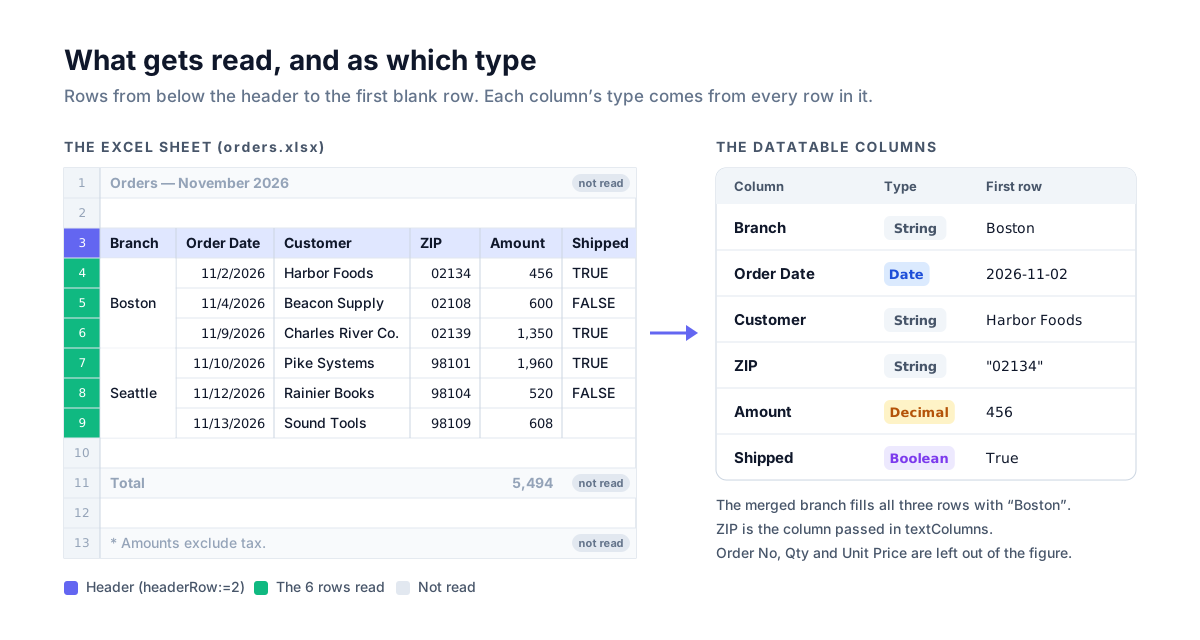
headerRow is zero-based. When the header sits on row 3 in Excel, as in the figure above, pass 2. Leave out sheetName to read the first sheet.
Calling it from a button
Imports System.Data
Imports System.IO

Private Sub OpenButton_Click(sender As Object, e As EventArgs) Handles OpenButton.Click
    Using dlg As New OpenFileDialog With {.Filter = "Excel Workbook|*.xlsx"}
        If dlg.ShowDialog(Me) <> DialogResult.OK Then Return

        Dim table As DataTable
        Try
            table = LoadDataTable(dlg.FileName, headerRow:=2, textColumns:={"ZIP"})
        Catch ex As InvalidDataException
            MessageBox.Show("This is not an .xlsx file. Open an .xls file in Excel and save it as .xlsx.")
            Return
        End Try

        DataGridView1.DataSource = table
        For Each col As DataGridViewColumn In DataGridView1.Columns
            col.DefaultCellStyle.Format = DotNetFormatOf(table.Columns(col.DataPropertyName))
        Next
    End Using
End Sub
Given a DataTable as its DataSource, the DataGridView creates the columns itself, and a Boolean column becomes a check-box column. Because the columns are typed, clicking a header sorts amounts by size and dates by date. Imported as text, the same amounts would sort as strings: 1,350, 1,960, 456.
An old .xls file (Excel 97-2003), or a CSV file renamed to .xlsx, throws InvalidDataException. The Catch above turns that into a request to re-save the file.
How column types are chosen
The module looks at every row under the header before it chooses a type:
| Excel cell | DataTable column type |
|---|---|
| Number | Decimal |
| Number with a date format | Date |
TRUE / FALSE | Boolean |
| Text | String |
| A column with mixed kinds | String (the text Excel displays) |
| Blank cell, error value | Not used to choose the type; the value is DBNull |
Formula cells are read as the result Excel saved with the file. An Amount column of =F4*G4 formulas arrives as numbers such as 456.
Numbers become Decimal because it suits money and because it keeps the same precision as Excel. Excel works to 15 significant digits. Read as a Double, a cell can arrive as 0.30000000000000004; CDec rounds to 15 digits, so you get 0.3, the same as Excel shows.
With types in place, the DataTable can total a column by itself:
Dim total = CDec(table.Compute("SUM(Amount)", "")) ' 5494Finding mixed-type columns
A column that holds both numbers and text becomes String. Say the Quotes sheet has “TBD” as the unit price on row 5 in Excel. The Unit Price column then holds the strings "38" and "TBD". That row’s Amount (=F5*G5) is #VALUE! in Excel, so it arrives as DBNull.
It is worth checking columns that should be numeric before you save anything. The data rows run from just under the header with no gaps, so a DataTable row index maps straight to an Excel row number:
Imports System.Globalization

Dim headerRow = 2
Dim table = LoadDataTable(path, "Quotes", headerRow:=headerRow)

' Report values that are not numbers in a column that should be, with the Excel row number
Dim errors As New List(Of String)
If table.Columns("Unit Price").DataType Is GetType(String) Then
    For i = 0 To table.Rows.Count - 1
        Dim text = table.Rows(i)("Unit Price").ToString()
        Dim value As Decimal
        If text <> "" AndAlso Not Decimal.TryParse(text, NumberStyles.Number, CultureInfo.CurrentCulture, value) Then
            errors.Add($"Row {i + headerRow + 2}: Unit Price ""{text}"" is not a number")
        End If
    Next
End If
Here it returns Row 5: Unit Price "TBD" is not a number.
Vertically merged cells
Business workbooks often merge a branch or customer cell down across all of its rows. Only the top-left cell of a merged range holds the value, so a plain read leaves the branch empty from the second row on.
The module’s Anchor maps any cell inside a merged range to its top-left cell. All three Boston rows get “Boston”, so the branch is still there after the DataTable is filtered or sorted.
Leading zeros from a number format
Excel can keep the leading zero of a ZIP code or an employee number in two ways:
- Entered as text (
'02134, or typed into a cell already formatted as Text). The module reads it as aStringcolumn with02134and needs nothing more. - Entered as a number with the format
00000. The cell’s value is2134; the zero exists only on screen. Read as a number, the column gives you2134.
For files of the second kind, pass the column name in textColumns. Those columns are read as the text Excel displays, so you get 02134.
LoadDataTable(path, headerRow:=2, textColumns:={"ZIP", "Employee No"})Excel number format codes, decoded covers how formats like this work.
Carrying the formats over to the grid
The module stores the format of each column’s first value in DataColumn.ExtendedProperties("NumberFormat"). DefaultCellStyle.Format takes a .NET format string, so the mapping table from last week’s article runs in reverse:
' Turn an Excel format code into the .NET format string a DataGridView uses
Private Function DotNetFormatOf(column As DataColumn) As String
    If column.DataType Is GetType(Date) Then Return "yyyy-MM-dd"
    Select Case TryCast(column.ExtendedProperties("NumberFormat"), String)
        Case "#,##0" : Return "N0"
        Case "#,##0.00" : Return "N2"
        Case "0%" : Return "P0"
        Case "0.0%" : Return "P1"
    End Select
    Return ""
End Function| Excel format code | DefaultCellStyle.Format |
|---|---|
#,##0 | N0 |
#,##0.00 | N2 |
0% | P0 |
0.0% | P1 |
| Any date format | yyyy-MM-dd |
Every date column gets yyyy-MM-dd. Excel’s standard short date changes with the PC’s regional settings, so one fixed form on screen is easier to read.
A file that is still open in Excel
XlsxReader.Read also accepts a file path. But when the user still has that file open in Excel, the read stops with IOException: Excel holds the file open for writing, and opening it with a share mode that refuses other writers fails.
The module opens the stream with FileShare.ReadWrite and passes it to XlsxReader.Read, so a file that is open in Excel can still be read. You get the last saved version; changes not yet saved in Excel are not included.
Large files
A 100,000-row × 9-column xlsx file (about 5 MB) goes into a DataTable the same way. In our measurements the first load took about 1.7 seconds and later loads 0.6 to 0.8 seconds (Apple Silicon Mac, .NET 10).
On .NET Framework 4.8, do the same with V4
The V4 package is unvell.ReoGrid4, which runs on .NET Framework 4.8 and .NET 8 (Windows). The license call is the same, with Imports unvell.ReoGrid.License. The module keeps its shape; only the way cells are read changes, and the form code works unchanged.
Imports System.Data
Imports System.IO
Imports unvell.ReoGrid
Imports unvell.ReoGrid.IO

Public Module ExcelImport

    Public Function LoadDataTable(path As String,
                                  Optional sheetName As String = Nothing,
                                  Optional headerRow As Integer = 0,
                                  Optional textColumns As String() = Nothing) As DataTable

        Dim book = ReoGridControl.CreateMemoryWorkbook()
        Using stream As New FileStream(path, FileMode.Open, FileAccess.Read, FileShare.ReadWrite)
            book.Load(stream, FileFormat.Excel2007)
        End Using

        Dim ws = If(sheetName Is Nothing, book.Worksheets(0), book.Worksheets(sheetName))
        If ws Is Nothing Then Throw New ArgumentException($"No sheet named ""{sheetName}"".", NameOf(sheetName))

        Dim table As New DataTable(ws.Name)
        Dim used = ws.UsedRange
        If used.EndRow <= headerRow Then Return table

        Dim lastCol = used.EndCol
        Do While lastCol >= 0 AndAlso ws.GetCellData(headerRow, lastCol) Is Nothing
            lastCol -= 1
        Loop

        Dim lastRow = headerRow
        Do While lastRow < used.EndRow AndAlso Not IsBlankRow(ws, lastRow + 1, lastCol)
            lastRow += 1
        Loop

        For c = 0 To lastCol
            Dim name = UniqueName(table, ws.GetCellText(headerRow, c).Trim(), c)
            Dim type = ColumnType(ws, headerRow + 1, lastRow, c)
            If textColumns IsNot Nothing AndAlso textColumns.Contains(name) Then type = GetType(String)
            table.Columns.Add(name, type)
        Next

        For r = headerRow + 1 To lastRow
            Dim row = table.NewRow()
            For c = 0 To lastCol
                row(c) = ToValue(ws, r, c, table.Columns(c).DataType)
            Next
            table.Rows.Add(row)
        Next
        Return table
    End Function

    Private Function ColumnType(ws As Worksheet, firstRow As Integer, lastRow As Integer, col As Integer) As Type
        Dim found As Type = Nothing
        For r = firstRow To lastRow
            Dim t = KindOf(ws.GetCellData(Anchor(ws, r, col)))
            If t Is Nothing Then Continue For
            If found Is Nothing Then
                found = t
            ElseIf t IsNot found Then
                Return GetType(String)
            End If
        Next
        Return If(found, GetType(String))
    End Function

    ' V4 reads cells with a date format as DateTime
    Private Function KindOf(data As Object) As Type
        If TypeOf data Is Double Then Return GetType(Decimal)
        If TypeOf data Is Date Then Return GetType(Date)
        If TypeOf data Is Boolean Then Return GetType(Boolean)
        If TypeOf data Is String Then Return GetType(String)
        Return Nothing
    End Function

    Private Function ToValue(ws As Worksheet, row As Integer, col As Integer, type As Type) As Object
        Dim cell = Anchor(ws, row, col)
        Dim data = ws.GetCellData(cell)
        If KindOf(data) Is Nothing Then Return DBNull.Value
        If type Is GetType(String) Then Return ws.GetCellText(cell)
        If type Is GetType(Decimal) Then Return CDec(data)
        Return data
    End Function

    Private Function Anchor(ws As Worksheet, row As Integer, col As Integer) As CellPosition
        Return ws.GetRangeIfMergedCell(New CellPosition(row, col)).StartPos
    End Function

    Private Function IsBlankRow(ws As Worksheet, row As Integer, lastCol As Integer) As Boolean
        For c = 0 To lastCol
            If ws.GetCellData(row, c) IsNot Nothing Then Return False
        Next
        Return True
    End Function

    Private Function UniqueName(table As DataTable, header As String, col As Integer) As String
        Dim name = If(header = "", $"Column{col + 1}", header)
        Dim candidate = name
        Dim n = 2
        Do While table.Columns.Contains(candidate)
            candidate = $"{name} ({n})"
            n += 1
        Loop
        Return candidate
    End Function

End Module
Three things differ from V5:
- V4 reads cells with a date format as
DateTimefrom the start, so the module skips the date check on the format. - V4 recalculates the formulas it loads. A cell whose formula ends in an error holds
Nothing, which becomesDBNulllike a blank cell. - The V4 module does not carry formats into the
DataTable. The form’sDotNetFormatOfthen formats only the date columns; give numeric columns aFormatof their own if you want thousands separators.
How it compares with OLEDB and Interop
OLEDB (Microsoft.ACE.OLEDB.12.0) | Office Interop | ReoGrid | |
|---|---|---|---|
| Needed on the user’s PC | The Access Database Engine, matching the app’s bitness | Excel | Nothing beyond the package built into the app |
| Column types | Guessed from the first eight rows; values that don’t fit come back empty | Each cell arrives as an Object | Chosen from every row |
| In a service or Task Scheduler | The bitness has to match | Not supported by Microsoft | Runs without a UI |
If users should edit the imported data in place, you can also put a ReoGridControl where the DataGridView was. It shows the Excel sheet with its borders and formats, and formulas and filters keep working (Reading, Writing, and Displaying Excel Files in VB.NET).
Summary
- When a title sits above the header, name the header row with
headerRow - An xlsx date is a number with a date format: spot it with
NumberFormatter.IsDateFormatand convert it withDateTime.FromOADate - Choose each column’s type from every row; make mixed columns
Stringand check them before saving - Fill each row of a vertically merged range with the value of its top-left cell
- Read leading zeros that come from a number format as display text with
GetDisplayText - Stopping at the first blank row keeps the total row and notes out of the data
- Opened with
FileShare.ReadWrite, a file that is still open in Excel can be read - V5 for .NET 10, V4 for .NET Framework 4.8 — the module has nearly the same shape in both
See what’s new in V5 / Start a 30-day trial
Related
- Export a DataGridView to Excel (.xlsx) in VB.NET — the same job in reverse
- Using ReoGrid from VB.NET — project setup, and reading the C# samples as VB
- XLSX import and export — what the reader supports
- Reading, Writing, and Displaying Excel Files in VB.NET
- Excel number format codes, decoded
- Stop CSV data from being “fixed” when opened in Excel