
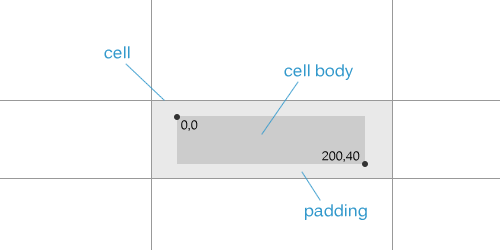
ReoGrid 提供 ICellBody 接口和 CellBody 基类用于创建自定义单元格类型。单元格主体嵌入在单元格中,遵循单元格的尺寸并处理渲染、鼠标和键盘事件。
命名空间
using unvell.ReoGrid.CellTypes;
using unvell.ReoGrid.Events;
using unvell.ReoGrid.Rendering;
快速入门
创建一个继承 CellBody 的类,覆写所需的方法,然后将其附加到单元格:
class MyCellBody : CellBody
{
    public override void OnPaint(CellDrawingContext dc)
    {
        dc.DrawCellBackground();
        // 自定义绘制在这里
        dc.DrawCellText();
    }
}

// 附加到单元格
sheet["C3"] = new MyCellBody();
// 或:
sheet.Cells["C3"].Body = new MyCellBody();
移除单元格主体:
sheet.Cells["C3"].Body = null;CellBody 基类
CellBody 类为所有 ICellBody 成员提供默认实现。只需覆写您需要的方法。
属性
| 属性 | 类型 | 说明 |
|---|---|---|
Cell | Cell | 父单元格(在 OnSetup 后可用) |
生命周期方法
| 方法 | 返回值 | 说明 |
|---|---|---|
OnSetup(Cell cell) | void | 当主体附加到单元格时调用。在此处存储引用 |
OnSetData(object data) | object | 设置单元格数据时调用。返回修改后的数据或原始数据 |
OnStartEdit() | bool | 编辑模式前调用。返回 false 以阻止编辑 |
OnEndEdit(object data, EndEditReason reason) | object | 编辑结束后调用。返回修改后的数据或原始数据 |
OnEditTextChanged(string text, bool textAppend) | (string, string) | 编辑期间文本变化时调用。返回 (text, selectedText) 或 (null, null) |
OnEditKeyDown(string text, KeyCode e) | string | 编辑期间按键时调用。返回新文本或 null |
OnGotFocus() | void | 单元格获得焦点时调用 |
OnLostFocus() | void | 单元格失去焦点时调用 |
Clone() | ICellBody | 创建此单元格主体的副本 |
渲染方法
| 方法 | 返回值 | 说明 |
|---|---|---|
OnPaint(CellDrawingContext dc) | void | 渲染单元格主体。默认绘制背景 + 文本 |
DrawBackground(CellDrawingContext dc) | void | 绘制默认单元格背景 |
GetBodyBounds() | Rectangle | 获取单元格内的主体边界(考虑内边距) |
GetTextAvailableBounds(style) | Rectangle | 获取文本区域边界 |
CalcCellContentWidth(cell, width) | float | 计算内容宽度 |
CalcCellContentHeight(cell, height) | float | 计算内容高度 |
鼠标方法
所有方法返回 bool — 返回 true 以消费事件,false 使用默认行为。
| 方法 | 说明 |
|---|---|
OnMouseDown(CellMouseEventArgs e) | 鼠标按下 |
OnMouseUp(CellMouseEventArgs e) | 鼠标释放 |
OnMouseMove(CellMouseEventArgs e) | 鼠标在边界内移动 |
OnMouseEnter(CellMouseEventArgs e) | 鼠标进入边界 |
OnMouseLeave(CellMouseEventArgs e) | 鼠标离开边界 |
OnMouseWheel(CellMouseEventArgs e) | 鼠标滚轮滚动(void) |
键盘方法
| 方法 | 返回值 | 说明 |
|---|---|---|
OnKeyDown(KeyCode e) | bool | 按键按下。返回 true 以消费 |
OnKeyUp(KeyCode e) | bool | 按键释放。返回 true 以消费 |
行为属性
| 属性 | 类型 | 默认值 | 说明 |
|---|---|---|---|
DisableWhenCellReadonly | bool | true | 单元格只读时禁用主体 |
AutoCaptureMouse() | bool | true | 鼠标按下后捕获鼠标事件 |
CellDrawingContext
CellDrawingContext 为 OnPaint 提供绘图表面:
| 成员 | 类型 | 说明 |
|---|---|---|
Cell | Cell | 正在渲染的单元格 |
Graphics | IGraphics | 平台无关的图形上下文 |
Worksheet | Worksheet | 父工作表 |
DrawMode | DrawMode | 当前渲染模式 |
DrawCellBackground(bool calcScale) | void | 绘制默认单元格背景 |
DrawCellText() | void | 绘制默认单元格文本 |
ContentCellBody 基类
对于带有内容区域的单元格主体(如复选框和单选按钮),继承自 ContentCellBody:
| 方法 | 说明 |
|---|---|
GetContentSize() | 返回首选内容大小(默认:17x17) |
GetContentBounds() | 获取内容边界,根据单元格样式对齐(HAlign/VAlign) |
OnContentPaint(CellDrawingContext dc) | 覆写以绘制内容区域 |
自绘
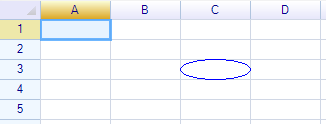
绘制椭圆
class EllipseCell : CellBody
{
    public override void OnPaint(CellDrawingContext dc)
    {
        var bounds = GetBodyBounds();
        dc.Graphics.DrawEllipse(Pens.Blue,
            new Rectangle(0, 0, bounds.Width, bounds.Height));
    }
}
绘制默认背景和文本
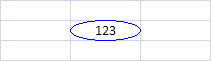
调用 DrawCellBackground() 和 DrawCellText() 以包含默认渲染:
public override void OnPaint(CellDrawingContext dc)
{
    dc.DrawCellBackground();
    // 在背景和文本之间自定义绘制
    dc.DrawCellText();
    // 在顶部的额外绘制
}
绘制对角线
class DiagonalLineCell : CellBody
{
    public bool FromTopLeft { get; set; } = true;

    public override void OnPaint(CellDrawingContext dc)
    {
        var bounds = GetBodyBounds();
        if (FromTopLeft)
            dc.Graphics.DrawLine(Pens.Black, new Point(0, 0),
                new Point(bounds.Right, bounds.Bottom));
        else
            dc.Graphics.DrawLine(Pens.Black, new Point(0, bounds.Bottom),
                new Point(bounds.Right, 0));
    }
}

sheet["B2"] = new DiagonalLineCell();
sheet["D2"] = new DiagonalLineCell { FromTopLeft = false };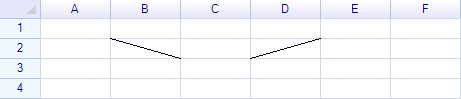
禁用单元格编辑
从 OnStartEdit 返回 false 以阻止编辑:
class ReadOnlyBody : CellBody
{
    public override bool OnStartEdit() => false;
}
修改编辑结果
从 OnEndEdit 返回修改后的数据:
class UpperCaseBody : CellBody
{
    public override object OnEndEdit(object data, EndEditReason reason)
    {
        if (data is string s)
            return s.ToUpperInvariant();
        return data;
    }
}
处理鼠标事件
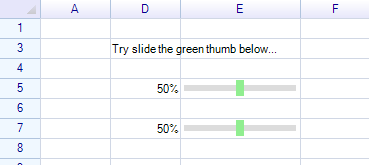
class ClickableProgressCell : CellBody
{
    public override bool OnMouseDown(CellMouseEventArgs e)
    {
        var bounds = GetBodyBounds();
        int value = (int)Math.Round(e.RelativePosition.X * 100f / bounds.Width);
        Cell.Worksheet.SetCellData(e.CellPosition, value);
        return true; // 消费事件
    }

    public override void OnPaint(CellDrawingContext dc)
    {
        dc.DrawCellBackground();
        var bounds = GetBodyBounds();
        int value = Cell?.Data is int v ? v : 0;
        float width = bounds.Width * value / 100f;
        dc.Graphics.FillRectangle(new Rectangle(0, 0, width, bounds.Height),
            SolidColor.LightGreen);
        dc.DrawCellText();
    }
}
处理键盘事件
class KeyHandlerCell : CellBody
{
    public override bool OnKeyDown(KeyCode e)
    {
        if (e == KeyCode.Space)
        {
            // 切换值
            Cell.Data = !(Cell.Data is true);
            return true;
        }
        return false;
    }
}
使用公式绑定数据
使用公式绑定两个单元格的数据,使单元格主体响应另一个单元格:
sheet["C3"] = new ClickableProgressCell();
sheet["C7"] = "=C3";  // C7 镜像 C3 的值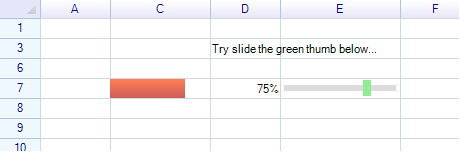
拦截数据变更
覆写 OnSetData 以在存储数据之前进行验证或转换:
class ClampedCell : CellBody
{
    public override object OnSetData(object data)
    {
        if (data is double d)
            return Math.Clamp(d, 0.0, 1.0);
        return data;
    }
}
单元格主体边界
主体边界由单元格大小减去内边距计算得出。GetBodyBounds() 方法返回相对于单元格左上角的 Rectangle:
public override void OnPaint(CellDrawingContext dc)
{
    var bounds = GetBodyBounds();
    // bounds.X, bounds.Y = 内边距偏移
    // bounds.Width, bounds.Height = 可用区域
}
要更改可用区域,调整单元格的内边距样式:
sheet.Cells["C3"].Style.Padding = new PaddingValue(5, 5, 5, 5);类层次结构
内置单元格类型在不同层级扩展 CellBody:
ICellBody (接口)
  └─ CellBody (基类)
       ├─ ContentCellBody (带对齐的内容区域)
       │    ├─ CheckBoxCell
       │    └─ RadioButtonCell
       ├─ ButtonCell
       │    └─ ImageButtonCell
       ├─ DropdownCell (抽象 — 面板基础设施)
       │    ├─ DropdownListBaseCell
       │    │    ├─ DropdownListCell
       │    │    └─ ComboListCell
       │    ├─ ColumnDropdownListCell
       │    └─ DatePickerCell
       ├─ ProgressCell
       │    └─ NegativeProgressCell
       ├─ HyperlinkCell
       └─ ImageCell
相关主题
- 内置单元格类型 — 所有内置单元格主体类型
- 下拉列表单元格 — 下拉选择
- 组合列表单元格 — 可编辑组合框
- 如何创建自定义下拉单元格 — 自定义下拉教程