富文本格式由以下类表示:
unvell.ReoGrid.Drawing.RichText富文本格式添加到单元格或浮动对象后可以显示和打印。
在单元格中显示富文本格式
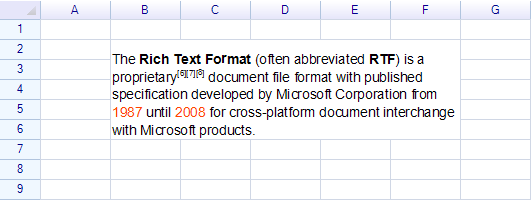
上述示例的代码:
var sheet = grid.CurrentWorksheet;

sheet.MergeRange("B2:F6");

sheet["B2"] = new Drawing.RichText()
  .Regular("The ")
  .Bold("Rich Text Format")
  .Regular(" (often abbreviated ")
  .Bold("RTF")
  .Regular(") is a proprietary")
  .Superscript("[6][7][8]")
  .Regular(" document file format with published specification developed by Microsoft Corporation from ")
  .Span("1987", textColor: Color.OrangeRed)
  .Span(" until ", textColor: Color.Black)
  .Span("2008", textColor: Color.OrangeRed)
  .Span(" for cross-platform document interchange with Microsoft products.", textColor: Color.Black);
换行
设置单元格样式以启用自动换行或全部换行。
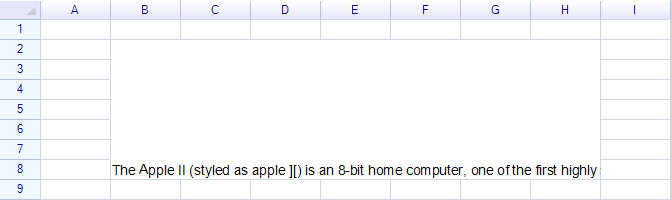
示例:无自动换行的文本
示例:自动换行的文本
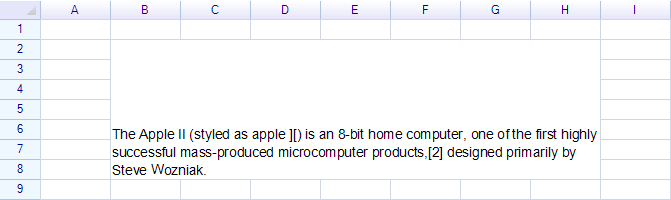
代码:
sheet.Cells["B2"].Style.TextWrap = TextWrapMode.WordBreak;文本对齐
设置单元格的水平和垂直对齐样式来更改富文本的对齐方式。
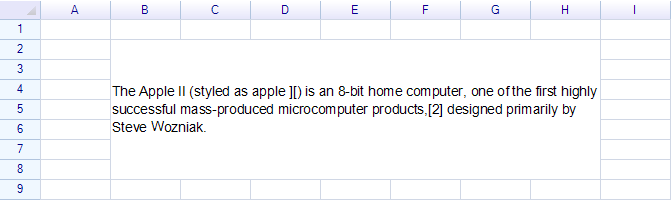
代码:
sheet.Cells["B2"].Style.VAlign = ReoGridVerAlign.Middle;设置文本右对齐:
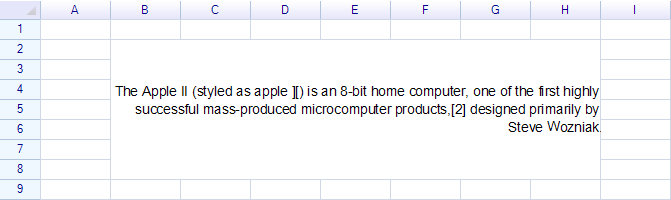
代码:
sheet.Cells["B2"].Style.HAlign = ReoGridHorAlign.Right;ReoGrid 富文本结构
简单文本示例
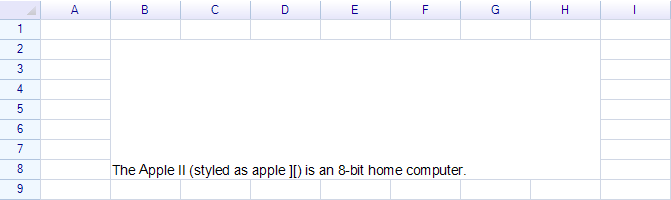
使用 Span 方法添加不带任何样式的文本。例如:
sheet["B2"] = new Drawing.RichText()
  .Span("The Apple II (styled as apple ][) is an 8-bit home computer.");
更改文本样式最快的方法是使用 Bold、Italic、Regular 等类似方法。
粗体
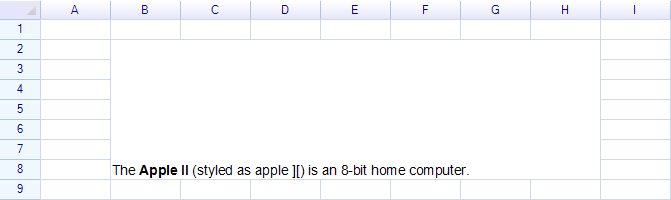
代码:
sheet["B2"] = new Drawing.RichText()
  .Span("The ")
  .Bold("Apple II")
  .Regular(" (styled as apple ][) is an 8-bit home computer.");
使用 Bold 方法使文本加粗,使用 Regular 方法恢复默认文本样式。
斜体、下划线和删除线样式的用法与粗体相同。
添加段落(换行)
要插入换行,使用 NewLine 方法。
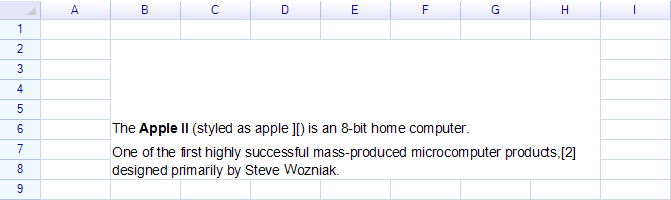
代码:
sheet["B2"] = new Drawing.RichText()
  .Span("The ")
  .Bold("Apple II")
  .Regular(" (styled as apple ][) is an 8-bit home computer.")
  .NewLine()
  .Span("One of the first highly successful mass-produced microcomputer products,[2] designed primarily by Steve Wozniak.");
段落间距和行高
NewLine 方法向富文本添加新段落。
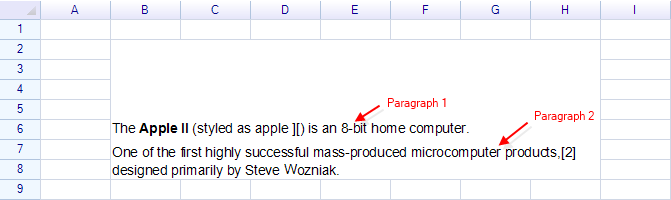
可以更改段落间距和行高:
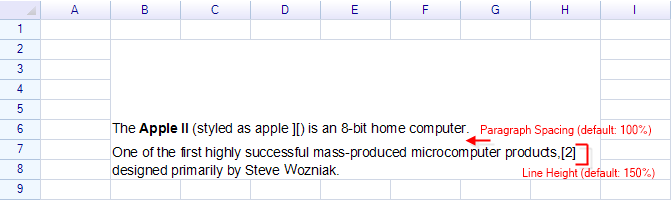
使用 SetStyles 方法更改段落或文本段的当前样式。
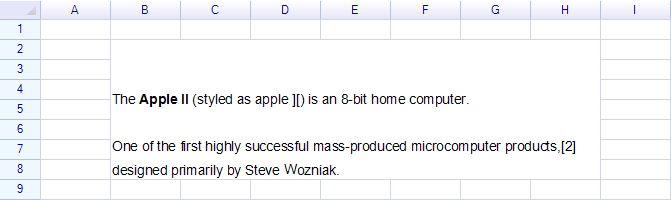
代码:
sheet["B2"] = new Drawing.RichText()
  .SetStyles(paragraphSpacing: 3.0f)
  .Span("The ")
  .Bold("Apple II")
  .Regular(" (styled as apple ][) is an 8-bit home computer.")
  .NewLine()
  .SetStyles(lineHeight: 2.0f)
  .Span("One of the first highly successful mass-produced microcomputer products,[2] designed primarily by Steve Wozniak.");
SetStyles 方法更改当前段落或文本段的样式。第一个 SetStyles 调用更改第一段的段落间距。调用 NewLine 后,第二个 SetStyles 调用更改第二段的行高。
注意: Excel 不支持调整段落间距和行高样式。
每段落水平对齐
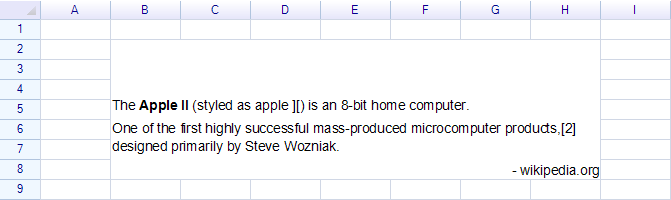
代码:
sheet["B2"] = new Drawing.RichText()
  .Span("The ")
  .Bold("Apple II")
  .Regular(" (styled as apple ][) is an 8-bit home computer.")
  .NewLine()
  .Span("One of the first highly successful mass-produced microcomputer products,[2] designed primarily by Steve Wozniak.")
  .NewLine()
  .SetStyles(halign: ReoGridHorAlign.Right)
  .Span("- wikipedia.org");
注意: Excel 不支持按段落(行)设置对齐样式。
上标和下标
要创建上标,使用 Superscript 方法。
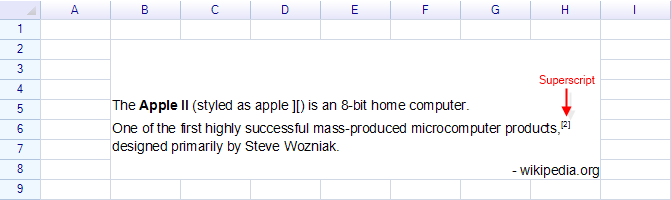
代码:
sheet["B2"] = new Drawing.RichText()
  .Span("The ")
  .Bold("Apple II")
  .Regular(" (styled as apple ][) is an 8-bit home computer.")
  .NewLine()
  .Span("One of the first highly successful mass-produced microcomputer products,")
  .Superscript("[2]")
  .Regular(" designed primarily by Steve Wozniak.")
  .NewLine()
  .SetStyles(halign: ReoGridHorAlign.Right)
  .Span("- wikipedia.org");
注意: 使用
Superscript方法后,使用Regular方法恢复默认文本样式。
在绘图对象中显示富文本格式
要在绘图对象中显示富文本格式,创建 RichText 类的实例,向其追加文本,然后将其分配给绘图对象。
Excel 导入/导出支持
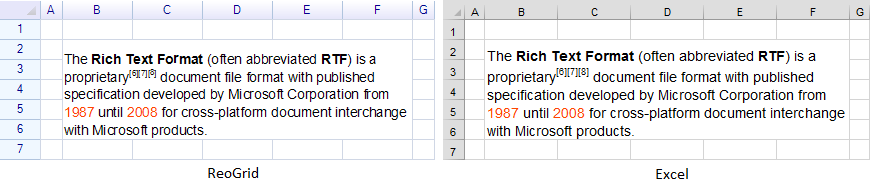
ReoGrid 支持从 Excel 文件导入和导出富文本格式。以下示例展示了在 ReoGrid 和 Excel 中显示的文本。