
An auto-filter is attached to a range and holds a criterion per column.
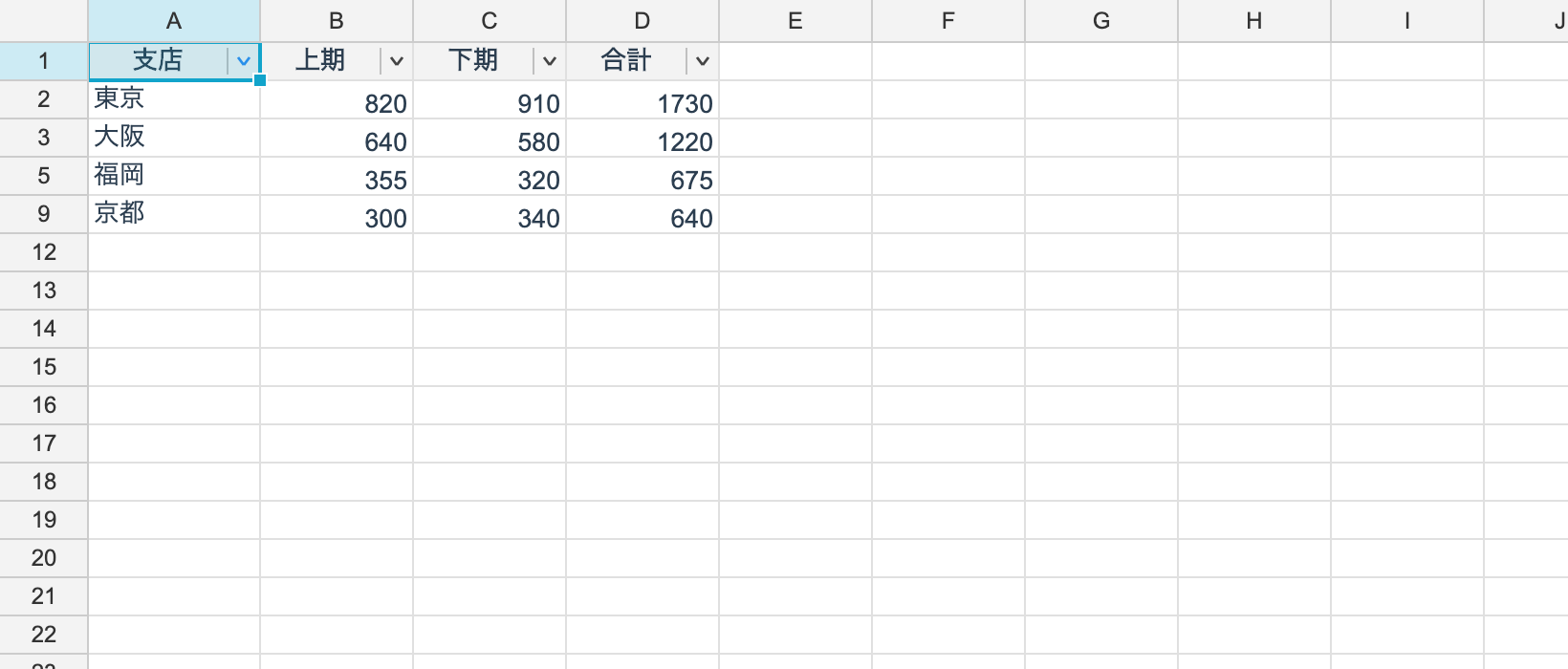
Attaching one, and value lists
using unvell.ReoGrid.Core.Filtering;

AutoFilter filter = ws.CreateAutoFilter(RangePosition.Parse("A1:D100"));

// filter by a list of values (the checkbox style)
filter.SetColumnFilter(1, ["Tokyo", "Osaka"]);
filter.Apply();

bool active = filter.HasActiveFilter;
filter.ClearColumn(1);
filter.ClearAll();

ws.RemoveAutoFilter();
The range’s first row is the header row, and that is where the filter buttons are drawn.
What you pass to SetColumnFilter is a set of display strings (after number formatting
has been applied). Passing null clears that column’s value-list filter.
Nothing changes on screen until you call Apply(). Set the criteria for every column
first, then apply once.
Condition filters
// one condition
filter.SetColumnCondition(2, new FilterCondition(FilterOperator.GreaterThan, "1000"));

// two clauses joined by And / Or (Excel's "Custom AutoFilter")
filter.SetColumnCondition(3, new FilterCondition(
	new FilterClause(FilterOperator.GreaterOrEqual, "2026-01-01"),
	new FilterClause(FilterOperator.LessThan, "2027-01-01"),
	and: true));

filter.Apply();
There are ten FilterOperator values.
| Kind | Operators |
|---|---|
| Equality | Equals NotEquals |
| Ordering | GreaterThan GreaterOrEqual LessThan LessOrEqual |
| Text | Contains NotContains BeginsWith EndsWith |
Operands are given as strings, but when one parses as a number or a date the comparison is typed.
"> 5"→ numeric comparison; text cells never match">= 2026-02-01"→ date comparison
The text operators (Contains and friends) match against the display string,
case-insensitively.
An empty cell never matches (as in Excel).
Setting both a value list and a condition on the same column keeps rows satisfying both (AND).
Getting the candidate values
// what the dropdown offers (distinct display strings)
List<string> values = filter.GetColumnValues(1);
string title = filter.GetColumnTitle(1);

bool filtered = filter.IsColumnFiltered(1);
This is for building your own UI. The stock control builds its dropdown from exactly this.
Two kinds of hidden
Rows hidden by a filter are tracked separately from rows the user hid by hand.
| API | Covers |
|---|---|
ws.Rows.IsFilterHidden(i) | hidden by a filter |
ws.Rows.IsUserHidden(i) | hidden by the user |
ws.Rows.IsHidden(i) | either |
They are kept apart so that clearing a filter does not bring back rows the user hid.
Relationship to sorting
Hidden rows are excluded from a sort. Sorting while filtered rearranges only the rows that are visible.
Range and buttons
| Member | What it is |
|---|---|
filter.Range | The range the filter covers |
filter.HeaderRow / FirstDataRow / LastDataRow | The row boundaries |
filter.IsButtonCell(row, col) | Whether a button is drawn on that cell |
filter.Changed | Raised when the criteria change |
The filter button is implemented as a general overlay that can be drawn on any cell (the
XXXX │▽ shape), so a future table or pivot feature can reuse the same mechanism.
From the UI
| Member | What it does |
|---|---|
control.ToggleAutoFilter() | Attaches or removes a filter on the selection |
Persistence
Round-trips through both reogrid-json and XLSX (<autoFilter>): the range, each column’s
checked-value list (<filters>) and its condition (<customFilters>).
Excel has no “contains” operator, so the text operators are written as equality against a
wildcard operand (*text*) and recognized again on the way back. Date-group trees and the
color/icon/dynamic filters are out of scope — a column carrying only those loads unfiltered.
The streaming reader (OpenVirtual) reads the range and criteria too, but its rows load lazily,
so they are not re-evaluated: each row keeps the hidden state the file recorded.