
Add outline by grouping rows or columns
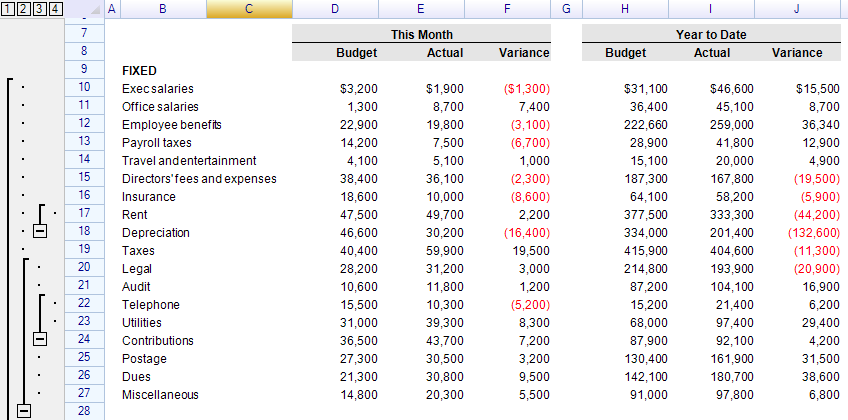
To add an outline to rows or columns:
sheet.AddOutline(RowOrColumn.Row, 3, 5);      // group rows starting at row 3, spanning 5 rows
sheet.AddOutline(RowOrColumn.Column, 5, 2);   // group columns
Note: AddOutline may throw the following exceptions:
- OutlineIntersectedException - when the outline to be added intersects with an existing outline on the worksheet.
- OutlineAlreadyDefinedException - when the outline to be added is identical to an existing outline on the worksheet.
- OutlineTooMuchException - when the number of outline levels has reached the maximum of 10.
- OutlineOutOfRangeException - when the specified position is outside the available range of the worksheet. (Note: since an outline requires a thumb for collapsing and expanding, the last row and last column cannot be included in any outline.)
Collapse and Expand outlines
The AddOutline method returns the created outline instance, which has two methods.
var outline = sheet.AddOutline(RowOrColumn.Row, 3, 5);

outline.Collapse();    // collapse
outline.Expand();      // expand
Alternatively, call the CollapseOutline and ExpandOutline methods on the control, passing a position to specify which outline to change.
sheet.CollapseOutline(RowOrColumn.Row, 3, 5);
sheet.ExpandOutline(RowOrColumn.Row, 3, 5);
Note: These methods may throw an OutlineNotFoundException if no outline is found at the specified position (in this example, it must start at row 3 and span 5 rows).
Remove outlines by ungrouping rows or columns
To remove an outline, use the RemoveOutline method.
sheet.RemoveOutline(RowOrColumn.Row, 3, 5);Note: RemoveOutline may throw an OutlineNotFoundException if no outline is found at the specified position.
There is also a ClearOutlines method that removes all outlines from a worksheet. Use the RowOrColumn enumerator to specify which type of outline to remove.
sheet.ClearOutlines(RowOrColumn.Row);Auto Collapse and Expanding
If an expanded outline whose final row is hidden or has its height set to zero, the outline will be collapsed automatically. If any rows grouped under a collapsed outline become visible or have their height set to a non-zero value, the outline will be expanded automatically. This behavior cannot be disabled, but the collapse/expand events for outlines will still be fired.
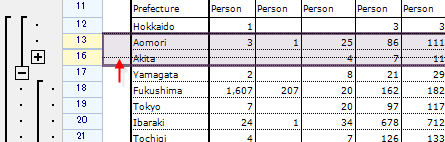
After adjusting the height of the rows:
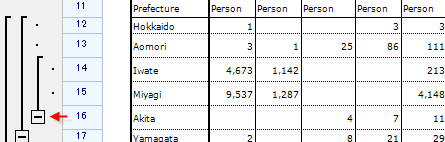
Auto Remove
If all rows or columns attached to an outline are removed, the outline will be removed automatically. This behavior cannot be disabled, but the OutlineRemoved event will be fired.
Outline events
When an outline is added or removed, the following two worksheet events are fired.
sheet.OutlineAdded += (s, e) => MessageBox.Show(
     "outline added from " + e.Outline.Start + " to " + e.Outline.End);
sheet.OutlineRemoved += (s, e) => MessageBox.Show(
     "outline removed from " + e.Outline.Start + " to " + e.Outline.End);
Since removing rows automatically removes any outlines associated with those rows, the OutlineRemoved event will also be raised.
sheet.DeleteRows(4, 5);After the code above executes, the following message will be displayed:
outline removed from 5 to 3Both outline instances and the worksheet provide events for handling collapse/expand operations.
var outline = sheet.AddOutline(RowOrColumn.Column, 1, 3);

// event from instance
outline.BeforeCollapse += (s, e) => MessageBox.Show("before collapse");
outline.BeforeExpand += (s, e) => MessageBox.Show("before expand");
outline.AfterCollapse += (s, e) => MessageBox.Show("after collapse");
outline.AfterExpand += (s, e) => MessageBox.Show("after expand");

// event from control
sheet.BeforeOutlineCollapse += (s, e) => MessageBox.Show("worksheet - before collapse");
sheet.AfterOutlineCollapse += (s, e) => MessageBox.Show("worksheet - after collapse");
sheet.BeforeOutlineExpand += (s, e) => MessageBox.Show("worksheet - before expand");
sheet.AfterOutlineExpand += (s, e) => MessageBox.Show("worksheet - after expand");
Like other before-events in ReoGrid, there is an IsCancelled property that can be set to true to prevent the event’s default action.
// prevent collapse or expand by setting IsCancelled to true
sheet.BeforeOutlineCollapse += (s, e) => e.IsCancelled = true;
For all control events, see Events.
Hide outline interface panel
It is possible to hide the outline user interface to prevent end-users from performing outline operations. Collapsing and expanding can still be controlled programmatically via outline instances.
// allow or not to show both row and column outlines
sheet.SetSettings(ReoGridSettings.View_AllowShowOutlines, false);

// add outline 1 and collapse it
var outline1 = grid.AddOutline(RowOrColumn.Row, 1, 3);
outline1.Collapse();

// add outline 2 and collapse it
var outline2 = grid.AddOutline(RowOrColumn.Row, 5, 2);
outline2.Collapse();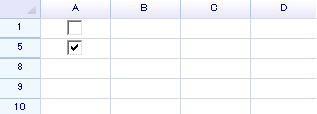
To show the outline interface panel again, set the setting back to true.
sheet.SetSettings(ReoGridSettings.View_AllowShowOutlines, true);