
Add custom formula functions
To add a custom function, use the FormulaExtension class. The following example adds a function that converts a given string to uppercase.
unvell.ReoGrid.Formula.FormulaExtension.CustomFunctions["myUpper"] =
  (cell, args) =>
  {
    if (args.Length == 0)
    {
      // this function needs at least one argument
      return null;
    }

    return Convert.ToString(args[0]).ToUpper();
  };
Test this function by entering the formula =myUpper("hello"): 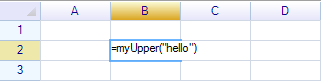
Press Enter; the cell value will be changed to uppercase. 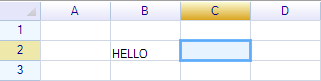
About FormulaExtension
FormulaExtension is an interface for adding extensions during formula calculation.
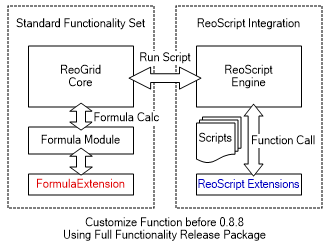
In the ReoGrid Extension version with script execution, formula extensions can be implemented using ReoScript features. For applications using the standard version of ReoGrid, the FormulaExtension interface is a simpler way to implement formula extension features.
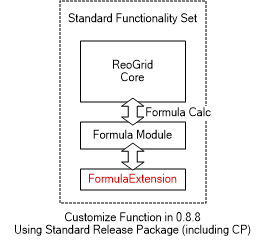
The CustomFunctions property is defined as:
Dictionary<string, Func<ReoGridCell, object[], object>> CustomFunctionsSimplest function example
C#:
FormulaExtension.CustomFunctions["myFunc"] = (cell, args) => {
  // function body goes here
  return null;
};
VB.NET:
FormulaExtension.CustomFunctions("myFunc") = Function(cell, args)
    ' function body goes here
    Return Nothing
End Function
Using a delegate function
It is also possible to use a regular delegate function rather than a lambda expression. To define a function:
C#
static object MyFunc(ReoGridCell cell, params object[] arguments)
{
  return null;
}
To make this static method available in a formula as a custom function:
VB.NET
FormulaExtension.CustomFunctions["myFunc"] = MyFunc;

Shared Function MyFunc(cell As ReoGridCell, ParamArray args As Object()) As Object
  Return Nothing
End Function
To make this shared method available in a formula as a custom function:
FormulaExtension.CustomFunctions("myFunc") = AddressOf MyFuncCell instance
The first argument is the cell instance that owns the formula. This function is called from within the formula. For example:
worksheet["A1"] = "=myFunc()";Cell A1 has a formula that calls the custom function “myFunc”. The .NET function body defined above will be invoked, and the cell argument will be the A1 cell.
static object MyFunc(ReoGridCell cell, params object[] arguments)
{
  MessageBox.Show(cell.Position.ToAddress());   // output: A1
  return null;
}
Get a worksheet instance from a function
Access the Worksheet property of the cell instance to get the worksheet instance, and the Workbook property of the worksheet instance to get the workbook.
FormulaExtension.CustomFunctions["myFunc"] = (cell, args) =>
{
  var worksheet = cell.Worksheet;
  var workbook = worksheet.Workbook;

  ...

  return null;
};
Limit the function scope to a specific workbook or worksheet:
{
  var worksheet = cell.Worksheet;
  var workbook = worksheet.Workbook;

  if (workbook != myWorkbook)
  {
    // not in valid workbook scope
    return null;
  }
}
Get function arguments
The second argument contains the arguments passed from the formula caller.
FormulaExtension.CustomFunctions["myFunc"] = (cell, args) =>
{
  if (args.Length < 2)
  {
    // this function requires at least two arguments
    return null;
  }

  return null;
};
Data types in formulas
The following data types are used during formula calculation:
- Number (int, long, short, float, double)
- String (string and StringBuffer)
- Boolean
- DateTime
- Object
ReoGrid always uses double as the number type in formula calculations. ReoGrid performs the following conversions before values are passed into functions:
- int, long, short, and float are converted to double
- string and StringBuffer objects are converted to string
Numeric constants
Numeric constants used in a formula are initialized as double, for example:
worksheet["A1"] = "=myFunc(10)";The number 10 is parsed and stored in memory as a double. The first element in the argument array will be of type double.
FormulaExtension.CustomFunctions["myFunc"] = (cell, args) =>
{
  if (args.Length < 1 || !(args[0] is double))
  {
    // this function requires a double value
    return null;
  }
  ...
};
Numeric variables
When a numeric value comes from a cell, it is converted to double. Create the following function:
FormulaExtension.CustomFunctions["myFunc"] = (cell, args) =>
{
  double value = (double)args[0];
  return value \* 2;
};
Then use it in a formula:
sheet["A1"] = (int)10;
sheet["B1"] = "=myFunc(A1)";
No data type conversion error will occur. (But be careful about argument length.)
References in functions
Cell reference
ReoGrid automatically retrieves the value from a referenced cell used in a formula, as shown in the ‘Numeric variables’ example.
Range reference
If a range literal is used in a formula, ReoGrid passes a RangePosition struct into the function. For example:
worksheet["G2:K3"] = new object[] { 1, 2, 5, 7, 8, 10, 12, 15, 16, 19};
worksheet["L2"] = "=CountEvenNumber(G2:K3)";
There is a range reference (G2:K3) used in the formula; it must be handled manually inside the custom function body. The following example function counts the even numbers in a given range:
FormulaExtension.CustomFunctions["CountEvenNumber"] = (cell, args) =>
{
  if (args.Length < 1 || !(args[0] is RangePosition))
  {
    return null; // we need a range reference
  }

  RangePosition range = (RangePosition)args[0];

  int count = 0;

  // iterate over cells inside a range
  cell.Worksheet.IterateCells(range, (r, c, inCell) => {
    double value;

    // try get a number from cell data
    if (ReoGridCellUtility.TryGetNumberData(inCell.Data, out value) {
      if ((value % 2) == 0) {
        count++;
      }
    }

    // continue iterating
    return true;
  });

  return count;
};
Name reference
Name to cell
If a name reference points to a cell, the cell’s value is retrieved and passed into the function automatically.
worksheet.DefineNamedRange("r1", "A1");
sheet["r1"] = (int)20;
sheet["B1"] = "=myFunc(r1)";
Name to range
If a name reference to a range is used in a formula, ReoGrid first looks up the range by name and then passes the RangePosition struct, which can be handled like a range reference.
worksheet.DefineNamedRange("evenRange", "G2:K3");
worksheet["evenRange"] = new object[] { 1, 2, 4, 6, 9, 11, 13, 14, 15, 17 };
worksheet["I2"] = "=CountEvenNumber(evenRange)";
AssertSame(worksheet["I2"], 4);
Customize the name reference provider
It is possible to add constant values used in formulas that are provided by .NET code. The following example adds two names that return different constant values:
unvell.ReoGrid.Formula.FormulaExtension.NameReferenceProvider =
  (cell, name) =>
  {
    if (name == "myName1")
      return 10;
    else if (name == "myName2")
      return 20;
    else
      return null;
  };
The NameReferenceProvider is defined as:
Func<ReoGridCell, string, object> NameReferenceProvider { get; set; }
Test name 1 by entering =myName1 in a cell: 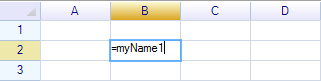
The name returns the value 10: 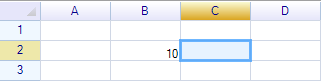
Enter =myName2 in a cell: 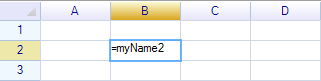
The name returns the value 20: 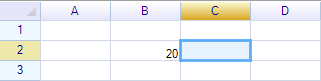
Add mathematical constants
By using the custom name reference provider, it is also possible to define mathematical constants. The following code defines a constant provider:
VB.NET:
Shared Function MathConstantProvider(cell As ReoGridCell, name As String) As Object
  Select Case (name)
    Case "PI"
      Return Math.PI

    Case "E"
      Return Math.E

    Case "MyConst"
      Return 1.23456
  End Select

  Return Nothing
End Function
Apply this name reference provider:
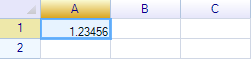
FormulaExtension.NameReferenceProvider = AddressOf MathConstantProviderAnd use the constant in a formula:
worksheet("A1") = "=MyConst"Result:
Combine custom functions and a custom name provider
Using the custom name provider inside a custom function is also supported. The name will be converted to a value and passed into the function.
FormulaExtension.NameReferenceProvider = (cell, name) =>
{
  switch (name)
  {
    case "Pi": return Math.PI;
    case "E": return Math.E;
    default: return null;
  }
};
Use the name Pi in a custom function:
worksheet["D3"] = "=Div100(Pi)";
AssertSame(worksheet["D3"], Math.PI / 100);
Add ReoScript language custom functions
When the ReoScript module extension is enabled, the ReoScript language can be used to handle cell data, styles, borders, data formats, and more — similar to VBA in Excel. ReoScript supports .NET extensions for the scripting language, including calling .NET functions from script.
ReoGrid supports invoking ReoScript custom extension functions:
Note: ReoScript language extension is only available in the Full release package.
Add a ReoScript function in C#
Add a custom function to extend the control:
workbook.Srm["sqrt"] = new NativeFunctionObject("sqrt", (ctx, owner, args) =>
{
    if (args.Length < 1)
        return NaNValue.Value;
    else
        return Math.Sqrt(ScriptRunningMachine.GetDoubleValue(args[0], 0));
});
Test:
var worksheet = workbook.CurrentWorksheet;

worksheet[2, 1] = "=sqrt(400)";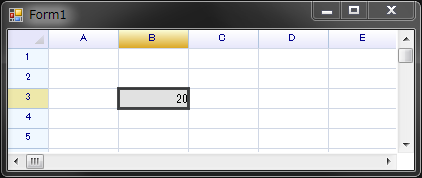
Double-click on the cell to view its formula: 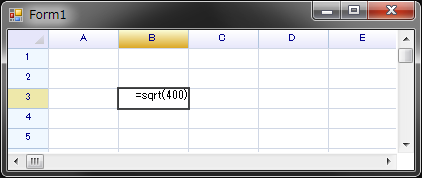
Custom functions can also be used in script.
Custom functions in ReoScript context
The workbook object is the global object available in both formulas and script (similar to window in JavaScript). 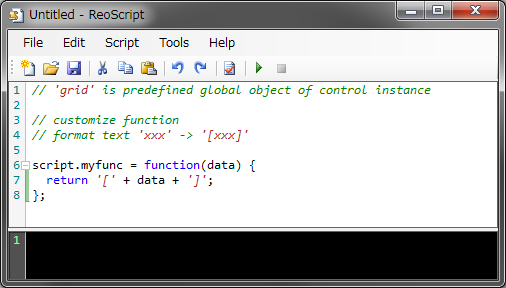
Run the code above once and then use it in a formula. 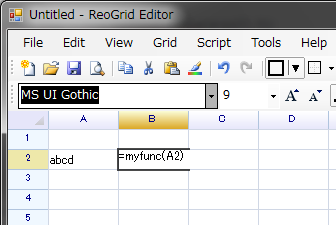
Press Enter: 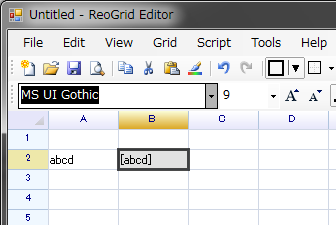
Run script to add functions in C#
It is also possible to run a script to create ReoScript functions in C#. The following uses a ReoScript lambda expression to create a new function:
grid.RunScript("script.myfunc = data => '[' + data + ']';");