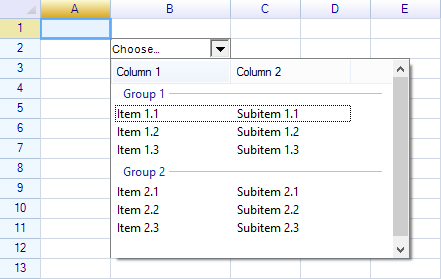
Create a drop-down list cell
To create a drop-down list cell, use the DropDownListCell class, which is a built-in cell body that represents a drop-down list in a specified cell.
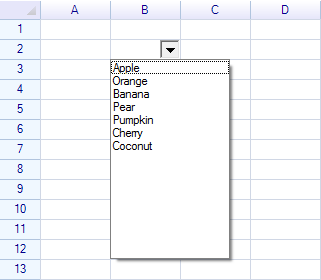
var sheet = grid.CurrentWorksheet;

var dropdown = new DropdownListCell(
  "Apple", "Orange", "Banana", "Pear",
  "Pumpkin", "Cherry", "Coconut"
);

sheet["B2"] = dropdown;
Result:
Change list items
Use the Items property to add, remove, and clear the list items:
dropdown.Items.AddRange("Apple", "Orange", "Banana", "Pear", "Pumpkin", "Cherry", "Coconut");Set default data
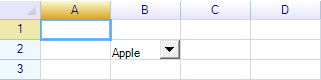
To set a default value or change the cell data, set the cell data directly:
sheet["B2"] = "Apple";Result:
Get selected data
Use either of the following methods to receive an event when the user selects an item:
- The
SelectedItemChangedevent on theDropDownListCellinstance - The
CellDataChangedevent on theWorksheetinstance
To use the SelectedItemChanged event, use the following code:
dropdown.SelectedItemChanged += (s,e) => { ... };Since the drop-down list cell updates the cell data after an item is selected, it is also possible to use the CellDataChanged event to get the selected data:
sheet.CellDataChanged += (s, e) => {
  if (e.Cell.Position == new CellPosition("E5")) {
    MessageBox.Show("Drop-down list item selected: " + e.Cell.Data);
  }
};
Change drop-down cell size
There are several ways to change the drop-down cell width. Depending on the worksheet layout, use one of the following methods:
- Change the size of the header (the row or column that contains the cell)
- Merge the drop-down cell with neighboring cells
- Apply a
Paddingstyle to the cell
Change header size
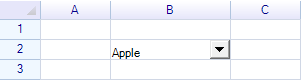
Setting the header size using SetColumnsWidth and SetRowsHeight will also change the cell’s size:
sheet.ColumnHeaders["B"].Width = 120;Result:
Change row height:
sheet.RowHeaders[1].Height = 40;Result:
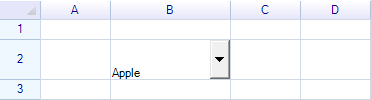
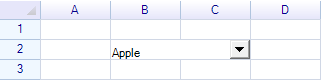
Merge cells
Merge two neighboring cells to create a larger cell:
sheet.MergeRange("B2:C2");Result:
Set padding style
Set a padding style for the cell to shrink the drop-down control size within the cell:
// Set right padding to 10px
sheet.Cells["B2"].Style.Padding = new Padding(0, 0, 10, 0);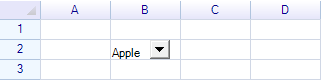
Change drop-down button size
The following two properties are related to changing the button size:
- DropdownButtonAutoHeight
- DropdownButtonSize
The DropdownButtonAutoHeight property indicates whether to fit the drop-down button to the cell automatically; it is true by default. The DropdownButtonSize property is used to set the drop-down button size directly. When DropdownButtonAutoHeight is true, the height portion of DropdownButtonSize has no effect.
Auto-height is true:
Auto-height is false:
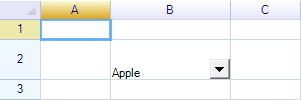
When DropdownButtonAutoHeight is false, change the DropdownButtonSize property to adjust the button size:
dropdown.DropdownButtonAutoHeight = false;
dropdown.DropdownButtonSize = new System.Drawing.Size(40, 15);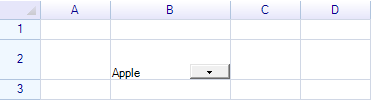
Set cell border
A drop-down cell does not show borders around itself by default. Set cell border styles to display borders:
sheet.Ranges["B2"].BorderOutside = BorderStyle.GraySolid;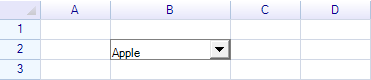
Draw a custom drop-down button
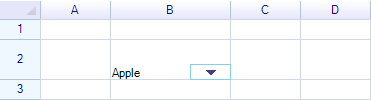
Override the OnPaintDropdownButton method to draw a custom drop-down button:
class MyDropdownListCell : DropdownListCell
{
  public MyDropdownListCell(params string[] items) : base(items) { }

  protected override void OnPaintDropdownButton(CellDrawingContext dc, Graphics.Rectangle buttonRect)
  {
    dc.Graphics.DrawAndFillRectangle(buttonRect, SolidColor.DeepSkyBlue, new SolidColor("#BEE7F1"));

    var centerPoint = new Graphics.Point(buttonRect.Left + buttonRect.Width / 2,
      buttonRect.Top + buttonRect.Height / 2);

    GraphicsToolkit.FillTriangle(dc.Graphics.PlatformGraphics, 9,
      centerPoint, GraphicsToolkit.TriangleDirection.Down,
      this.IsDropdown ? Pens.SkyBlue : Pens.DarkSlateBlue);
  }
}
Make a custom drop-down cell
It is possible to create a custom drop-down cell that places any Windows Forms control inside the drop-down panel.