
Ranges in ReoGrid are defined by a starting position and size. A range encompasses one or more cells. Ranges can intersect, and a range is not the same as a merged cell (though a range can be merged).
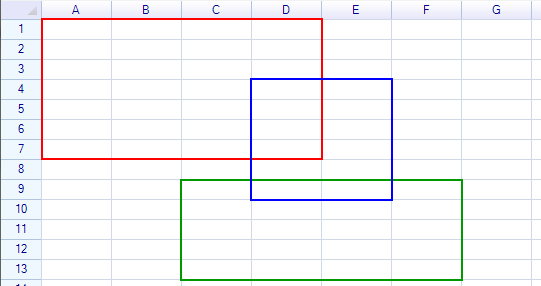
ReoGrid represents ranges through two primary types:
- RangePosition — A lightweight struct holding position and size. Not tied to any worksheet.
- ReferenceRange — A class bound to a specific worksheet, providing direct access to data, styles, and operations.
RangePosition
The RangePosition struct stores numeric information for identifying a range: start row, start column, row count, and column count. All indices are zero-based.
// From an address string
var range = new RangePosition("C5:H14");

// From row, column, rows, columns
var range = new RangePosition(4, 2, 10, 6);

// From start and end positions
var range = new RangePosition(new CellPosition("C5"), new CellPosition("H14"));

// From two address strings
var range = new RangePosition("C5", "H14");

// Single cell
var range = new RangePosition(new CellPosition("A1"));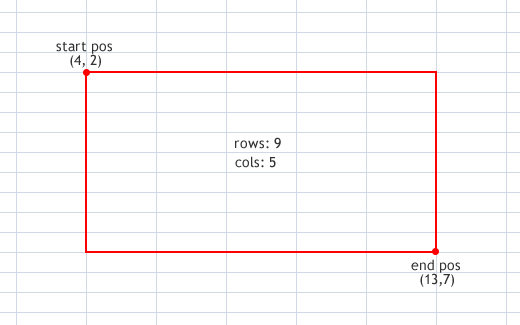
Properties
| Property | Type | Description |
|---|---|---|
Row | int | Start row index |
Col | int | Start column index |
Rows | int | Number of rows |
Cols | int | Number of columns |
EndRow | int | End row index |
EndCol | int | End column index |
StartPos | CellPosition | Start position |
EndPos | CellPosition | End position |
IsEmpty | bool | Whether rows or columns is zero |
IsEntire | bool | Whether the range covers entire rows and columns |
IsSingleCell | bool | Whether the range contains exactly one cell |
Methods
| Method | Return | Description |
|---|---|---|
Contains(CellPosition pos) | bool | Check if a cell position is within the range |
Contains(int row, int col) | bool | Check if a row/column is within the range |
Contains(RangePosition range) | bool | Check if another range is entirely contained |
ContainsRow(int row) | bool | Check if a row is within the range |
ContainsColumn(int col) | bool | Check if a column is within the range |
IntersectWith(RangePosition range) | bool | Check if two ranges overlap |
Offset(int rows, int cols) | RangePosition | Create a new range offset by rows and columns |
Offset(CellPosition pos) | RangePosition | Create a new range offset by a cell position |
ToAddress() | string | Convert to address string (e.g., "A1:B10") |
ToAbsoluteAddress() | string | Convert to absolute address (e.g., "$A$1:$B$10") |
ToRelativeAddress() | string | Convert to relative address |
SetRows(int rows) | void | Set the number of rows |
SetCols(int cols) | void | Set the number of columns |
Static Members
| Member | Description |
|---|---|
RangePosition.Empty | An empty range (0, 0, 0, 0) |
RangePosition.EntireRange | The entire worksheet range |
RangePosition.IsValidAddress(string) | Check if a string is a valid range address |
RangePosition.Union(range1, range2) | Get the minimum range containing both ranges |
RangePosition.FromCellPosition(startRow, startCol, endRow, endCol) | Create from cell coordinates |
Get a Safe Range
When a range might exceed worksheet bounds, use FixRange:
var safeRange = sheet.FixRange(range);ReferenceRange
A ReferenceRange is bound to a specific worksheet and provides direct access to data, styles, borders, formatting, and operations on that range.
Get a ReferenceRange
Use the Ranges collection on the worksheet:
var range = sheet.Ranges["B2:D3"];
var range = sheet.Ranges[1, 1, 2, 3];         // row, col, rows, cols
var range = sheet.Ranges[new RangePosition(1, 1, 2, 3)];
var range = sheet.Ranges[new CellPosition("B2"), new CellPosition("D3")];
Properties
Position
| Property | Type | Description |
|---|---|---|
Position | RangePosition | Range position on the worksheet |
Worksheet | Worksheet | The parent worksheet |
Row | int | Start row index |
Column | int | Start column index |
Rows | int | Number of rows |
Cols | int | Number of columns |
EndRow | int | End row index |
EndColumn | int | End column index |
StartPos | CellPosition | Start position |
EndPos | CellPosition | End position |
Data and Content
| Property | Type | Description |
|---|---|---|
Data | object | Get or set data for the entire range |
Cells | CellCollection | Collection of cell instances in the range |
// Set range data
range.Data = new object[] { "Product", "Price", "Quantity" };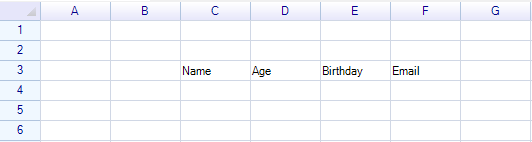
Styling
| Property | Type | Description |
|---|---|---|
Style | ReferenceRangeStyle | Style access for the range |
Border | RangeBorderProperty | Border properties wrapper |
range.Style.BackColor = Color.LightBlue;
range.Style.Bold = true;
Border Shortcuts
| Property | Type | Description |
|---|---|---|
BorderOutside | RangeBorderStyle | Outside borders |
BorderAll | RangeBorderStyle | All borders (outside + inside) |
BorderLeft | RangeBorderStyle | Left border |
BorderTop | RangeBorderStyle | Top border |
BorderRight | RangeBorderStyle | Right border |
BorderBottom | RangeBorderStyle | Bottom border |
BorderInsideAll | RangeBorderStyle | All inside borders |
BorderInsideHorizontal | RangeBorderStyle | Inside horizontal borders |
BorderInsideVertical | RangeBorderStyle | Inside vertical borders |
range.BorderOutside = RangeBorderStyle.BlackSolid;
range.Border.Outside = RangeBorderStyle.BlackSolid;  // equivalent
Data Format
| Property | Type | Description |
|---|---|---|
DataFormat | CellDataFormatFlag | Data format type for all cells in the range |
DataFormatArgs | object | Format arguments |
CustomDataFormatter | IDataFormatter | Custom formatter |
Protection
| Property | Type | Description |
|---|---|---|
IsReadonly | bool | Set all cells in the range as read-only |
IsLocked | CellLock | Lock state for all cells in the range (set only) |
IsMergedCell | bool | Whether the range is a single merged cell (read-only) |
Validation
| Property | Type | Description |
|---|---|---|
Validator | IValidator | Input validation rule for the range |
Methods
| Method | Description |
|---|---|
Select() | Select this range on the worksheet |
Merge() | Merge the range into a single cell |
Unmerge() | Unmerge the range |
GroupRows() | Group all rows in the range |
GroupColumns() | Group all columns in the range |
UngroupRows() | Ungroup all rows in the range |
UngroupColumns() | Ungroup all columns in the range |
Contains(CellPosition pos) | Check if a cell is within the range |
Contains(RangePosition range) | Check if a range is entirely contained |
Contains(ReferenceRange range) | Check if another reference range is contained |
IntersectWith(RangePosition range) | Check if two ranges overlap |
IntersectWith(ReferenceRange range) | Check if two reference ranges overlap |
ToAddress() | Convert to address string |
ToAbsoluteAddress() | Convert to absolute address string |
IterateCells(iterator) | Iterate through all cells in the range |
Iterate Cells
var range = sheet.Ranges["A1:C3"];

range.IterateCells((row, col, cell) =>
{
    Console.WriteLine($"Cell [{row},{col}]: {cell?.Data}");
    return true;  // continue iterating
});
Convert Between Types
// RangePosition → ReferenceRange
var refRange = sheet.Ranges[rangePosition];

// ReferenceRange → RangePosition
RangePosition pos = refRange.Position;

// Implicit conversion (ReferenceRange to RangePosition)
RangePosition pos = refRange;

// Both work in assignments
sheet.SelectionRange = rangePosition;
sheet.SelectionRange = refRange;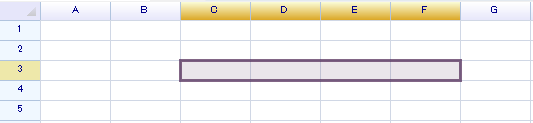
Clear Range Content
Use ClearRangeContent to selectively clear elements from a range:
// Clear only data
sheet.ClearRangeContent("A1:B5", CellElementFlag.Data);

// Clear only formulas
sheet.ClearRangeContent("A1:B5", CellElementFlag.Formula);

// Clear everything
sheet.ClearRangeContent("A1:B5", CellElementFlag.All);
CellElementFlag Enum (Flags)
| Value | Description |
|---|---|
Data | Cell data values |
Formula | Cell formulas |
Body | Cell bodies (buttons, checkboxes, etc.) |
DataFormat | Data format settings |
Style | Cell styles |
Border | Cell borders |
All | All of the above |
Used Range
Get the range that contains data:
RangePosition usedRange = sheet.UsedRange;Named Range
Named ranges are special ReferenceRange instances with a name. See Named Range.
Related Topics
- Named Range — Defining and using named ranges
- Merge Cells — Merging and unmerging ranges
- Cell Style — Styling cells and ranges
- Border — Border styles
- Data Format — Data formatting