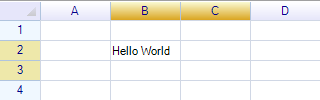
Detect selection range change
This event is raised after the selection of a worksheet has changed. For example:
void InitWorksheet()
{
  var sheet = gridControl.CurrentWorksheet;
  sheet.SelectionRangeChanged += sheet_SelectionRangeChanged;
}

void sheet_SelectionRangeChanged(object sender, RangeEventArgs args)
{
  MessageBox.Show("Selection changed: " + args.Range.ToAddress());
}
Remarks
This event is not raised while the user is dragging the mouse to change the selection range; it is only raised when the mouse button is released. To receive selection range changes during mouse dragging, use the SelectionRangeChanging event.
Change default behaviors
Change focus cell to move to the next row instead of the next cell
The SelectionForwardDirection property of the worksheet determines where the focus cell moves after editing is finished. By default, ReoGrid moves the focus cell to the next cell in the same row.
// move right (next cell)
worksheet.SelectionForwardDirection = SelectionForwardDirection.Right;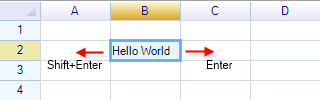
// move down (cell in the next row)
worksheet.SelectionForwardDirection = SelectionForwardDirection.Down;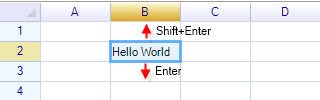
In addition, you can handle the following two events to move the selection to any custom position:
- Worksheet.SelectionMovedForward (Enter)
- Worksheet.SelectionMovedBackward (Shift+Enter)
These two events have an IsCancelled property that prevents the built-in default operations. To move the selection to a custom position, use code like the following:
worksheet.SelectionMovedForward += (s, e) => e.IsCancelled = true;
worksheet.SelectionMovedBackward += (s, e) => e.IsCancelled = true;

// move selection to another position
worksheet.SelectionRange = new RangePosition(worksheet.SelectionRange.Row + 1, 0, 1, 1);
Change next position by handling keyboard events
You can handle the BeforeCellKeyDown event to intercept any key pressed on the worksheet. Set the IsCancelled property to true to prevent the built-in default operation and move the selection to any custom position instead.
worksheet.BeforeCellKeyDown += (s, e) =>
{
  if (e.KeyCode == Keys.Enter)
  {
    e.IsCancelled = true;
    // always move to first cell of next row
    worksheet.SelectionRange =
      new RangePosition(worksheet.SelectionRange.Row + 1, 0, 1, 1);
  }
};
Change selection mode
It is possible to change the selection mode for each worksheet:
worksheet.SelectionMode = WorksheetSelectionMode.Row;The following modes are supported:
| Enum Value | Description |
|---|---|
| None | Do not allow selecting anything on the worksheet. |
| Cell | Allow selecting only a single cell. |
| Range | Allow selecting cells or ranges. |
| Row | Always select one or more entire rows at a time. |
| Column | Always select one or more entire columns at a time. |
Multiple selections (Ctrl-click)
ReoGrid can maintain several non-contiguous selections when AllowMultipleSelection is enabled (hold Ctrl/Cmd while clicking). The active selection is still stored in SelectionRange, and all selected blocks are stored in SelectionRanges.
// enable multiple selection
worksheet.AllowMultipleSelection = true;

// access every selected block
foreach (var range in worksheet.SelectionRanges)
{
  // do something with each range
}
Limitation: built-in edit commands (delete, paste, typing) operate on the active selection (the last clicked range) even when multiple ranges are selected. To apply an operation to all selections, iterate SelectionRanges yourself:
foreach (var range in worksheet.SelectionRanges)
{
  worksheet.MergeRange(range);
  // or worksheet.SetRangeData(range, value);
}
Custom limitation to selection range
The BeforeSelectionRangeChange event is fired when the user attempts to change the selection. Set the IsCancelled property to prevent the built-in operation.
This event also provides properties that allow user code to override the selected range. The example below shows how to limit the number of rows and columns in a selection operation.
Limit selection range maximum rows and columns
Add a handler to the BeforeSelectionRangeChange event:
worksheet.BeforeSelectionRangeChange += worksheet_BeforeSelectionRangeChange;Change the selection end position to limit the maximum number of rows to 5:
void worksheet_BeforeSelectionRangeChange(object sender, BeforeSelectionChangeEventArgs e)
{
  int rows = Math.Abs(e.StartRow - e.EndRow);

  if (rows >= 5)
  {
    if (e.EndRow > e.StartRow)
      e.EndRow = e.StartRow + 5 - 1;
    else
      e.EndRow = e.StartRow - 5 + 1;
  }
}
Built-in default keyboard operations
See the supported hot-key list.
Change selection style
The SelectionStyle property of the worksheet can be used to change the selection style.
Default style
worksheet.SelectionStyle = ReoGridSelectionStyle.Default;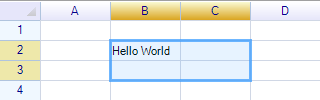
Windows Focus Style
worksheet.SelectionStyle = ReoGridSelectionStyle.FocusRect;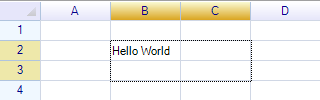
Hide selection
It is also possible to hide the selection by setting it to None:
worksheet.SelectionStyle = ReoGridSelectionStyle.None;