
The VLOOKUP function is designed to search for a specified value within a range and return data from a specified column within that range.
Example Scenario
Consider the following data table:
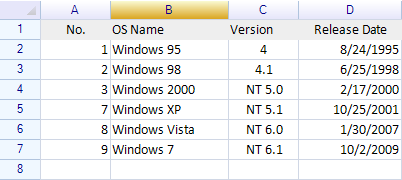
To locate the value 7 in the table and return the corresponding data from the second column, the VLOOKUP function can be used as follows:
=VLOOKUP(7, A2:E6, 2)This formula searches the range A2:E6 for the index value 7:

Result:

Upon locating the index value 7, the function returns the data from the second column of the specified range — “Windows XP”:
Important Notes on Using the VLOOKUP Function
When using the VLOOKUP function in ReoGrid, keep the following points in mind:
- Sorting Requirement: The data in the first column of the search table, which is used as the lookup reference, must be sorted in either ascending or descending order. This ensures the function’s search logic operates correctly.
- First Column Constraint: The
VLOOKUPsearch is limited to the first column of the specified search table. It is not possible to direct the function to search through any other column. - Data Type Consistency: The first column can contain either numeric or textual data, but consistent sorting is required for the function to perform accurately.
- Handling Non-Existent Values: When the specified index value does not exactly match any entry in the first column,
VLOOKUPreturns the closest value that is less than the lookup value within the sorted data. For instance, if the lookup value is 8 and the sorted values in the first column are 5, 7, and 10,VLOOKUPwill return the result corresponding to 7, as it is the nearest lesser value.
Handling Non-Existent Lookup Values
When the VLOOKUP function encounters a lookup value that does not exactly match any entry in the first column of the search range, it returns the closest lesser value. For instance, consider using the formula =VLOOKUP(4, A2:E6, 2) with the following data table:

In this scenario, the lookup value 4 is not present in the first column of the specified range (A2:E6). As a result, VLOOKUP finds the nearest lesser value to 4 within the sorted first column, which in this case is 3.
The function thus returns the data corresponding to index value 3, producing the output “Windows 2000”:

Exact match for a specified value
To force ReoGrid to perform an exact match on the specified index value, set the VLOOKUP function’s 4th argument to TRUE. For example:

Result:

Nothing is returned from the VLOOKUP function because the specified index value was not found in the search table.