
Borders can be set programmatically by calling worksheet APIs directly, or by performing actions.
Border Styles
The following border styles are supported by the current version of ReoGrid.
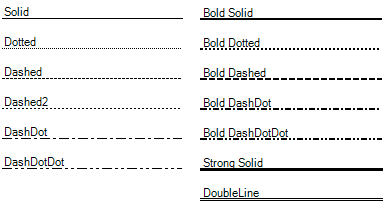
Border styles are defined as the BorderLineStyle enumeration.
Border Positions
Borders must be set around a range, even if the range contains only one cell. To specify border positions, use the BorderPositions enumeration and its bitwise-combined values.
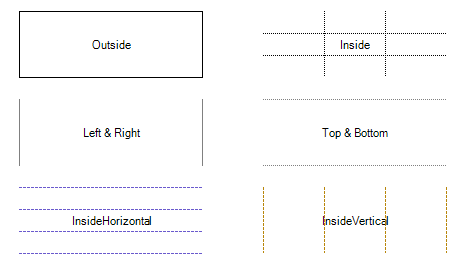
Setting Borders
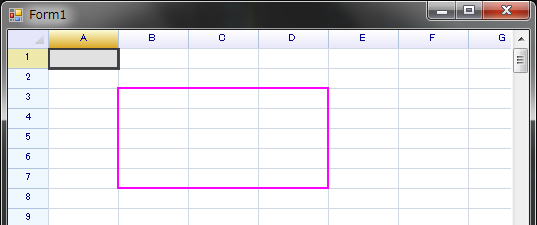
To apply borders to a specific range within a worksheet, use the SetRangeBorders method:
var sheet = reoGridControl.CurrentWorksheet;

// Applying borders to the outside of a specified range with a custom style
sheet.SetRangeBorders("B3:D7", BorderPositions.Outside,
  new RangeBorderStyle
  {
    Color = SolidColor.Magenta,
    Style = BorderLineStyle.BoldSolid,
  });
Setting Borders with Actions
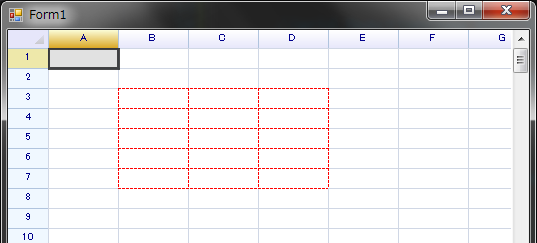
To apply borders within a range via an action, which allows the operation to be undone, use the following approach:
reoGridControl.DoAction(reoGridControl.CurrentWorksheet,
  new SetRangeBorderAction(new RangePosition(2, 1, 5, 3),
    BorderPositions.All,
    new RangeBorderStyle {
      Color = SolidColor.Red,
      Style = BorderLineStyle.Dashed
    })
);
Retrieving Border Information
To retrieve details about the borders applied to a specific range within a worksheet, use the GetRangeBorders method:
// Retrieving border information for a specified range
RangeBorderInfoSet borderInfoSet = sheet.GetRangeBorders("A1:D5");
The GetRangeBorders method analyzes the borders within the specified range and returns a RangeBorderInfoSet. This set contains instances of border styles that are consistently applied throughout the range.
To identify borders within the range that have varying styles, examine the NonUniformPos property of the RangeBorderInfoSet. This property highlights the positions where border styles differ from the predominant style.
Iterating Over Borders
To enumerate all borders within a designated range, use the IterateBorders method of the worksheet.
Method Definition
IterateBorders(RowOrColumn direction, RangePosition range, Func<int, int, int, RangeBorderStyle, bool> iterator);Parameters
direction- Specifies the iteration mode:RowOrColumn.Rowfor iterating over all horizontal borders.RowOrColumn.Columnfor iterating over all vertical borders.RowOrColumn.Bothfor iterating over all borders, including both rows and columns.
range: The target range within which borders will be iterated.iterator: A callback function provided by user code to examine all borders retrieved from the worksheet. This function accepts the following arguments:intRow: The row number at which the border is located.intColumn: The column number at which the border is located.intSpan: The count of consecutive borders sharing the same style from this starting position.RangeBorderStyle- Contains the color and style details of the border.boolreturn value: Returningtruecontinues the iteration; returningfalseterminates it.
This method enables detailed inspection and manipulation of border properties within a specific range, allowing custom logic to be applied based on the border characteristics encountered during iteration.
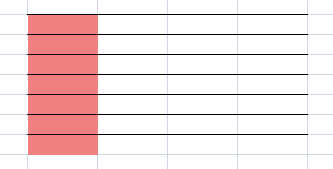
For example, iterate over all horizontal borders and mark cells with a red background if the cell’s position has a border.
// Setting horizontal borders within a specified range
worksheet.Ranges["C3:F10"].BorderInsideHorizontal = RangeBorderStyle.BlackSolid;

// Iterating over horizontal borders in the entire worksheet range
worksheet.IterateBorders(RowOrColumn.Row, RangePosition.EntireRange, (r, c, span, border) =>
{
  // Applying a red background to cells that have borders
  worksheet.Cells[r, c].Style.BackColor = Color.LightCoral;

  return true; // Continue iterating
});
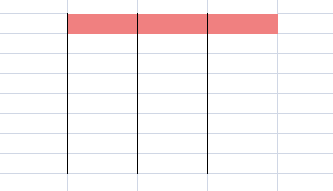
Iterate over all vertical borders:
// set borders
worksheet.Ranges["C3:F10"].BorderInsideVertical = RangeBorderStyle.BlackSolid;

// iterate borders
worksheet.IterateBorders(RowOrColumn.Column, RangePosition.EntireRange, (r, c, span, border) =>
{
  worksheet.Cells[r, c].Style.BackColor = Color.LightCoral;
  return true;
});
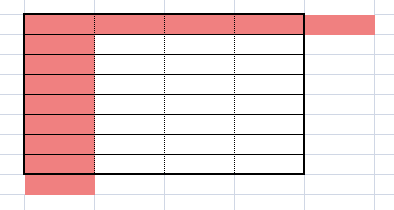
Iterate over all borders, both row and column borders:
// set borders
worksheet.Ranges["C3:F10"].BorderOutside = RangeBorderStyle.BlackBoldSolid;
worksheet.Ranges["C3:F10"].BorderInsideHorizontal = RangeBorderStyle.BlackSolid;
worksheet.Ranges["C3:F10"].BorderInsideVertical = RangeBorderStyle.BlackDotted;

// iterate borders
worksheet.IterateBorders(RowOrColumn.Both, RangePosition.EntireRange, (r, c, span, border) =>
{
  worksheet.Cells[r, c].Style.BackColor = Color.LightCoral;
  return true;
});
Removing Borders
To remove borders from a worksheet, use the RemoveRangeBorders method:
// Removing all borders from a specified range within the worksheet
sheet.RemoveRangeBorders(new RangePosition(2, 1, 5, 1), BorderPositions.All);
Alternatively, setting the border style to RangeBorderStyle.Empty also removes borders:
// Setting the border style to 'Empty' for a specified range to remove borders
sheet.SetRangeBorders(new RangePosition(2, 1, 5, 3), BorderPositions.All, RangeBorderStyle.Empty);
Removing Borders with Actions
To remove borders with the ability to undo the operation, use the DoAction method as follows:
reoGridControl.DoAction(reoGridControl.CurrentWorksheet,
  new RemoveRangeBorderAction(new RangePosition(2, 1, 5, 1), ReoGridBorderPos.All));
This action can be reversed by calling the Undo method:
// Undoing the border removal operation
reoGridControl.Undo();