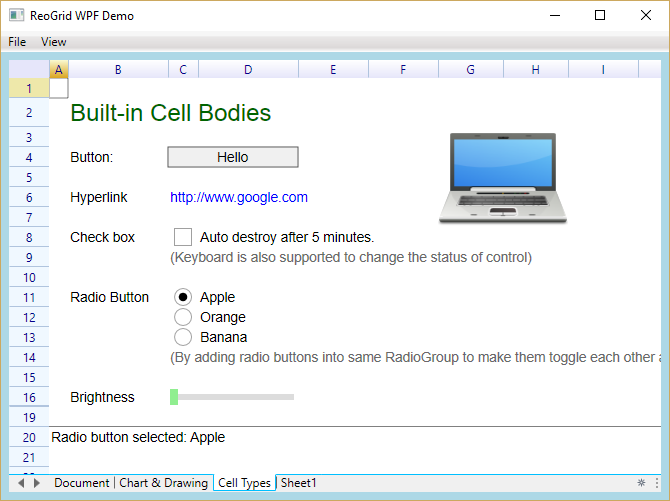
Cells in ReoGrid can hold a cell body. A cell body is an interface that displays customized content in a cell and interacts with user input. A customized cell body class must inherit from CellBody or implement the ICellBody interface. For more about cell bodies, see Custom Cell.
The following built-in cell body types are available:
| Class Name | Sample | Description |
|---|---|---|
| ButtonCell |  | General button. |
| CheckBoxCell |   | Check box that toggles the cell data between the .NET Boolean values true and false. |
| RadioButtonCell |   | Radio button that toggles the cell data between true and false; radio buttons in the same group toggle each other. |
| HyperlinkCell |  | Hyperlink that can navigate to a specified URL automatically. |
| DropDownListCell |  | Drop-down cell that provides a list of candidates and lets the user choose a single item as cell data. |
| ProgressCell |  | Progress cell that displays a progress bar in the cell based on the cell data (0–1). |
| NegativeProgressCell |   | Negative progress cell that can display positive and negative progress bars based on the cell data (0–1). |
| Image |  | Image cell that displays an image in the cell. |
| ImageButton |  | Image button that displays an image on a button in the cell. |
| DatePickerCell | 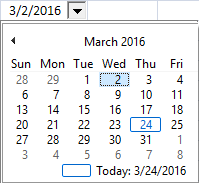 | Date picker cell that allows the user to choose a date from a drop-down calendar. |
| NumberInputCell | Numeric input cell with spin buttons to increment or decrement the value. | |
| ComboListCell | Combo box style cell that combines a text input with a drop-down selection list. | |
| ColumnDropdownListCell | Drop-down list cell that uses column data as the selection source. |
To use built-in cell types, the following namespace is required:
using unvell.ReoGrid.CellTypes;Button
The ButtonCell class represents a button control on a worksheet.
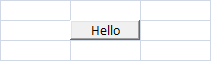
sheet[1,2] = new ButtonCell("Hello");The cell body always uses the cell’s data as its label, so the following code also works:
sheet[1,2] = new ButtonCell();
sheet[1,2] = "Hello";
Button Click Event
The Click event is raised when the user clicks the button.
var button = new ButtonCell("Hello");
button.Click += (s, e) => MessageBox.Show("Button clicked");
Perform Click
It is possible to use the PerformClick method to simulate a click event. For example:
button.PerformClick();Change Button Text Color
By changing the cell style, it is possible to change the color of the button label. For example, the following code changes the button label to blue:
var cell = sheet.Cells["C3"];
cell.Style.TextColor = Color.Blue;

var button = new ButtonCell("Hello");
cell.Body = button;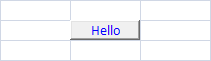
Hyperlink
A hyperlink uses the cell’s data as its navigation URL.

sheet[1,2] = new HyperlinkCell("http://www.google.com");

// or

sheet[1,2] = new HyperlinkCell();
sheet[1,2] = "http://www.google.com";
Automatic Navigation
The second argument autoNavigate of the constructor specifies whether to navigate to the specified URL when the user clicks the hyperlink. For example:
sheet[1,2] = new HyperlinkCell("http://www.google.com/", true);Hyperlink Click Event
The Click event is raised when the user clicks the hyperlink.
Before this event is raised, the URL may be navigated to first if the autoNavigate argument is true. To prevent this, set autoNavigate to false.
var link = new HyperlinkCell("http://myurl.com", false);
link.Click += (s, e) => { doMyEventHandler(); };
Perform Click
It is possible to use the PerformClick method to simulate a click event. For example:
link.PerformClick();Check Box
The CheckBoxCell class represents a check box on a worksheet, but it does not provide a label to be displayed on the worksheet. It is usually necessary to place a label before or after the check box cell, as shown in the following image:

var checkboxCell = new CheckBoxCell();

// add check box and a text label
sheet["C1"] = new object[] { checkboxCell, "Auto destroy after 5 minutes." };
Get and Set Check Status
Set the cell’s data directly using a boolean value to check or uncheck the check box, or use the IsChecked property to get the check status.
// check
sheet[1, 2] = true;

// uncheck
sheet[1, 2] = false;

// get check status from worksheet
bool isChecked = (sheet["C1"] as bool?) ?? false;

// get or set check status from check box
bool isChecked = checkboxCell.IsChecked;
Click and CheckChanged events
The Click event is raised when the user clicks the check box. The Click event does not fire when the user presses the Space key inside the cell.
checkboxCell.Click += (s, e) => { doEventHandler(); };The CheckChanged event is raised when the user changes the check box status by mouse or keyboard.
checkboxCell.CheckChanged += (s, e) => { doEventHandler(); };CellDataChanged event
Since the check box cell updates the cell’s data as a boolean value, the CellDataChanged event is also raised when the check box status changes.
sheet.CellDataChanged += (s, e) =>
{
  if (e.Cell.Position == new CellPosition("C1"))
  {
    MessageBox.Show("Check box status changed: " + e.Cell.Data);
  }
};
Custom Drawing for Check Box
To customize the appearance of the check box cell instead of using the built-in style, override the OnContentPaint method. The following code draws the check box using checked and unchecked images:
class MyCheckBox : CheckBoxCell {
  Image checkedImage, uncheckedImage;

  public MyCheckBox() {
    checkedImage = Image.FromFile(@"...");
    uncheckedImage = Image.FromFile(@"...");
  }

  protected override void OnContentPaint(CellDrawingContext dc) {
    if (this.IsChecked) {
      dc.Graphics.DrawImage(checkedImage, this.ContentBounds);
    } else {
      dc.Graphics.DrawImage(uncheckedImage, this.ContentBounds);
    }
  }
}
Radio
The RadioButtonCell class represents a radio button on a worksheet. It inherits from CheckBoxCell, so the usage of the radio button cell is almost the same as the check box.
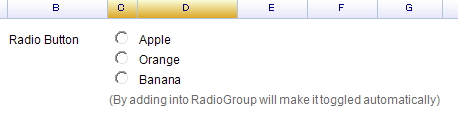
To add a radio button, use the following code:
var radio = new RadioButtonCell();
sheet["C3"] = radio;
Radio Group
RadioButtonCell instances added to a RadioButtonGroup or assigned a RadioGroup property will automatically toggle each other within the same group.
var radioGroup = new RadioButtonGroup();
sheet[10, 2] = new object[,] {
  {new RadioButtonCell() { RadioGroup = radioGroup }, "Apple"},
  {new RadioButtonCell() { RadioGroup = radioGroup }, "Orange"},
  {new RadioButtonCell() { RadioGroup = radioGroup }, "Banana"}
};
Click and CheckChanged events
To handle the Click event:
radio.Click += (s, e) => doEventHandler();To handle the CheckChanged event for all radio buttons in a group:
radioGroup.RadioButtons.ForEach(rb => rb.CheckChanged += (s, e) =>
  ShowText(sheet, "Radio button selected: " + sheet[rb.Cell.Row, rb.Cell.Column + 1]));
CellDataChanged event
Since the radio button cell updates the cell’s data as a boolean value, the CellDataChanged event is also raised when the radio button status changes. See the Check Box Cell section above for sample code.
Drop-down List
The drop-down list cell is represented by the DropdownListCell class.
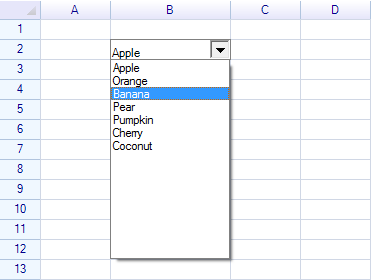
Code to add a drop-down list cell to a worksheet:
var dropdown = new DropdownListCell(
  "Apple", "Orange", "Banana", "Pear",
  "Pumpkin", "Cherry", "Coconut"
);
sheet["B2"] = dropdown;
Drop-down list cell events
The SelectedItemChanged event of the drop-down list cell is used to get the selected item from the drop-down panel.
dropdown.SelectedItemChanged += (s, e) => { ... };Like the check box cell, the drop-down list cell also updates the cell data; it is also possible to get the selected item by handling the CellDataChanged event:
sheet.CellDataChanged += (s, e) => { ... };Learn more details about Drop-down list cell.
Custom Drop-down
The drop-down cell can be customized; it is possible to place any Windows Forms-compatible control inside the drop-down panel.
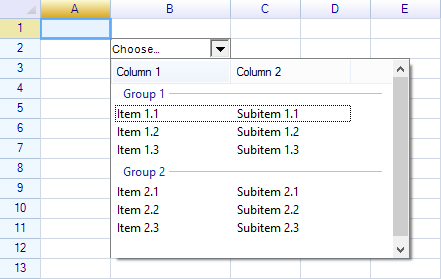
See how to create a custom drop-down cell.
Image
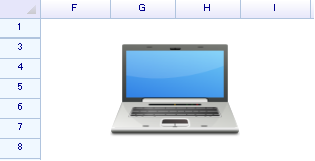
Code to add an image cell:
var image = Image.FromFile("...");
sheet[2, 6] = new ImageCell(image);
View Mode of Image Cell
ImageCell has a property named ViewMode that controls how the image is displayed inside the cell:
// create ImageCell by specifying the view mode
var imgCell = new ImageCell(img, ImageCellViewMode.Zoom);
sheet["F6"] = imgCell;

// or change the property directly
imgCell.ViewMode = ImageCellViewMode.Clip;
Alignments
The horizontal and vertical alignment styles of a cell can be used to control where the image is displayed:
var cell = sheet.Cells["F6"];
cell.Style.HAlign = ReoGridHorAlign.Center;
cell.Style.VAlign = ReoGridVerAlign.Middle;
Image Button Cell
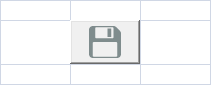
Code to create an image button at cell C3:
sheet["C3"] = new ImageButtonCell(Image.FromFile(@"C:\\PathToFile\\Save-32.png"));Result:
Date Picker
A built-in Date Picker Cell.
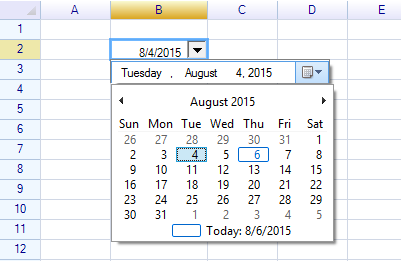
To create a custom date picker cell using the free edition of ReoGrid, see how to create a date picker cell.
Adjusting size for cell body
The size of a cell body is determined by its parent cell along with a padding style value. It is also possible to make a cell larger by merging multiple cells.
Windows Forms and WPF editions
ReoGrid supports a subset of cell types in the WPF edition, as shown below:
| Built-in Cell Body Type | Windows Forms | WPF |
|---|---|---|
| Button | Yes | Yes |
| Check Box | Yes | Yes |
| Radio Button | Yes | Yes |
| Hyperlink | Yes | Yes |
| Image Cell | Yes | Yes |
| Image Button Cell | Yes | Yes |
| Progress Bar Cell | Yes | Yes |
| Negative Progress Bar Cell | Yes | Yes |
| Drop-down Cell | Yes | Not implemented |
| Drop-down List Cell | Yes | Not implemented |
| NumberInputCell | Yes | Not implemented |
| ComboListCell | Yes | Not implemented |
| ColumnDropdownListCell | Yes | Not implemented |
| Custom Cell Body | Yes | Yes |
Learn more from the Demo project
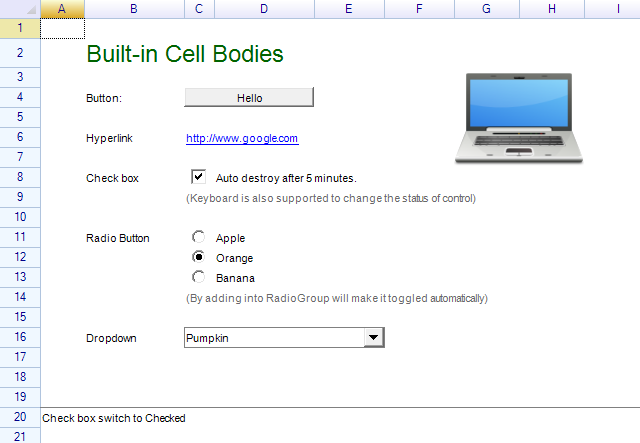
Examples of built-in cell types are included in the Demo project.
Windows Forms edition
WPF edition