
Create and use a WorksheetRangeStyle object to pass style items into cells or ranges. Call the SetRangeStyles method on the worksheet to apply the style object. ReoGrid uses an enumeration called PlainStyleFlag to determine which styles should be applied.
Namespace
using unvell.ReoGrid;Set Styles
There are several ways to set cell or range styles:
- Call worksheet methods
- Use a Cell or Range instance
- Use Actions
Call Worksheet Methods
sheet.SetRangeStyles("B1:E5", new WorksheetRangeStyle
{
    Flag = PlainStyleFlag.FillColor,
    BackColor = Color.SkyBlue,
});
SetRangeStyles Overloads
| Signature | Description |
|---|---|
SetRangeStyles(string addressOrName, WorksheetRangeStyle style) | Set styles by address or named range |
SetRangeStyles(int row, int col, int rows, int cols, WorksheetRangeStyle style) | Set styles by row/col/size |
SetRangeStyles(RangePosition range, WorksheetRangeStyle style) | Set styles by range position |
Use Cell or Range Instance
// Cell
var cell = sheet.Cells["B3"];
cell.Style.BackColor = Color.SkyBlue;

// Range
var range = sheet.Ranges["B1:C3"];
range.Style.BackColor = Color.LightYellow;
Use Actions
Set styles using an action to enable undo, redo, and repeat operations.
sheet.DoAction(new SetRangeStyleAction("B1:E5", new WorksheetRangeStyle
{
    Flag = PlainStyleFlag.FillColor,
    BackColor = Color.SkyBlue,
}));
Get Styles
Call Worksheet Methods
// Get style from a single cell
WorksheetRangeStyle style = sheet.GetCellStyle("B3");
WorksheetRangeStyle style = sheet.GetCellStyle(new CellPosition("B3"));
WorksheetRangeStyle style = sheet.GetCellStyle(2, 1);
Use Cell or Range Instance
// Cell
var backColor = sheet.Cells["B3"].Style.BackColor;

// Range
var backColor = sheet.Ranges["B1:C3"].Style.BackColor;
WorksheetRangeStyle
The WorksheetRangeStyle class holds the style properties to apply. The Flag property determines which style items are included.
Properties
| Property | PlainStyleFlag Value | Type | Description |
|---|---|---|---|
Flag | — | PlainStyleFlag | Determines which styles are included in this object |
BackColor | BackColor | SolidColor | Background color |
FillPatternColor | FillPatternColor | SolidColor | Background pattern color (WinForms only) |
FillPatternStyle | FillPatternStyle | HatchStyles | Background pattern style (WinForms only) |
TextColor | TextColor | SolidColor | Text color (default: Black) |
FontName | FontName | string | Font name |
FontSize | FontSize | float | Font size (default: 10) |
Bold | FontStyleBold | bool | Bold font |
Italic | FontStyleItalic | bool | Italic font |
Strikethrough | FontStyleStrikethrough | bool | Strikethrough |
Underline | FontStyleUnderline | bool | Underline |
HAlign | HorizontalAlign | ReoGridHorAlign | Horizontal alignment |
VAlign | VerticalAlign | ReoGridVerAlign | Vertical alignment |
TextWrapMode | TextWrap | TextWrapMode | Text wrap mode |
Indent | Indent | ushort | Text indent (0–65535) |
Padding | Padding | PaddingValue | Cell padding |
RotationAngle | RotationAngle | float | Text rotation angle (−90° to 90°) |
Methods
| Method | Description |
|---|---|
WorksheetRangeStyle() | Create empty style set |
WorksheetRangeStyle(WorksheetRangeStyle source) | Copy constructor |
Clone(WorksheetRangeStyle source) | Static: clone a style object |
CopyFrom(WorksheetRangeStyle source) | Copy styles from another object |
HasStyle(PlainStyleFlag flag) | Check if all specified flags are present |
HasAny(PlainStyleFlag flag) | Check if any specified flag is present |
Note: Always set the
Flagproperty — it determines which style items will be applied. Style properties without the corresponding flag set are ignored.
PlainStyleFlag
The PlainStyleFlag enum (long, flags) specifies which style items to apply or remove.
Individual Flags
| Value | Hex | Description |
|---|---|---|
None | 0x0 | No style |
FontName | 0x1 | Font name |
FontSize | 0x2 | Font size |
FontStyleBold | 0x4 | Bold |
FontStyleItalic | 0x8 | Italic |
FontStyleStrikethrough | 0x10 | Strikethrough |
FontStyleUnderline | 0x20 | Underline |
TextColor | 0x40 | Text color |
BackColor | 0x80 | Background color |
HorizontalAlign | 0x2000 | Horizontal alignment |
VerticalAlign | 0x4000 | Vertical alignment |
FillPatternColor | 0x80000 | Background pattern color |
FillPatternStyle | 0x100000 | Background pattern style |
TextWrap | 0x200000 | Text wrap mode |
Indent | 0x400000 | Indent |
Padding | 0x800000 | Padding |
RotationAngle | 0x1000000 | Text rotation angle |
Composite Flags
| Value | Combines |
|---|---|
FontStyleAll | FontStyleBold | FontStyleItalic | FontStyleStrikethrough | FontStyleUnderline |
FontAll | FontName | FontSize | FontStyleAll |
AlignAll | HorizontalAlign | VerticalAlign |
FillPattern | FillPatternColor | FillPatternStyle |
BackAll | BackColor | FillPattern |
LayoutAll | TextWrap | Padding | RotationAngle |
All | FontAll | TextColor | BackAll | AlignAll | LayoutAll |
Alignment Enums
ReoGridHorAlign
| Value | Description |
|---|---|
General | Automatic alignment (numbers right, text left) |
Left | Left-aligned |
Center | Centered |
Right | Right-aligned |
ReoGridVerAlign
| Value | Description |
|---|---|
General | Default alignment |
Top | Top-aligned |
Middle | Middle-aligned |
Bottom | Bottom-aligned |
TextWrapMode
| Value | Description |
|---|---|
NoWrap | No wrapping (default) |
WordBreak | Normal word break |
BreakAll | Break at any character |
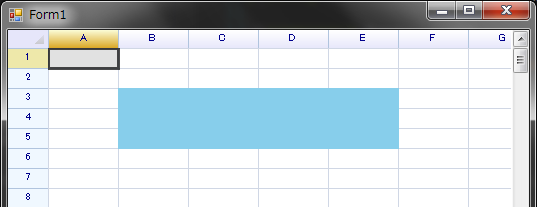
Background Color
Set background color for the range B1:E5:
sheet.SetRangeStyles("B1:E5", new WorksheetRangeStyle
{
    Flag = PlainStyleFlag.FillColor,
    BackColor = Color.SkyBlue,
});
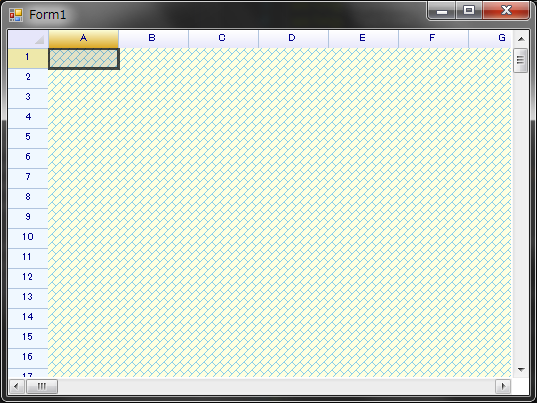
Background Pattern Color
Set background pattern color for the entire grid (WinForms only):
sheet.SetRangeStyles(RangePosition.EntireRange,
    new WorksheetRangeStyle
    {
        Flag = PlainStyleFlag.FillPattern | PlainStyleFlag.FillColor,
        BackColor = Color.LightYellow,
        FillPatternColor = Color.SkyBlue,
        FillPatternStyle = System.Drawing.Drawing2D.HatchStyle.DiagonalBrick,
    });
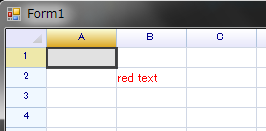
Text Color
sheet.SetRangeStyles("B2:B2", new WorksheetRangeStyle
{
    Flag = PlainStyleFlag.TextColor,
    TextColor = Color.Red,
});
Text Alignment
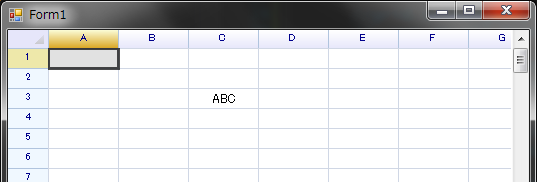
Text alignment can be specified in both horizontal and vertical directions.
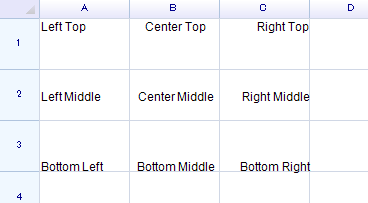
Set the cell’s horizontal text alignment to Center:
sheet.SetRangeStyles("A1:C3", new WorksheetRangeStyle
{
    Flag = PlainStyleFlag.HorizontalAlign,
    HAlign = ReoGridHorAlign.Center,
});
Text Wrap
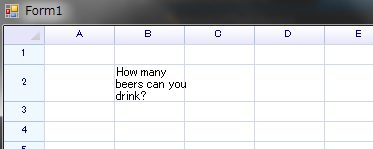
Set text wrap mode to WordBreak (the default is NoWrap):
sheet[1, 1] = "How many beers can you drink?";
sheet.SetRangeStyles("B2:B2", new WorksheetRangeStyle
{
    Flag = PlainStyleFlag.TextWrap,
    TextWrapMode = TextWrapMode.WordBreak,
});
Text Rotation
Set the RotationAngle property to rotate text inside a cell (−90° to 90°):
var cell = sheet.Cells["A1"];
cell.Data = "Hello World";
cell.Style.RotationAngle = 90;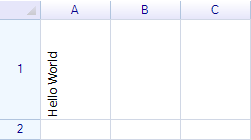
Font
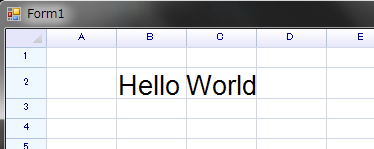
Change font name and size:
sheet.SetRangeStyles("B2:B2", new WorksheetRangeStyle
{
    Flag = PlainStyleFlag.FontSize | PlainStyleFlag.FontName,
    FontName = "Arial",
    FontSize = 20,
});
Change font styles:
// Using SetRangeStyles
sheet.SetRangeStyles("B2", new WorksheetRangeStyle
{
    Flag = PlainStyleFlag.FontStyleBold,
    Bold = true,
});

sheet.SetRangeStyles("C2", new WorksheetRangeStyle
{
    Flag = PlainStyleFlag.FontStyleItalic,
    Italic = true,
});

// Using cell instances
sheet.Cells["B3"].Style.Underline = true;
sheet.Cells["C3"].Style.Strikethrough = true;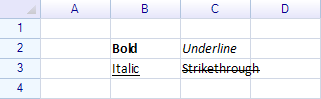
Multiple Styles at Once
Combine multiple PlainStyleFlag values using bitwise OR to set several styles in one call:
sheet.SetRangeStyles("A1:D4", new WorksheetRangeStyle
{
    Flag = PlainStyleFlag.FillColor | PlainStyleFlag.TextColor
         | PlainStyleFlag.FontStyleBold | PlainStyleFlag.HorizontalAlign,
    BackColor = Color.LightYellow,
    TextColor = Color.DarkBlue,
    Bold = true,
    HAlign = ReoGridHorAlign.Center,
});
Remove Style
Always remove styles from a range, even for a single cell.
Use Worksheet Method
Specify PlainStyleFlag to determine which styles should be removed:
sheet.RemoveRangeStyles(new RangePosition(2, 2, 3, 3), PlainStyleFlag.BackAll);RemoveRangeStyles Overloads
| Signature | Description |
|---|---|
RemoveRangeStyles(string addressOrName, PlainStyleFlag flags) | Remove by address or named range |
RemoveRangeStyles(RangePosition range, PlainStyleFlag flags) | Remove by range position |
Use Actions
sheet.DoAction(new RemoveRangeStyleAction(new RangePosition(2, 2, 3, 3), PlainStyleFlag.BackAll));Root Style
The RootStyle property on the worksheet defines the default style for all cells:
sheet.RootStyle.FontName = "Consolas";
sheet.RootStyle.FontSize = 12;
Alternate Row Styles
Apply alternating row colors for improved readability:
sheet.AlternateNormalRowColor = SolidColor.White;
sheet.AlternateAccentRowColor = new SolidColor(240, 240, 250);
sheet.AlternateRowRange = new RangePosition("A1:F100");
sheet.AlternateRowStyleMode = AlternateRowStyleMode.ByVisibleRow;
AlternateRowStyleMode
| Value | Description |
|---|---|
None | No alternate row styling |
ByVisibleRow | Alternate by visible rows (skips hidden rows) |
ByPhysicalRow | Alternate by physical row index |
Events
| Event | EventArgs | Description |
|---|---|---|
RangeStyleChanged | RangeEventArgs | Raised when styles are changed on a range |
ReferenceCellStyle
The ReferenceCellStyle class is returned by cell.Style. Setting a property on this object automatically applies the style to the cell with the correct flag.
| Property | Type | Description |
|---|---|---|
BackColor | SolidColor | Background color |
TextColor | SolidColor | Text color |
FontName | string | Font name |
FontSize | float | Font size |
Bold | bool | Bold |
Italic | bool | Italic |
Strikethrough | bool | Strikethrough |
Underline | bool | Underline |
HAlign | ReoGridHorAlign | Horizontal alignment |
VAlign | ReoGridVerAlign | Vertical alignment |
TextWrap | TextWrapMode | Text wrap mode |
Indent | ushort | Text indent |
Padding | PaddingValue | Cell padding |
RotationAngle | float | Text rotation angle |
ReferenceRangeStyle
The ReferenceRangeStyle class is returned by range.Style. Setting a property applies the style to the entire range.
| Property | Type | Description |
|---|---|---|
BackColor | SolidColor | Background color |
TextColor | SolidColor | Text color |
FontName | string | Font name |
FontSize | float | Font size |
Bold | bool | Bold |
Italic | bool | Italic |
Underline | bool | Underline |
Strikethrough | bool | Strikethrough |
HorizontalAlign | ReoGridHorAlign | Horizontal alignment |
VerticalAlign | ReoGridVerAlign | Vertical alignment |
TextWrap | TextWrapMode | Text wrap mode |
Padding | PaddingValue | Cell padding |
Indent | ushort | Text indent |
Related Topics
- Border — Border styles
- Data Format — Data formatting
- Built-in Actions — Style-related actions
- Custom Cell — Cell body padding