
The worksheet is the primary data container in ReoGrid. Each worksheet provides a grid of cells organized in rows and columns, with row and column headers.
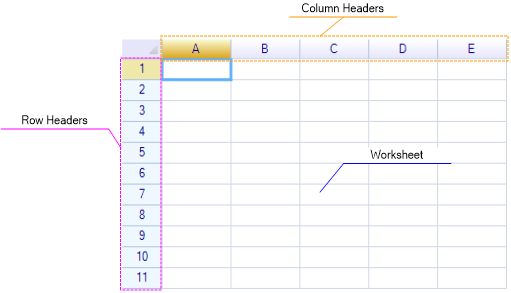
The worksheet view comprises three sections:
- Row Header View — Displays row numbers and allows row selection
- Column Header View — Displays column letters and allows column selection
- Cells View — The main data area where cells are displayed and edited
Managing Worksheets
Get the Current Worksheet
var sheet = reoGridControl.CurrentWorksheet;Change the Current Worksheet
reoGridControl.CurrentWorksheet = anotherWorksheet;Note:
CurrentWorksheetcannot be set tonull— the control must always have at least one active worksheet.
Access by Index or Name
var sheet = reoGridControl.Worksheets[1];       // By index
var sheet = reoGridControl.Worksheets["Sheet2"]; // By name
Get Worksheet Index
int index = reoGridControl.GetWorksheetIndex(mysheet);Change Worksheet Name
sheet.Name = "Sales Data";Worksheet names must be unique within the same workbook.
Tab Appearance
sheet.NameBackColor = new SolidColor(Color.LightBlue);  // Tab background
sheet.NameTextColor = new SolidColor(Color.DarkBlue);    // Tab text color
Create / Insert / Delete / Move / Copy
See Workbook — Worksheet Management.
Cell Data Access
Method 1: Worksheet Indexer
// Set data
sheet["A1"] = "hello world";
sheet[0, 0] = 10;

// Get data
var value = sheet["A1"];
Method 2: Cell Instance
var cell = sheet.Cells["A1"];
cell.Data = "hello world";
The cell instance provides properties for Data, Formula, Style, Body, and more. See Cell.
Note: Accessing
Cells[...]creates a new instance if one doesn’t exist. To check without creating, useGetCell:var cell = sheet.GetCell("A1"); // Returns null if cell doesn't exist
Method 3: Using Actions (Undo Support)
sheet.DoAction(new SetCellDataAction("A1", "hello world"));Key Properties
| Property | Type | Description |
|---|---|---|
Name | string | Worksheet name |
Workbook | IWorkbook | Parent workbook |
RowCount / Rows | int | Number of rows |
ColumnCount / Columns | int | Number of columns |
UsedRange | RangePosition | Range containing data (read-only) |
MaxContentRow | int | Maximum row with content (read-only) |
MaxContentCol | int | Maximum column with content (read-only) |
SelectionRange | RangePosition | Current selection |
FocusPos | CellPosition | Current focus cell |
ScaleFactor | float | Zoom level (1.0 = 100%) |
IsFrozen | bool | Whether worksheet is frozen (read-only) |
IsLocked | bool | Whether worksheet is locked |
IsEditing | bool | Whether a cell is being edited (read-only) |
EditingCell | Cell | Currently editing cell (read-only) |
Visible | bool | Whether worksheet is visible |
IndentSize | float | Text indent size |
Options | WorksheetOptions | Worksheet options object |
Styles
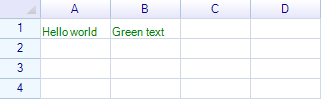
Set cell styles using SetRangeStyles:
sheet.SetRangeStyles("A1:C3", new WorksheetRangeStyle
{
    Flag = PlainStyleFlag.TextColor,
    TextColor = Color.Green,
});
See Cell Style for all style options.
Borders
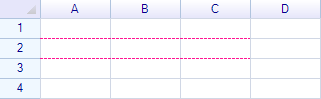
sheet.SetRangeBorders("A1:C3", BorderPositions.InsideHorizontal,
    new RangeBorderStyle
    {
        Style = BorderLineStyle.Dashed,
        Color = Color.Pink,
    });
See Border for all border options.
Rows and Column Headers
Access row and column headers:
var rowHeader = sheet.RowHeaders[0];
var colHeader = sheet.ColumnHeaders[0];
var colHeader = sheet.ColumnHeaders["B"];
See Rows, Columns & Headers for comprehensive header customization.
Show / Hide Headers
sheet.SetSettings(WorksheetSettings.View_ShowRowHeader, false);
sheet.SetSettings(WorksheetSettings.View_ShowColumnHeader, false);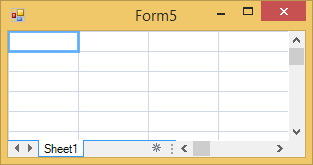
See Settings for all settings.
Selection Behavior
Change Selection Forward Direction
// Move down after Enter (instead of right)
sheet.SelectionForwardDirection = SelectionForwardDirection.Down;
Disable Selection
sheet.SelectionMode = WorksheetSelectionMode.None;Allow/Disallow Resizing
sheet.SetSettings(WorksheetSettings.Edit_AllowAdjustRowHeight, false);
sheet.SetSettings(WorksheetSettings.Edit_AllowAdjustColumnWidth, false);
See Selection for comprehensive selection management.
Print and Export
ReoGrid provides print and export capabilities:
// Export as HTML
sheet.ExportAsHTML(stream);
sheet.ExportAsHTML(stream, "Page Title", exportHeader: true);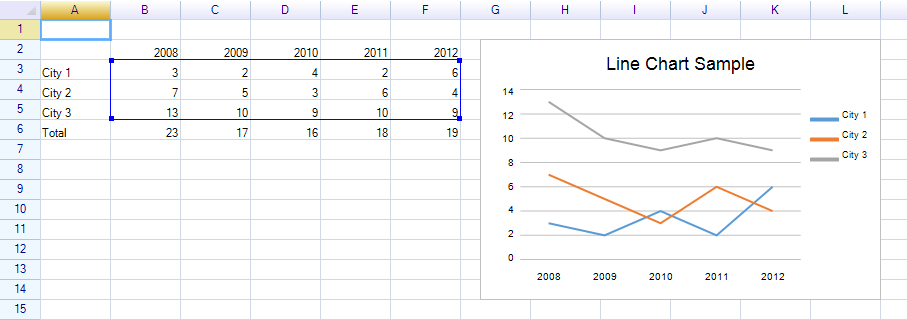
See Paging and Print for printing details.
Reset
Reset the worksheet to its default state:
sheet.Reset();           // Reset with default size
sheet.Reset(500, 100);   // Reset with 500 rows and 100 columns
Listen for the reset:
sheet.Resetted += (s, e) => Console.WriteLine("Worksheet was reset");Dispose
Release worksheet resources:
sheet.Dispose();Feature Guide
| Feature | Documentation |
|---|---|
| Row/column management, headers | Rows, Columns & Headers |
| Multi-row column headers | Multiple Row Header |
| Range operations | Range |
| Cell merging | Merge Cells |
| Named ranges | Named Range |
| Freeze panes | Freeze Panes |
| Selection and focus | Selection |
| Row/column grouping | Group & Outline |
| Data filtering | Data Filtering |
| Conditional styles | Conditional Styles |
| Protection & locking | Protection & Locking |
| Zoom | Zoom |
| Data source binding | Data Source |
| Text search | Text Search |
| All events | Events |
| Settings & options | Settings |