ReoGridは行と列のアウトライン(グループ化)をサポートしており、ワークシートのセクションを折りたたんだり展開したりできます。これは階層データの整理、折りたたみ可能なセクションの作成、サマリービューの構築に便利です。
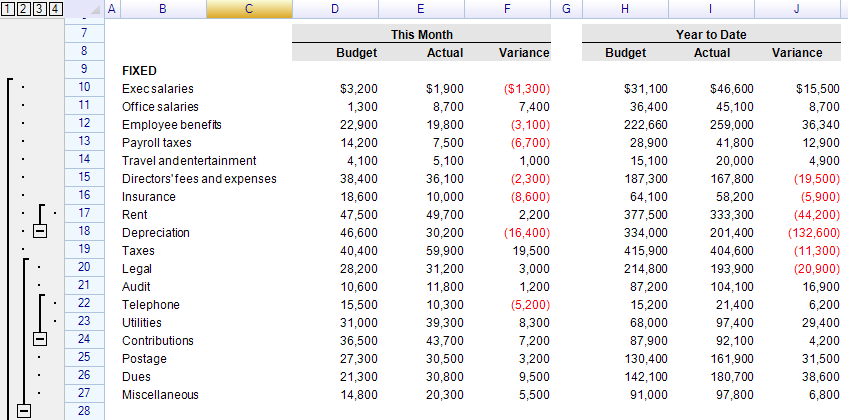
アウトラインの追加
行または列のグループ化
// Group 5 rows starting at row 3
sheet.GroupRows(3, 5);

// Group 2 columns starting at column 5
sheet.GroupColumns(5, 2);

// Generic method using RowOrColumn flag
sheet.AddOutline(RowOrColumn.Row, 3, 5);
sheet.AddOutline(RowOrColumn.Column, 5, 2);
AddOutline および GroupRows/GroupColumns メソッドは、作成されたアウトラインインスタンスを返します:
var outline = sheet.GroupRows(3, 5);
ネストされたアウトライン
アウトラインは最大10レベルまでネストできます。各レベルはアウトラインパネルで別のグループとして表示されます:
// Level 1: Group rows 2–8
sheet.GroupRows(2, 7);

// Level 2: Sub-group rows 3–5
sheet.GroupRows(3, 3);
例外
AddOutline は以下の例外をスローする場合があります:
| 例外 | 説明 |
|---|---|
OutlineIntersectedException | 同じレベルの既存のアウトラインと重複している |
OutlineAlreadyDefinedException | 同一のアウトラインが既に存在する |
OutlineTooMuchException | アウトラインレベルの最大値10に達した |
OutlineOutOfRangeException | 位置がワークシートの範囲外(最後の行/列は含められない) |
折りたたみと展開
アウトラインインスタンスによる操作
var outline = sheet.GroupRows(3, 5);

outline.Collapse();   // Collapse (hide grouped rows)
outline.Expand();     // Expand (show grouped rows)

// Check state
bool isCollapsed = outline.Collapsed;
ワークシートメソッドによる操作
開始位置とカウントでアウトラインを指定します:
sheet.CollapseOutline(RowOrColumn.Row, 3, 5);
sheet.ExpandOutline(RowOrColumn.Row, 3, 5);
これらのメソッドはアウトラインインスタンスを返します。一致するアウトラインがない場合は OutlineNotFoundException をスローします。
グループレベル全体の折りたたみ/展開
// Get a specific outline group level (zero-based)
var group = sheet.GetOutlineGroup(RowOrColumn.Row, 0);  // Level 0

group.CollapseAll();
group.ExpandAll();
アウトラインの削除
特定のアウトラインを削除
// By position and count
sheet.RemoveOutline(RowOrColumn.Row, 3, 5);

// By instance
sheet.RemoveOutline(outline);

// Using shorthand methods
sheet.UngroupRows(3, 5);
sheet.UngroupColumns(5, 2);
すべてのアウトラインを削除
// Remove all row outlines
sheet.UngroupAllRows();

// Remove all column outlines
sheet.UngroupAllColumns();
アウトラインへのアクセス
特定のアウトラインの取得
var outline = sheet.GetOutline(RowOrColumn.Row, 3, 5);
if (outline != null)
{
    Console.WriteLine($"Outline: {outline.Start} to {outline.End}, collapsed: {outline.Collapsed}");
}
アウトラインコレクションへのアクセス
// Get row outline collection
var rowOutlines = sheet.RowOutlines;

// Get column outline collection
var colOutlines = sheet.ColumnOutlines;

// Get outline collection by flag
var outlines = sheet.GetOutlines(RowOrColumn.Row);

// Get number of outline group levels
int levels = sheet.GetOutlineGroupCount(RowOrColumn.Row);
すべてのアウトラインの反復処理
sheet.IterateOutlines(RowOrColumn.Row, (group, outline) =>
{
    Console.WriteLine($"Outline: rows {outline.Start}–{outline.End}, collapsed: {outline.Collapsed}");
    return true; // continue iteration
});
アウトラインのプロパティ
IOutline / BaseOutlineのプロパティ
| プロパティ | 型 | 説明 |
|---|---|---|
Start | int | 開始行/列インデックス |
Count | int | アウトライン内の行/列数 |
End | int | 終了インデックス(Start + Count) |
Collapsed | bool | アウトラインが折りたたまれているかどうか |
Worksheet | Worksheet | 親ワークシート |
IsVisibleToUser | bool | アウトラインがユーザーに表示されているかどうか |
GroupRowIndex | int | グループサマリー行のインデックス |
RowOutline固有のプロパティ
| プロパティ | 型 | 説明 |
|---|---|---|
Row | int | 開始行インデックス(Startと同じ) |
Rows | int | 行数(Countと同じ) |
EndRow | int | 終了行インデックス |
ColumnOutline固有のプロパティ
| プロパティ | 型 | 説明 |
|---|---|---|
Col | int | 開始列インデックス(Startと同じ) |
Cols | int | 列数(Countと同じ) |
EndCol | int | 終了列インデックス |
アウトラインボタンの位置
展開/折りたたみボタンをグループ化された行の上に表示するか下に表示するかを制御します:
// Button at the bottom (default)
sheet.OutlineButtonLocation = OutlineButtonLocation.Bottom;

// Button at the top
sheet.OutlineButtonLocation = OutlineButtonLocation.Top;
グループ行スタイル
各アウトラインのサマリー行の外観をカスタマイズします:
// Get the group row style for a specific row
var style = sheet.GetGroupRowStyle(3);

// Try to get the group row style (returns false if not found)
if (sheet.TryGetGroupRowStyle(3, out var groupStyle))
{
    // Use groupStyle
}

// Get the group row border style
var borderStyle = sheet.GetGroupRowBorderStyle(3);
borderStyle.Style = BorderLineStyle.Solid;
borderStyle.Color = new SolidColor(Color.Gray);
アウトラインインスタンスからスタイルに直接アクセスすることもできます:
var outline = sheet.GroupRows(3, 5);

// Set group row style
outline.GroupRowStyle.Flag = PlainStyleFlag.FillColor;
outline.GroupRowStyle.BackColor = Color.LightYellow;

// Set group row border style
outline.GroupRowBorderStyle.Style = BorderLineStyle.Dashed;
outline.GroupRowBorderStyle.Color = new SolidColor(Color.LightGray);
自動折りたたみと展開
展開されたアウトラインの最後の行が非表示になるか高さが0に設定されると、アウトラインは自動的に折りたたまれます。折りたたまれたアウトライン内の行が表示されると、アウトラインは自動的に展開されます。この動作は無効にできませんが、折りたたみ/展開イベントは引き続き発生します。
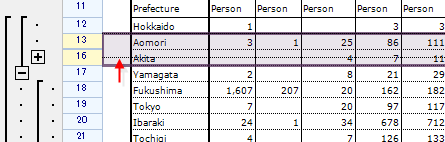
行の高さを調整した後:
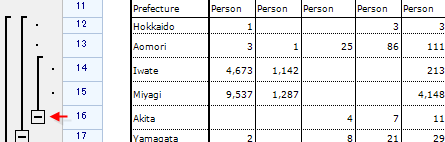
自動削除
アウトライン内のすべての行または列が削除されると、アウトラインは自動的に削除されます。この場合、OutlineRemoved イベントが発生します。
イベント
ワークシートレベルのイベント
| イベント | イベント引数 | 説明 |
|---|---|---|
OutlineAdded | OutlineAddedEventArgs | アウトラインが追加された |
OutlineRemoved | OutlineRemovedEventArgs | アウトラインが削除された |
BeforeOutlineCollapse | BeforeOutlineCollapseEventArgs | アウトラインが折りたたまれる前(キャンセル可能) |
AfterOutlineCollapse | AfterOutlineCollapseEventArgs | アウトラインが折りたたまれた後 |
BeforeOutlineExpand | BeforeOutlineExpandingEventArgs | アウトラインが展開される前(キャンセル可能) |
AfterOutlineExpand | AfterOutlineExpandingEventArgs | アウトラインが展開された後 |
イベント引数のプロパティ
すべてのイベント引数は OutlineEventArgs を継承しています:
Outline(IOutline) — イベントをトリガーしたアウトライン
BeforeOutlineCollapseEventArgs と BeforeOutlineExpandingEventArgs には以下が追加されます:
IsCancelled(bool) —trueに設定すると操作を防止
ワークシートイベントの例
sheet.OutlineAdded += (s, e) =>
{
    Console.WriteLine($"Outline added: {e.Outline.Start} to {e.Outline.End}");
};

sheet.OutlineRemoved += (s, e) =>
{
    Console.WriteLine($"Outline removed: {e.Outline.Start} to {e.Outline.End}");
};

sheet.BeforeOutlineCollapse += (s, e) =>
{
    Console.WriteLine("Before collapse");
    // e.IsCancelled = true;  // Prevent collapse
};

sheet.AfterOutlineCollapse += (s, e) =>
{
    Console.WriteLine("After collapse");
};

sheet.BeforeOutlineExpand += (s, e) =>
{
    Console.WriteLine("Before expand");
};

sheet.AfterOutlineExpand += (s, e) =>
{
    Console.WriteLine("After expand");
};
アウトラインインスタンスのイベント
各アウトラインインスタンスも独自のイベントを発生させます:
var outline = sheet.GroupRows(3, 5);

outline.BeforeCollapse += (s, e) =>
{
    Console.WriteLine("Instance: before collapse");
    // e.IsCancelled = true;
};

outline.AfterCollapse += (s, e) =>
{
    Console.WriteLine("Instance: after collapse");
};

outline.BeforeExpand += (s, e) =>
{
    Console.WriteLine("Instance: before expand");
};

outline.AfterExpand += (s, e) =>
{
    Console.WriteLine("Instance: after expand");
};
折りたたみ/展開の防止
Beforeイベントの IsCancelled プロパティを使用します:
sheet.BeforeOutlineCollapse += (s, e) => e.IsCancelled = true;
アウトラインパネルの非表示
ユーザーの操作を防止しつつ、プログラムによる制御は引き続き許可するために、アウトラインUIを非表示にします:
// Hide both row and column outline panels
sheet.SetSettings(WorksheetSettings.View_AllowShowRowOutlines, false);
sheet.SetSettings(WorksheetSettings.View_AllowShowColumnOutlines, false);
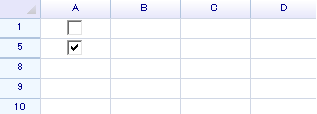
パネルが非表示の場合でも、アウトラインはプログラムで制御できます:
var outline1 = sheet.GroupRows(1, 3);
outline1.Collapse();

var outline2 = sheet.GroupRows(5, 2);
outline2.Collapse();
アウトラインパネルを再び表示します:
sheet.SetSettings(WorksheetSettings.View_AllowShowRowOutlines, true);
sheet.SetSettings(WorksheetSettings.View_AllowShowColumnOutlines, true);
アクションの使用(元に戻す/やり直しサポート)
アウトライン操作は元に戻す/やり直しサポートのためにアクションを通じて実行できます:
// Add outline with undo support
sheet.DoAction(new AddOutlineAction(RowOrColumn.Row, 3, 5));

// Remove outline with undo support
sheet.DoAction(new RemoveOutlineAction(RowOrColumn.Row, 3, 5));

// Collapse/expand with undo support
sheet.DoAction(new CollapseOutlineAction(RowOrColumn.Row, 3, 5));
sheet.DoAction(new ExpandOutlineAction(RowOrColumn.Row, 3, 5));
関連トピック
- 行、列、ヘッダー — 行/列の操作と表示/非表示
- ペインの固定 — 行と列の固定
- イベント — すべてのワークシートイベント
- アクションフレームワーク — 元に戻す/やり直しサポート