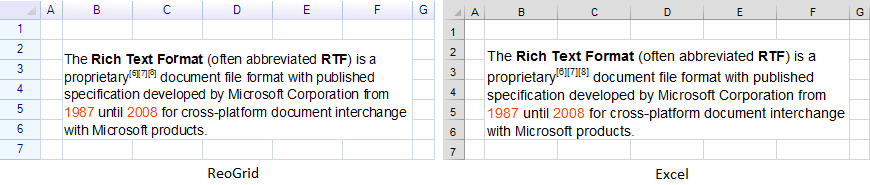
リッチフォーマットテキストは以下のクラスで表現されます。
unvell.ReoGrid.Drawing.RichText
リッチフォーマットテキストはセルまたはフローティングオブジェクトに追加すると、表示および印刷できます。
セル内のリッチフォーマットテキストの表示
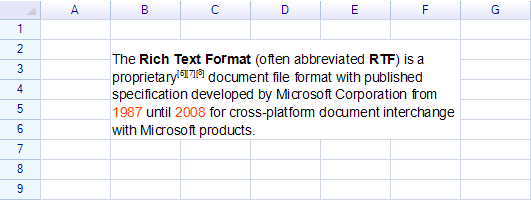
上記の例のコード:
var sheet = grid.CurrentWorksheet;

sheet.MergeRange("B2:F6");

sheet["B2"] = new Drawing.RichText()
  .Regular("The ")
  .Bold("Rich Text Format")
  .Regular(" (often abbreviated ")
  .Bold("RTF")
  .Regular(") is a proprietary")
  .Superscript("[6][7][8]")
  .Regular(" document file format with published specification developed by Microsoft Corporation from ")
  .Span("1987", textColor: Color.OrangeRed)
  .Span(" until ", textColor: Color.Black)
  .Span("2008", textColor: Color.OrangeRed)
  .Span(" for cross-platform document interchange with Microsoft products.", textColor: Color.Black);
改行
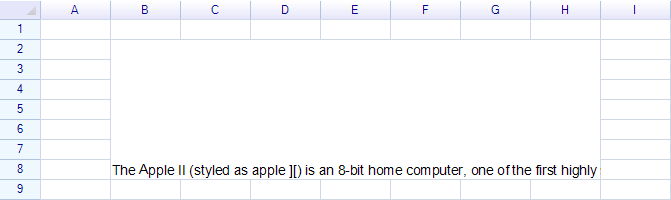
セルスタイルを設定してワードブレークまたはブレークオールの折り返しを有効にします。
例: ワードブレークなしのテキスト
例: ワードブレーク付きのテキスト
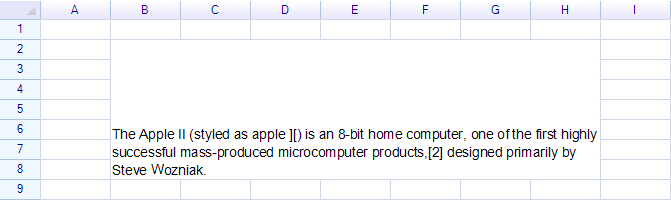
コード:
sheet.Cells["B2"].Style.TextWrap = TextWrapMode.WordBreak;
テキスト配置
セルの水平および垂直配置スタイルを設定して、リッチテキストの配置を変更します。
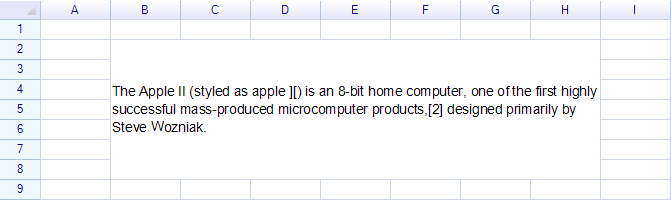
コード:
sheet.Cells["B2"].Style.VAlign = ReoGridVerAlign.Middle;
テキスト配置を右に設定:
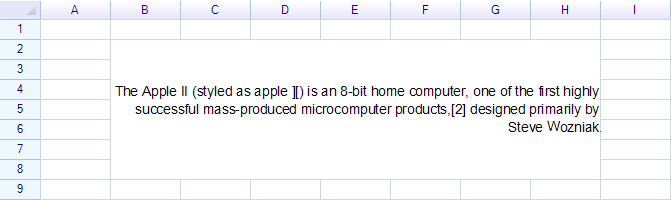
コード:
sheet.Cells["B2"].Style.HAlign = ReoGridHorAlign.Right;
ReoGridリッチテキスト構造
シンプルなテキスト例
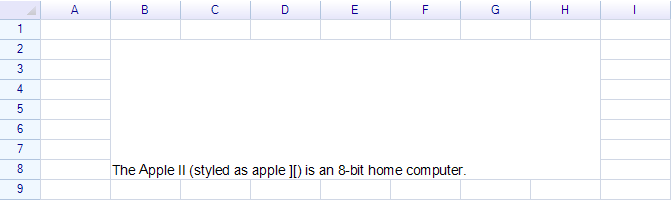
Span メソッドを使用して、スタイルを指定せずにテキストを追加します。例えば:
sheet["B2"] = new Drawing.RichText()
  .Span("The Apple II (styled as apple ][) is an 8-bit home computer.");
テキストスタイルを変更する最も簡単な方法は、Bold、Italic、Regular などのメソッドを使用することです。
太字
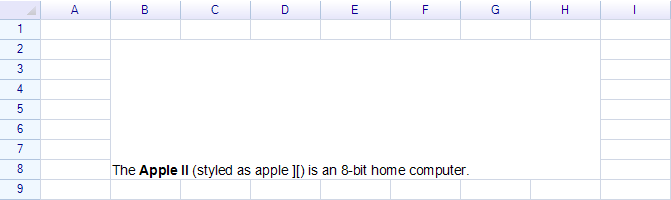
コード:
sheet["B2"] = new Drawing.RichText()
  .Span("The ")
  .Bold("Apple II")
  .Regular(" (styled as apple ][) is an 8-bit home computer.");
Bold メソッドを使用してテキストを太字にし、Regular メソッドを使用してデフォルトのテキストスタイルに戻します。
斜体、下線、取り消し線スタイルの使用方法は太字と同じです。
段落の追加(改行)
改行を挿入するには、NewLine メソッドを使用します。
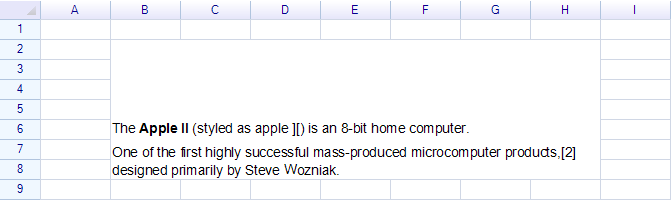
コード:
sheet["B2"] = new Drawing.RichText()
  .Span("The ")
  .Bold("Apple II")
  .Regular(" (styled as apple ][) is an 8-bit home computer.")
  .NewLine()
  .Span("One of the first highly successful mass-produced microcomputer products,[2] designed primarily by Steve Wozniak.");
段落間隔と行の高さ
NewLine メソッドはリッチテキストに新しい段落を追加します。
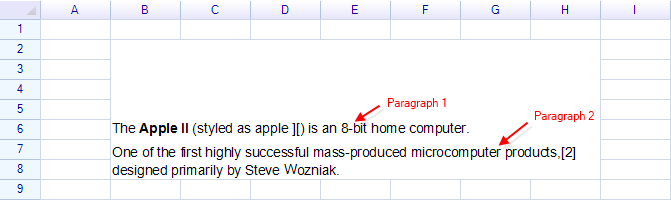
段落間隔と行の高さを変更することができます。
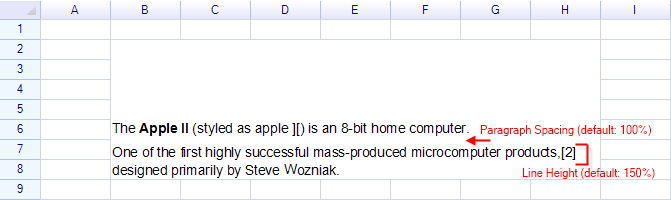
SetStyles メソッドを使用して、段落またはスパンの現在のスタイルを変更します。
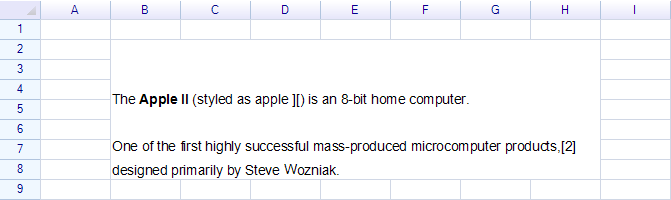
コード:
sheet["B2"] = new Drawing.RichText()
  .SetStyles(paragraphSpacing: 3.0f)
  .Span("The ")
  .Bold("Apple II")
  .Regular(" (styled as apple ][) is an 8-bit home computer.")
  .NewLine()
  .SetStyles(lineHeight: 2.0f)
  .Span("One of the first highly successful mass-produced microcomputer products,[2] designed primarily by Steve Wozniak.");
SetStyles メソッドは現在の段落またはスパンのスタイルを変更します。最初の SetStyles 呼び出しは最初の段落の段落間隔を変更します。NewLine が呼び出された後、2番目の SetStyles 呼び出しは2番目の段落の行の高さを変更します。
注意: Excelは段落間隔と行の高さスタイルの調整をサポートしていません。
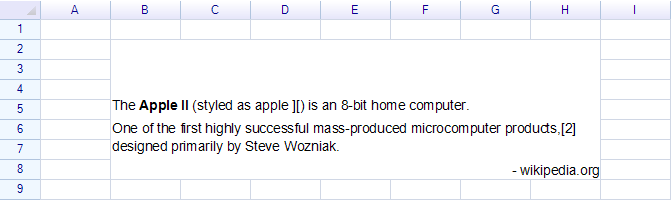
段落ごとの水平配置
コード:
sheet["B2"] = new Drawing.RichText()
  .Span("The ")
  .Bold("Apple II")
  .Regular(" (styled as apple ][) is an 8-bit home computer.")
  .NewLine()
  .Span("One of the first highly successful mass-produced microcomputer products,[2] designed primarily by Steve Wozniak.")
  .NewLine()
  .SetStyles(halign: ReoGridHorAlign.Right)
  .Span("- wikipedia.org");
注意: Excelは段落(行)ごとの配置スタイルをサポートしていません。
上付き文字と下付き文字
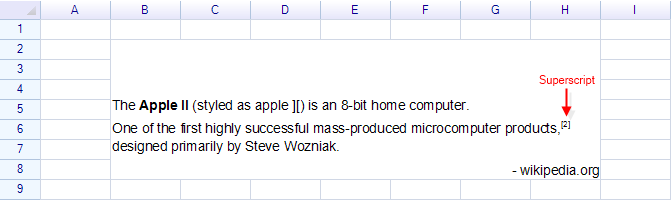
上付き文字を作成するには、Superscript メソッドを使用します。
コード:
sheet["B2"] = new Drawing.RichText()
  .Span("The ")
  .Bold("Apple II")
  .Regular(" (styled as apple ][) is an 8-bit home computer.")
  .NewLine()
  .Span("One of the first highly successful mass-produced microcomputer products,")
  .Superscript("[2]")
  .Regular(" designed primarily by Steve Wozniak.")
  .NewLine()
  .SetStyles(halign: ReoGridHorAlign.Right)
  .Span("- wikipedia.org");
注意:
Superscriptメソッドを使用した後、Regularメソッドを使用してデフォルトのテキストスタイルに戻します。
描画オブジェクト内のリッチフォーマットテキストの表示
描画オブジェクト内にリッチフォーマットテキストを表示するには、RichText クラスのインスタンスを作成し、テキストを追加してから、描画オブジェクトに割り当てます。
Excelインポート/エクスポートのサポート
ReoGridはExcelファイルからのリッチフォーマットテキストのインポートとエクスポートをサポートしています。以下の例は、ReoGridとExcelの両方で表示されるテキストを示しています。