
ReoGrid provides the Cell Body feature as a way to create custom cell types. There is a built-in cell body type called DropdownCell that provides the ability to create user-friendly custom drop-down cells. Learn more about Built-in cell types.
To create a custom drop-down cell, create your own class that inherits from the DropdownCell class, which is included in the unvell.ReoGrid.CellTypes namespace.
Drop-down interface
The DropdownCell class provides the simplest way to create a user-customized drop-down cell. It displays an arrow button on the right side of the cell and responds to user actions to show and hide the drop-down panel.
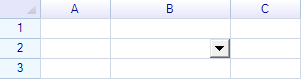
When using the DropdownCell class, only the following things need to be done:
- Set a control into the drop-down panel
- Set the selected item from the control as the cell’s data
DropdownCell provides a property named DropdownControl that is used to specify the control displayed inside the drop-down panel.
Create a drop-down ListView
This example shows how to create a drop-down cell that displays a standard .NET ListView control. Create a class named ListViewDropdownCell and make it inherit from the DropdownCell class.
class ListViewDropdownCell : DropdownCell
{
  private ListView listView;

  public ListViewDropdownCell()
  {
    // Initial code goes here
  }
}
In the constructor, initialize the ListView and assign it to the DropdownControl property.
public ListViewDropdownCell()
{
  // initialize listview
  this.listView = new ListView()
  {
    BorderStyle = System.Windows.Forms.BorderStyle.None,
    View = View.Details,
    FullRowSelect = true,
  };

  // set listview as drop-down control
  this.DropdownControl = this.listView;
}
Use the following code to add this ListViewDropdownCell instance to the ReoGrid worksheet:
worksheet["B2"] = new ListViewDropdownCell();Note: You can also use the
Bodyproperty of a cell instance to change the cell body object. Setting theBodyproperty tonullwill remove the cell body from the cell. Run the program and click on the drop-down button; an empty panel containing theListViewcontrol will be displayed.
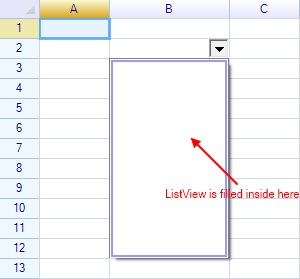
To show selection items in the list view, use the following code to add items:
// add listview columns
this.listView.Columns.Add("Column 1", 120);
this.listView.Columns.Add("Column 2", 120);

// add groups and items
var group1 = listView.Groups.Add("grp1", "Group 1");
listView.Items.Add(new ListViewItem(new string[] { "Item 1.1", "Subitem 1.1" }) { Group = group1 });
listView.Items.Add(new ListViewItem(new string[] { "Item 1.2", "Subitem 1.2" }) { Group = group1 });
listView.Items.Add(new ListViewItem(new string[] { "Item 1.3", "Subitem 1.3" }) { Group = group1 });

var group2 = listView.Groups.Add("grp2", "Group 2");
listView.Items.Add(new ListViewItem(new string[] { "Item 2.1", "Subitem 2.1" }) { Group = group2 });
listView.Items.Add(new ListViewItem(new string[] { "Item 2.2", "Subitem 2.2" }) { Group = group2 });
listView.Items.Add(new ListViewItem(new string[] { "Item 2.3", "Subitem 2.3" }) { Group = group2 });
Run the program again:
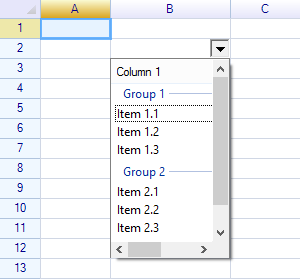
As you can see, the ListView control with placeholder items is displayed, but the drop-down panel is too narrow. To fix this, set the MinimumDropdownWidth property of the DropdownCell instance:
// enlarge the dropdown panel
this.MinimumDropdownWidth = 300;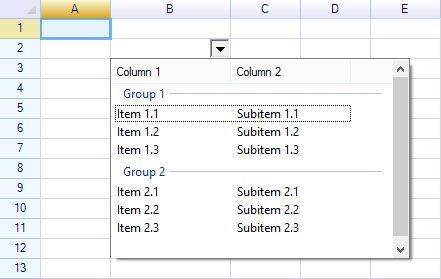
Receive selected items
Handle the Click event of the list view to set the selected item:
// add click event handler
this.listView.Click += listView_Click;

Event handler:

void listView_Click(object sender, EventArgs e)
{
  if (this.listView.SelectedItems.Count > 0)
  {
    // set first selected item as cell's data
    this.Cell.Data = this.listView.SelectedItems[0].Text;

    this.PullUp();  // pull up the drop-down panel to finish editing
  }
}
Run the program and try selecting items from the drop-down list; the selected item will be shown inside the cell.
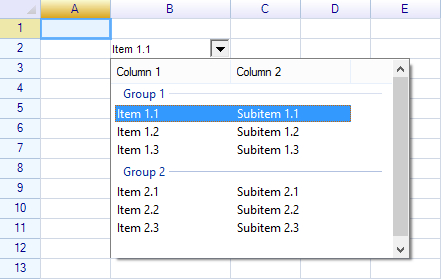
Finally, set borders and initial text for the drop-down cell:
worksheet["B2"] = "Choose...";
worksheet["B2"] = new ListViewDropdownCell();
worksheet.Ranges["B2"].BorderOutline = BorderStyle.GraySolid;
Final result
Before edit:
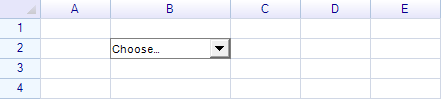
Select item:
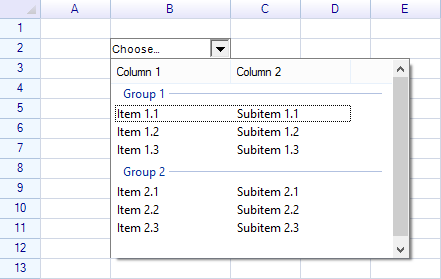
After edit:
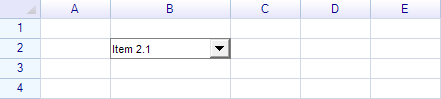
The full source code and demo are available in the demo project included in the release package on the download page.
Spreadsheet in drop-down cell
If you want to implement a feature that allows end users to select content from a sub-spreadsheet, you can also consider placing another ReoGrid instance inside the drop-down panel.