
Conditional styles allow you to dynamically change the appearance of cells based on formula-evaluated conditions. When a condition is met, the specified style is automatically applied to the target cells. This is useful for data visualization, highlighting, and alerting.
Creating a Conditional Style Rule
A conditional style rule consists of three components:
- Formula — A formula expression that evaluates to
trueorfalse - Apply Range — The range of cells where the style should be applied
- Style — The
WorksheetRangeStyleto apply when the condition is true
var rule = new unvell.ReoGrid.ConditionalStyle.Rule(
    formula: "THIS>100",
    applyRange: "A1:A100",
    style: new WorksheetRangeStyle
    {
        Flag = PlainStyleFlag.BackColor | PlainStyleFlag.TextColor,
        BackColor = Color.LightGreen,
        TextColor = Color.DarkGreen,
    }
);
The formula: THIS, and what does not move
The formula is evaluated once for every cell in the apply range, and THIS
is the value of the cell being evaluated. Write conditions in terms of it:
"THIS>100", "THIS<>0", "THIS = \"Overdue\"".
Ordinary cell references are not shifted to the cell being evaluated.
"A1>100" means the cell A1 no matter which cell of the range is being
tested, so such a rule styles the whole range or none of it. That rules out
the Excel idiom of colouring a row from a value in another column; do that by
setting the row’s style directly. ReoGrid V5 implements the OOXML rule set,
where references are offset per cell.
Rule Properties
| Property | Type | Description |
|---|---|---|
Formula | string | Formula used to determine when to apply the style |
ApplyRange | RangePosition | Range of cells where the style is applied |
Style | WorksheetRangeStyle | Styles applied when the condition is true |
NegativeNumberStyle | WorksheetRangeStyle | Styles applied when the cell value is a negative number |
Disabled | bool | Set to true to temporarily disable this rule |
Constructor Overloads
// Using string range address
new Rule(string formula, string applyRange, WorksheetRangeStyle style,
    WorksheetRangeStyle negativeNumberStyle = null)

// Using RangePosition
new Rule(string formula, RangePosition applyRange, WorksheetRangeStyle style,
    WorksheetRangeStyle negativeNumberStyle = null)
Adding Rules to a Worksheet
Use the ConditionalStyles collection on the worksheet to add, remove, or manage rules:
var sheet = grid.CurrentWorksheet;

// Add a rule: highlight cells where value > 100
sheet.ConditionalStyles.Add(new Rule(
    formula: "THIS>100",
    applyRange: "A1:A100",
    style: new WorksheetRangeStyle
    {
        Flag = PlainStyleFlag.BackColor,
        BackColor = Color.Yellow,
    }
));
Multiple Rules
You can add multiple rules. They are evaluated in order, and multiple rules can apply to the same cells:
// Rule 1: Green background for values > 80
sheet.ConditionalStyles.Add(new Rule(
    formula: "THIS>80",
    applyRange: "B1:B50",
    style: new WorksheetRangeStyle
    {
        Flag = PlainStyleFlag.BackColor | PlainStyleFlag.TextColor,
        BackColor = Color.LightGreen,
        TextColor = Color.DarkGreen,
    }
));

// Rule 2: Red background for values < 20
sheet.ConditionalStyles.Add(new Rule(
    formula: "THIS<20",
    applyRange: "B1:B50",
    style: new WorksheetRangeStyle
    {
        Flag = PlainStyleFlag.BackColor | PlainStyleFlag.TextColor,
        BackColor = Color.LightCoral,
        TextColor = Color.DarkRed,
    }
));
Negative Number Styles
Rules can have a separate style specifically for negative numbers:
sheet.ConditionalStyles.Add(new Rule(
    formula: "THIS<>0",
    applyRange: "C1:C100",
    style: new WorksheetRangeStyle
    {
        Flag = PlainStyleFlag.TextColor,
        TextColor = Color.Black,
    },
    negativeNumberStyle: new WorksheetRangeStyle
    {
        Flag = PlainStyleFlag.TextColor,
        TextColor = Color.Red,
    }
));
Managing Rules
Remove a Rule
sheet.ConditionalStyles.Remove(rule);Clear All Rules
sheet.ConditionalStyles.Clear();Check Rule Count
int count = sheet.ConditionalStyles.Count;Iterate Rules
foreach (var rule in sheet.ConditionalStyles)
{
    Console.WriteLine($"Formula: {rule.Formula}, Range: {rule.ApplyRange}");
}
Disable a Rule Temporarily
rule.Disabled = true;   // Disable
rule.Disabled = false;  // Re-enable
Re-Applying Conditional Styles
Conditional styles are evaluated automatically when cell values change. If you need to manually trigger a re-evaluation (e.g., after a bulk data update), call:
sheet.ApplyAllConditionalStyles();Suspend and Resume Updates
For performance, you can suspend conditional style updates during bulk operations:
// Suspend updates
sheet.SuspendConditionalStyleUpdate = true;

// Perform bulk data operations
for (int i = 0; i < 10000; i++)
{
    sheet[i, 0] = i;
}

// Resume updates and re-apply
sheet.SuspendConditionalStyleUpdate = false;
sheet.ApplyAllConditionalStyles();
Checking Applied Styles
On a Cell
Each cell has a ConditionalStyles property containing the list of currently applied conditional styles:
var cell = sheet.Cells["A1"];
if (cell.ConditionalStyles != null && cell.ConditionalStyles.Count > 0)
{
    foreach (var style in cell.ConditionalStyles)
    {
        Console.WriteLine($"Applied: BackColor={style.BackColor}");
    }
}
Event: Conditional Style Cells Changed
Listen for changes to cells affected by conditional styles:
sheet.ConditionalStyleCellChanged += (s, e) =>
{
    Console.WriteLine("Conditional style cells were updated");
};
Complete Example
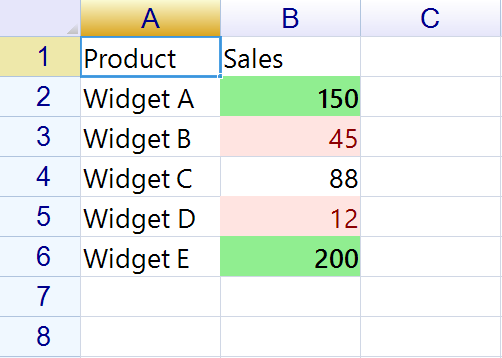
Here is a complete example that highlights sales data with color-coded rules:
var sheet = grid.CurrentWorksheet;

// Set up headers
sheet["A1"] = "Product";
sheet["B1"] = "Sales";

// Set up data
sheet["A2:A6"] = new object[] { "Widget A", "Widget B", "Widget C", "Widget D", "Widget E" };
sheet["B2:B6"] = new object[] { 150, 45, 88, 12, 200 };

// Rule: High performers (green)
sheet.ConditionalStyles.Add(new Rule(
    formula: "THIS>=100",
    applyRange: "B2:B6",
    style: new WorksheetRangeStyle
    {
        Flag = PlainStyleFlag.BackColor | PlainStyleFlag.FontStyleBold,
        BackColor = Color.LightGreen,
        Bold = true,
    }
));

// Rule: Low performers (red)
sheet.ConditionalStyles.Add(new Rule(
    formula: "THIS<50",
    applyRange: "B2:B6",
    style: new WorksheetRangeStyle
    {
        Flag = PlainStyleFlag.BackColor | PlainStyleFlag.TextColor,
        BackColor = Color.MistyRose,
        TextColor = Color.DarkRed,
    }
));
Related Topics
- Cell Style — Setting cell styles
- Data Format — Formatting cell data
- Formula — Using formulas in ReoGrid