
Auto Paging
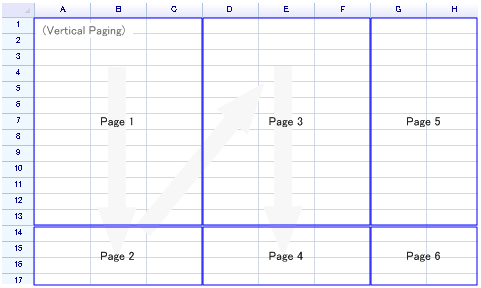
When a worksheet is to be printed, ReoGrid performs paging automatically. The paging operation scans the worksheet and determines the print range for each page according to the paging settings. For example, the following image shows a worksheet that has been paged vertically.
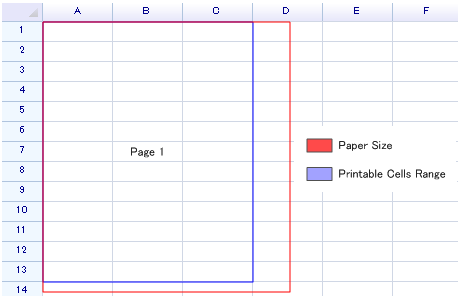
Like Excel, ReoGrid finds the maximum number of cells that will fit on each page. Any cells that cannot be printed entirely are moved to the next page, as shown below:
Perform auto paging or reset page breaks
To perform auto paging or reset the current page breaks at any time:
sheet.AutoSplitPage();Note: This method itself runs very quickly (< 10 ms), but it may be slower if a remote printer is set as the default printer, as fetching the paper size from a remote printer can take more than 100 ms (depending on the network environment).
Show page break lines
To show page break lines on screen:
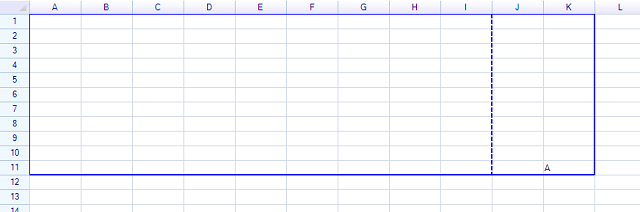
sheet.EnableSettings(WorksheetSettings.View_ShowPageBreaks);Result:
Auto-check printable boundary
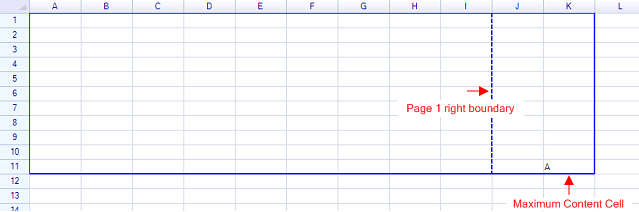
If no printable range is specified, ReoGrid will automatically find the used range of cells and set it as the printable range.
Change printable range
Use the PrintableRange property of the worksheet to change the printable range.
sheet.PrintableRange = new RangePosition(1, 1, 9, 9);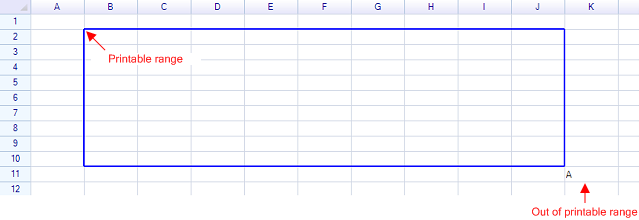
If the printable range is larger than the paper size, it will be split automatically. Cells outside the printable range will not be printed.
Change paging order
Use the PrintSettings.PageOrder property to change the paging direction.
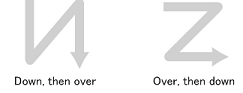
sheet.PrintSettings.PageOrder = PrintPageOrder.DownThenOver;Change page settings
Use the PrintSettings property of the worksheet to change paper settings.
// change page to landscape
sheet.PrintSettings.Landscape = true;

// set page margins
sheet.PrintSettings.Margins = new PageMargins(5);
Example: Auto paging to landscape
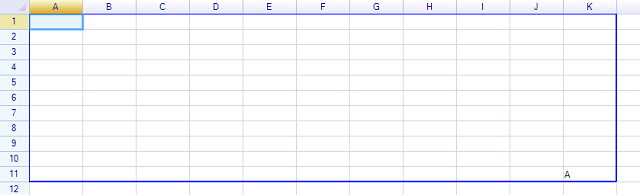
Print Scaling
You can set the print scaling using the PageScaling property of PrintSettings.
sheet.PrintSettings.PageScaling = 0.7f; // scale to 70%Note: When page scaling is changed, the worksheet will be re-paged automatically.
Fit to pages
Since v4.6, FitToPage shrinks the printable range so that it fits into FitToPagesWide × FitToPagesTall pages, like Excel’s Fit to option. Both counts default to 1, so turning FitToPage on alone fits the sheet on one page. Set a count to 0 to leave that direction unconstrained.
// Fit the whole sheet on one page
sheet.PrintSettings.FitToPage = true;
sheet.AutoSplitPage();

// One page wide, as many pages tall as needed
sheet.PrintSettings.FitToPage = true;
sheet.PrintSettings.FitToPagesWide = 1;
sheet.PrintSettings.FitToPagesTall = 0;
sheet.AutoSplitPage();
While FitToPage is on, AutoSplitPage decides PageScaling. It only ever shrinks — a sheet that already fits prints at 100% — and, as in Excel, it ignores manual page breaks.
Center on the page
Since v4.6, the content of each page can be centered between the margins:
sheet.PrintSettings.CenterHorizontally = true;
sheet.PrintSettings.CenterVertically = true;
Fit to pages and centering apply to printing, print preview and PDF export.
Header and footer
Since v4.6, printed pages (WinForms print and print preview) and exported PDF pages carry the worksheet’s header and footer. Set them through Worksheet.HeaderFooter, using Excel’s format codes:
// "Monthly report" on the left, "Page 2 of 5" on the right
sheet.HeaderFooter.OddHeader = "&LMonthly report&RPage &P of &N";

// the sheet name, centered
sheet.HeaderFooter.OddFooter = "&C&A";| Code | Prints |
|---|---|
&L / &C / &R | Starts the left / center / right section |
&P | Page number |
&N | Total number of pages |
&D | Current date |
&T | Current time |
&A | Sheet name |
&& | A literal & |
OddHeader and OddFooter are used on every page unless one of the following is turned on:
// a different header and footer on the first page
sheet.HeaderFooter.DifferentFirst = true;
sheet.HeaderFooter.FirstHeader = "&CQuarterly sales report";

// different headers and footers on odd and even pages
sheet.HeaderFooter.DifferentOddEven = true;
sheet.HeaderFooter.EvenFooter = "&LPage &P";
sheet.HeaderFooter.OddFooter = "&RPage &P";
The distance from the paper edge to the header and footer is set in inches (0.3 by default, as in Excel):
sheet.PrintSettings.HeaderMargin = 0.5f;
sheet.PrintSettings.FooterMargin = 0.5f;
ScaleWithDocument (the header and footer follow PageScaling) and AlignWithMargins are honored too; both default to true.
The header and footer print on one line in the sheet’s default font, in black. Excel’s font, size and color codes inside the text are skipped, pictures (&G) are not printed, and the file name codes (&F, &Z) print nothing.
Page setup in Excel files
Since v4.6, the page setup of an XLSX file is read and saved: paper size, orientation, page scale, fit to pages, page order, centering, printed grid lines, the print area, page margins, and the header and footer. A workbook laid out for printing in Excel prints from your application the way it was designed.
Insert a page break
To insert a page break, use the RowPageBreaks and ColumnPageBreaks properties of the worksheet:
// insert page break
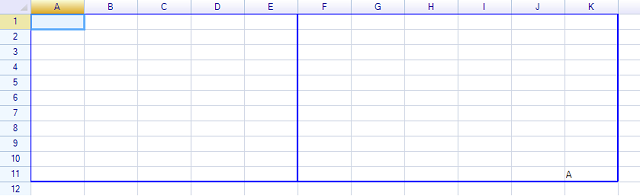
sheet.ColumnPageBreaks.Add(5);
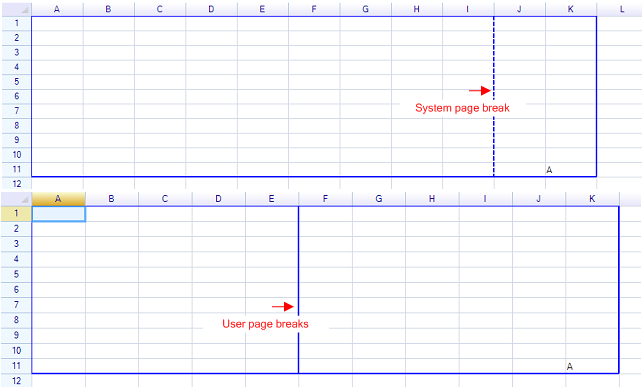
Spreadsheet is split into two pages:
User page breaks and system page breaks
There are two types of page breaks: solid lines are user page breaks, generated by the AutoSplitPage method or user operations; dashed lines are system page breaks, inserted automatically by ReoGrid to split the worksheet into multiple pages.
Change page breaks
To change or move a page break index (whether a user or system page break), use the following methods:
void sheet.ChangeColumnPageBreak(int oldIndex, int newIndex);
void sheet.ChangeRowPageBreak(int oldIndex, int newIndex);
Once a page break is changed, it becomes a user page break and will no longer be updated automatically by ReoGrid.
Iterate pages
The IteratePrintPages method of the worksheet is used to iterate over all print pages. This method returns the range position for each page:
sheet.IteratePrintPages( range => {
  Console.WriteLine("Page range is: " + range.ToAddress());
  return true;
});
The output is printed as follows:
Page range is: A1:E11
Page range is: F1:K11
It is also possible to iterate pages in a specified order:
sheet.IteratePrintPages(PrintPageOrder.OverThenDown, range => { ... });If no paging order is specified, the page order from the print settings will be used.
Disable end-user changing/adjusting the page breaks
To prevent the end-user from changing the page break index with the mouse, set the worksheet setting:
sheet.SetSettings(WorksheetSettings.Behavior_AllowUserChangingPageBreaks, false);Print Session
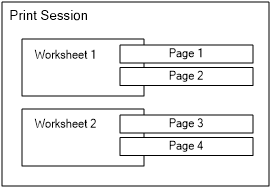
A print session is used to print an entire workbook or specified worksheets. To print an entire workbook or multiple worksheets, create a print session from the workbook instance (the control). To print a single worksheet, create a print session from that worksheet.
Print single worksheet
var session = worksheet.CreatePrintSession();
session.Print();
Print entire workbook (all worksheets)
var session = reoGridControl.CreatePrintSession();
session.Print();
Print specified worksheets
var session = reoGridControl.CreatePrintSession();
session.Worksheets.Clear();
session.Worksheets.Add(grid.Worksheets["Sheet1"]);
session.Worksheets.Add(grid.Worksheets["Sheet3"]);
session.Print();
Print Preview
The following code shows a standard .NET print preview dialog:
var sheet = reoGridControl.CurrentWorksheet;

using (var session = sheet.CreatePrintSession())
{
  using (PrintPreviewDialog ppd = new PrintPreviewDialog())
  {
    ppd.Document = session.PrintDocument;
    ppd.SetBounds(200, 200, 1024, 768);
    ppd.PrintPreviewControl.Zoom = 1d;
    ppd.ShowDialog(this);
  }
}The following code prints the worksheet using the default print settings.
var session = sheet.CreatePrintSession();
session.Print();
Print via standard print dialog
The following code shows a standard print dialog and then prints the specified worksheet.
System.Drawing.Printing.PrintDocument doc = null;

try
{
  doc = worksheet.CreatePrintSession().PrintDocument;
}
catch (Exception ex)
{
  MessageBox.Show(this, ex.Message, this.ProductName, MessageBoxButtons.OK, MessageBoxIcon.Information);
  return;
}

using (var pd = new System.Windows.Forms.PrintDialog())
{
  pd.Document = doc;
  pd.UseEXDialog = true;  // in 64bit Windows

  if (pd.ShowDialog() == System.Windows.Forms.DialogResult.OK)
  {
    doc.PrinterSettings = pd.PrinterSettings;
    doc.Print();
  }
}

if (doc != null) doc.Dispose();
Show system page settings dialog
using (PageSetupDialog psd = new PageSetupDialog())
{
  // transform ReoGrid page settings to System page settings
  psd.PageSettings = worksheet.PrintSettings.CreateSystemPageSettings();

  psd.AllowMargins = true;
  psd.AllowPrinter = true;
  psd.AllowPaper = true;
  psd.EnableMetric = true;

  if (psd.ShowDialog() == System.Windows.Forms.DialogResult.OK)
  {
    // transform System page settings to ReoGrid page settings
    worksheet.PrintSettings.ApplySystemPageSettings(psd.PageSettings);
  }
}
Select printer programmatically
Use PrintSettings.PrinterName to send output directly to a specific printer without showing a dialog. Set it to null (the default) to use the system default printer.
sheet.PrintSettings.PrinterName = "Microsoft Print to PDF";

var session = sheet.CreatePrintSession();
session.Print();
Export to PDF
To write the pages to a PDF file without a printer, use PDFExporter (v4.6, WinForms). The PDF is paginated exactly as described on this page. See Export as PDF.
Print grid lines
By default, grid lines are not printed. Set ShowGridLines to true to include them in the printed output.
sheet.PrintSettings.ShowGridLines = true;Show margin indicators
When ShowMargins is true, margin boundary marks are drawn at the edges of each printed page (visible in print preview and in the printed output).
sheet.PrintSettings.ShowMargins = true;Set paper size
Use PaperName to select from the predefined paper sizes. The string must match a key in PaperManager.PaperSizesInch.
Common values: "A3", "A4", "A5", "Letter", "Legal", "Ledger", "B4", "B5", "JIS_B4", "JIS_B5".
sheet.PrintSettings.PaperName = "A4";When PaperName is set to a known size, PaperWidth and PaperHeight can be left at their defaults. Setting PaperName to "Custom" lets you specify the dimensions explicitly:
sheet.PrintSettings.PaperName   = "Custom";
sheet.PrintSettings.PaperWidth  = 6.0f;   // inches
sheet.PrintSettings.PaperHeight = 9.0f;   // inches
All sizes are in inches. The Landscape flag swaps width and height automatically when computing the printable area.
Available paper sizes
| Category | Names |
|---|---|
| ISO A series | A0 – A8 |
| ISO B series | B0 – B10 |
| ISO C series | C2 – C6 |
| JIS B series | JIS_B0 – JIS_B12 |
| North American | Letter, Legal, Ledger, Tabloid, Executive |
| ANSI | ANSI_C, ANSI_D, ANSI_E |
| Other | D0, SRA0 – SRA4, RA0 – RA2, Custom |
Set page margins
PageMargins stores four independent margin values in inches. Use the single-value constructor to set all four sides at once, or the four-value constructor for independent control.
// All four margins = 1 inch
sheet.PrintSettings.Margins = new PageMargins(1f);

// Top=0.5, Bottom=0.5, Left=1, Right=1 (inches)
sheet.PrintSettings.Margins = new PageMargins(0.5f, 0.5f, 1f, 1f);

// Adjust individual sides
var m = sheet.PrintSettings.Margins;
m.Left  = 0.75f;
m.Right = 0.75f;
sheet.PrintSettings.Margins = m;

// Remove all margins
sheet.PrintSettings.Margins = PageMargins.Empty;
Reset all page breaks
Call ResetAllPageBreaks() to clear all user-defined breaks and re-run auto paging from scratch.
sheet.ResetAllPageBreaks();This is equivalent to clearing PrintableRange, removing all entries from RowPageBreaks and ColumnPageBreaks, and calling AutoSplitPage().
PrintableRange changed event
Subscribe to PrintableRangeChanged to be notified whenever the printable range changes.
sheet.PrintableRangeChanged += (s, e) =>
{
    Console.WriteLine("Printable range: " + sheet.PrintableRange.ToAddress());
};
PrintSettings property reference
| Property | Type | Default | Description |
|---|---|---|---|
PrinterName | string | null | Output printer name. null = system default. |
PaperName | string | "Letter" | Paper size name (key from PaperManager.PaperSizesInch). |
PaperWidth | float | 8.5f | Paper width in inches (used when PaperName is "Custom"). |
PaperHeight | float | 11f | Paper height in inches (used when PaperName is "Custom"). |
Landscape | bool | false | true for landscape orientation. |
Margins | PageMargins | new PageMargins(1f) | Page margins in inches. |
PageOrder | PrintPageOrder | DownThenOver | Page order: DownThenOver or OverThenDown. |
PageScaling | float | 1f | Scale factor (0.1 – 4.0). 1f = 100%. |
ShowGridLines | bool | false | Print cell grid lines. |
ShowMargins | bool | false | Draw margin boundary marks on pages. |
HeaderMargin | float | 0.3f | Distance from the top edge of the paper to the header, in inches (v4.6). |
FooterMargin | float | 0.3f | Distance from the bottom edge of the paper to the footer, in inches (v4.6). |
FitToPage | bool | false | Shrink the printable range to fit FitToPagesWide × FitToPagesTall pages (v4.6). |
FitToPagesWide | int | 1 | Pages across when FitToPage is on. 0 = unconstrained (v4.6). |
FitToPagesTall | int | 1 | Pages down when FitToPage is on. 0 = unconstrained (v4.6). |
CenterHorizontally | bool | false | Center each page’s content horizontally between the margins (v4.6). |
CenterVertically | bool | false | Center each page’s content vertically between the margins (v4.6). |