
ReoGrid provides a comprehensive selection system for managing cell, range, row, and column selections, with support for multiple non-contiguous selections, custom selection behaviors, and rich event handling.
Selection Range vs. Focus Cell
There are two active objects on a worksheet: the Selection Range and the Focus Cell.
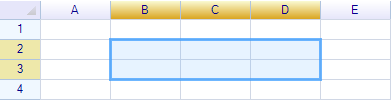
The selection range contains multiple cells and can be selected by the user via mouse and keyboard, as well as programmatically. It is typically used as an argument for range operations on the worksheet, such as setting styles and borders, deleting content, or copying content to the clipboard. Below is the selection on range B2:D3.
A highlighted cell without a filled background is shown as the focused cell:
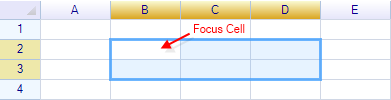
ReoGrid always keeps the focus cell within the selection range. When the selection range changes, the focus cell also changes. Conversely, when the focus cell changes, the selection range also changes — in this case, the selection range equals the focus cell.
Selection Range
Get Current Selection
// Get the current selection range
RangePosition selection = worksheet.SelectionRange;

// Access individual properties
int startRow = selection.Row;
int startCol = selection.Col;
int rows = selection.Rows;
int cols = selection.Cols;
int endRow = selection.EndRow;
int endCol = selection.EndCol;
Set Selection Programmatically
// Select by address string
worksheet.SelectRange("B2:D5");

// Select by row, col, rows, cols
worksheet.SelectRange(1, 1, 4, 3);

// Select by RangePosition
worksheet.SelectRange(new RangePosition(1, 1, 4, 3));

// Select by two cell positions (start and end)
worksheet.SelectRange(new CellPosition(1, 1), new CellPosition(4, 3));

// Select entire rows
worksheet.SelectRows(2, 3);   // 3 rows starting from row 2

// Select entire columns
worksheet.SelectColumns(1, 2); // 2 columns starting from column 1

// Select all cells
worksheet.SelectAll();
The second parameter of SelectRange(range, scrollToSelectRange) controls whether the view scrolls to show the selection (default: true):
// Select without scrolling
worksheet.SelectRange(new RangePosition(100, 0, 1, 1), scrollToSelectRange: false);
Focus Cell
The focus cell is the single active cell within the selection where keyboard input goes:
// Get the current focus position
CellPosition focusPos = worksheet.FocusPos;

// Set the focus position
worksheet.FocusPos = new CellPosition("C3");
worksheet.FocusPos = new CellPosition(2, 2);
Focus Position Style
Control how the focus cell is displayed:
// Default style (highlighted cell)
worksheet.FocusPosStyle = FocusPosStyle.Default;

// No special display on focus cell
worksheet.FocusPosStyle = FocusPosStyle.None;
Hover Position
Get the cell under the mouse cursor:
CellPosition hoverPos = worksheet.HoverPos;Selection Mode
Control what the user can select:
worksheet.SelectionMode = WorksheetSelectionMode.Range;| Mode | Description |
|---|---|
None | Selecting is disabled |
Cell | Only single cells can be selected |
Range | Cells or ranges can be selected (default) |
Row | Always selects entire rows |
Column | Always selects entire columns |
Selection Style
Control the visual appearance of the selection:
Default Style
worksheet.SelectionStyle = WorksheetSelectionStyle.Default;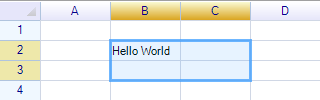
Windows Focus Rectangle Style
worksheet.SelectionStyle = WorksheetSelectionStyle.FocusRect;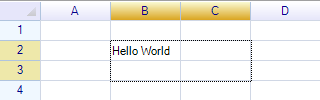
Hide Selection
worksheet.SelectionStyle = WorksheetSelectionStyle.None;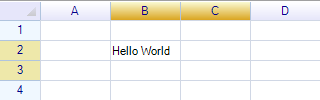
Selection Forward Direction
Controls where the focus moves after editing finishes (Enter key):
// Move right (next cell in the same row) — default
worksheet.SelectionForwardDirection = SelectionForwardDirection.Right;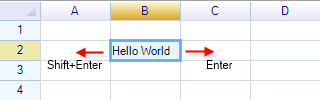
// Move down (cell in the next row)
worksheet.SelectionForwardDirection = SelectionForwardDirection.Down;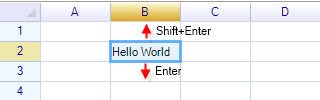
// Auto — Enter moves down, Tab moves right
worksheet.SelectionForwardDirection = SelectionForwardDirection.Auto;
Multiple Selections
ReoGrid supports non-contiguous selections when AllowMultipleSelection is enabled (hold Ctrl/Cmd while clicking):
// Enable multiple selection
worksheet.AllowMultipleSelection = true;

// Get the primary selection
var primary = worksheet.SelectionRange;

// Get all selected blocks
foreach (var range in worksheet.SelectionRanges)
{
    Console.WriteLine(range.ToAddress());
}
SelectionRanges Collection
| Property/Method | Description |
|---|---|
Count | Number of selected ranges |
Add(RangePosition) | Add a range to the selection |
Remove(RangePosition) | Remove a range from the selection |
Clear() | Clear all selections |
Contains(RangePosition) | Check if a range is selected |
Note: Built-in edit commands (delete, paste, typing) operate on the active selection (last clicked range). To apply operations to all selections, iterate
SelectionRanges:foreach (var range in worksheet.SelectionRanges) { worksheet.SetRangeStyles(range, style); }
Multiple Row Selection with Ctrl Key
// Allow selecting multiple rows with Ctrl+click
worksheet.AllowMultipleRowWithCtrlKey = true;
Moving the Selection
Programmatic Movement
// Move in a direction
worksheet.MoveSelection(SelectionMoveDirection.Right);
worksheet.MoveSelection(SelectionMoveDirection.Down);

// Directional moves with optional extend (Shift-select behavior)
worksheet.MoveSelectionUp(appendSelect: false);
worksheet.MoveSelectionDown(appendSelect: false);
worksheet.MoveSelectionLeft(appendSelect: false);
worksheet.MoveSelectionRight(appendSelect: false);

// Move to beginning/end of row or column
worksheet.MoveSelectionHome(RowOrColumn.Column);  // Move to first row
worksheet.MoveSelectionHome(RowOrColumn.Row);      // Move to first column
worksheet.MoveSelectionEnd(RowOrColumn.Column);    // Move to last row
worksheet.MoveSelectionEnd(RowOrColumn.Row);       // Move to last column

// Page up/down
worksheet.MoveSelectionPageUp();
worksheet.MoveSelectionPageDown();

// Move focus forward (Enter behavior)
worksheet.MoveSelectionForward();
worksheet.MoveSelectionBackward();

// Move focus right
worksheet.MoveFocusRight(autoReturn: true);  // Wrap to next row at end

// Move focus down
worksheet.MoveFocusDown(autoReturn: true);   // Wrap to next column at end
Move to Unlocked Cell
When the worksheet is locked, move selection to the next unlocked cell:
worksheet.MoveSelectionRangeToUnlockedCell();Cursor Style
Change the cursor style on the worksheet:
worksheet.ChangeCursor(CursorStyle.Hand);Events
Selection Changed Events
// Before selection changes (can be cancelled)
worksheet.BeforeSelectionRangeChange += (s, e) =>
{
    // Access the proposed selection
    Console.WriteLine($"Selection changing to: ({e.StartRow},{e.StartCol})-({e.EndRow},{e.EndCol})");

    // Cancel the change
    e.IsCancelled = true;

    // Or modify the proposed range
    e.EndRow = Math.Min(e.EndRow, e.StartRow + 4);  // Limit to 5 rows
};

// During selection change (while dragging)
worksheet.SelectionRangeChanging += (s, e) =>
{
    // e.Range contains the current selection during drag
};

// After selection is finalized
worksheet.SelectionRangeChanged += (s, e) =>
{
    Console.WriteLine("Selection changed: " + e.Range.ToAddress());
};
Note:
SelectionRangeChangedis raised only when the mouse button is released, not during dragging. UseSelectionRangeChangingto track real-time selection changes during mouse drag.
Selection Movement Events
// Forward movement (Enter key)
worksheet.SelectionMovedForward += (s, e) =>
{
    e.IsCancelled = true;  // Prevent default behavior

    // Custom: always move to first cell of next row
    worksheet.SelectionRange = new RangePosition(
        worksheet.SelectionRange.Row + 1, 0, 1, 1);
};

// Backward movement (Shift+Enter)
worksheet.SelectionMovedBackward += (s, e) =>
{
    e.IsCancelled = true;
    // Custom backward logic
};
Other Selection Events
// Selection mode changed
worksheet.SelectionModeChanged += (s, e) => { };

// Selection style changed
worksheet.SelectionStyleChanged += (s, e) => { };

// Selection forward direction changed
worksheet.SelectionForwardDirectionChanged += (s, e) => { };

// Focus position changed
worksheet.FocusPosChanged += (s, e) => { };

// Focus position style changed
worksheet.FocusPosStyleChanged += (s, e) => { };

// Hover position changed (mouse moved over a different cell)
worksheet.HoverPosChanged += (s, e) => { };
BeforeSelectionChangeEventArgs Properties
| Property | Type | Description |
|---|---|---|
SelectionStart | CellPosition | Start position of proposed selection |
SelectionEnd | CellPosition | End position of proposed selection |
StartRow | int | Start row (modifiable) |
StartCol | int | Start column (modifiable) |
EndRow | int | End row (modifiable) |
EndCol | int | End column (modifiable) |
IsCancelled | bool | Set to true to cancel the selection change |
Limiting Selection Range
Limit Maximum Rows and Columns
worksheet.BeforeSelectionRangeChange += (s, e) =>
{
    int maxRows = 5;
    int maxCols = 3;

    int rows = Math.Abs(e.StartRow - e.EndRow);
    if (rows >= maxRows)
    {
        e.EndRow = e.EndRow > e.StartRow
            ? e.StartRow + maxRows - 1
            : e.StartRow - maxRows + 1;
    }

    int cols = Math.Abs(e.StartCol - e.EndCol);
    if (cols >= maxCols)
    {
        e.EndCol = e.EndCol > e.StartCol
            ? e.StartCol + maxCols - 1
            : e.StartCol - maxCols + 1;
    }
};
Restrict Selection to a Region
worksheet.BeforeSelectionRangeChange += (s, e) =>
{
    // Only allow selection in B2:F10
    if (e.StartRow < 1 || e.StartCol < 1 || e.EndRow > 9 || e.EndCol > 5)
    {
        e.IsCancelled = true;
    }
};
Custom Navigation with Keyboard Events
Override navigation behavior using keyboard events:
worksheet.BeforeCellKeyDown += (s, e) =>
{
    if (e.KeyCode == Keys.Enter)
    {
        e.IsCancelled = true;

        // Always move to first cell of next row
        worksheet.SelectionRange =
            new RangePosition(worksheet.SelectionRange.Row + 1, 0, 1, 1);
    }
};
Built-in Keyboard Operations
See the Hot Keys reference for all supported keyboard shortcuts.
Related Topics
- Selection Events — Detailed event handling
- Hot Keys — Keyboard shortcuts
- Worksheet Settings — Configuration options