Set cell type for a column programmatically
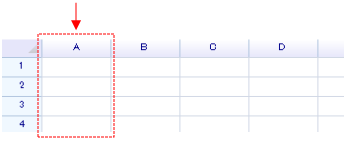
To specify a cell type for an entire column:
var header = worksheet.ColumnHeaders["A"];

// ColumnHeaders property returns an instance of a column header.
// It accepts a numeric index or an address string to locate a column.
header.DefaultCellBody = typeof(unvell.ReoGrid.CellTypes.CheckBoxCell);

// Set horizontal alignment for all cells in this column to center
header.Style.HorizontalAlign = ReoGridHorAlign.Center;

// Give the check box a small padding (2 pixels)
header.Style.Padding = new System.Windows.Forms.Padding(2);
Setting only the cell type will not cause any cells to appear; the cell body is displayed only when cell data is filled in.
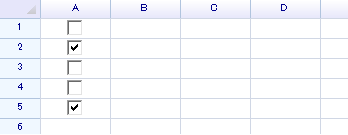
grid["A1:A5"] = new object[] { false, true, false, false, true };The check box cell accepts a boolean value as data, and the grid displays as shown below:
Set column type in the Editor
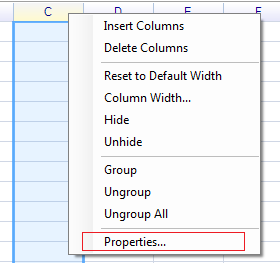
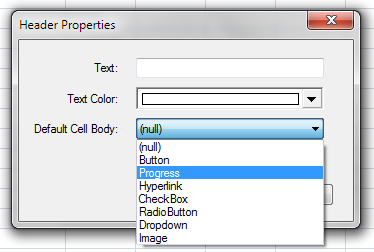
Select the entire column and right-click on the header, then select “Properties…”
Select “Progress” and press “OK”.
In the “C” column, enter some numbers, such as 30:
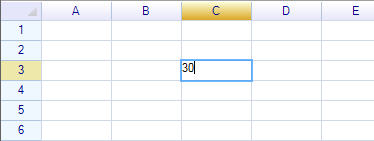
Press Enter; the cell will change to the progress type.