
In ReoGrid Editor, the Address Bar and Formula Bar play crucial roles in enhancing user interaction with the spreadsheet by providing detailed information about cell locations and facilitating formula management.

Address Bar
The Address Bar in ReoGrid Editor displays the address of the currently selected cell or range of cells. It serves as a quick reference for users to identify the exact location of their current selection within the worksheet.
-
Location Display: When a single cell is selected, the Address Bar shows its unique address, such as “A1” for the cell in the first column and first row. For a range of selected cells, it displays the range in a format like “A1:C3”, indicating a selection from cell A1 to cell C3.
-
Navigation: Users can also use the Address Bar to navigate to different parts of the worksheet by typing a specific cell address or range and pressing Enter. This feature is particularly useful in large spreadsheets for quickly jumping to a specific area.
Navigate to a cell by address
Type the address of the cell you wish to navigate to. For example, to go to the cell in column E, row 10, type “E10” into the Address Bar.

After typing the desired cell address, press Enter. ReoGrid Editor will immediately select and bring the specified cell (“E10” in this example) into focus.
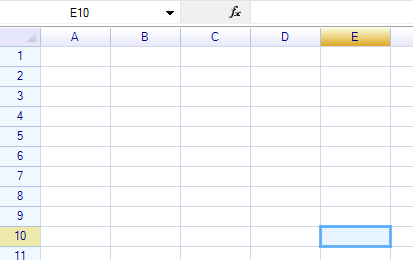
Defining a Named Range via the Address Bar
Select a Range: Begin by selecting the cell range in the worksheet that you wish to name. This can be a single cell or a group of adjacent cells.
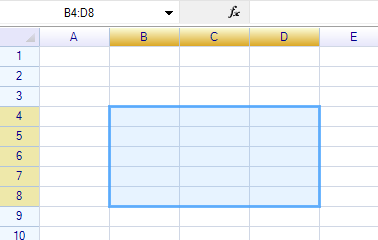
Address Bar Update: Once the range is selected, its address will automatically appear in the Address Bar. This typically shows the starting and ending cells of the range, such as “B4:D8”.

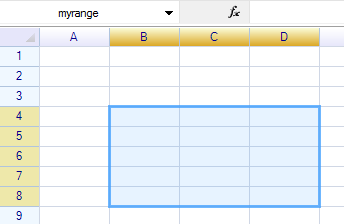
Enter Name: Click into the Address Bar, where the range address is displayed, and replace the address string with your desired name for the range. For example, you could name the range “myrange”.

Commit Name: Press Enter to commit the new name. This action defines a named range in the worksheet, associating the given name with the selected cell range.
Select a named range
Click the arrow on the right side of the address field and select a name from the list:
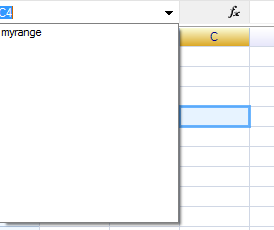
The range associated with that name will be selected on the spreadsheet automatically.
Formula Bar
The Formula Bar is a key component in ReoGrid Editor, similar to what you would find in other spreadsheet applications such as Microsoft Excel. It serves as an interactive area where users can view and edit the formula or data associated with the currently selected cell.
Features of the Formula Bar in ReoGrid Editor:
-
Display Current Cell Formula/Data: When a cell is selected, the Formula Bar shows the data or formula contained within that cell. If the cell contains a formula, it displays the formula prefixed with an equals sign (=), allowing users to understand the cell’s computation or linkage.
-
Edit Mode: Users can enter edit mode by clicking into the Formula Bar or by pressing a designated hot key (often F2). Once in edit mode, users can modify the cell’s content directly from the Formula Bar, without needing to double-click the cell itself.
-
Committing Changes: After editing content in the Formula Bar, pressing Enter commits the changes to the selected cell. If the content is a formula, ReoGrid evaluates it and displays the result in the cell, while also storing the formula for future reference and recalculation as needed.
-
Canceling Edits: If users wish to discard changes made in the Formula Bar, pressing Esc before committing will revert the content to its previous state.
-
Accessibility: The Formula Bar is typically located above the spreadsheet grid and below the toolbar, providing easy access for quick edits and formula inspections.